

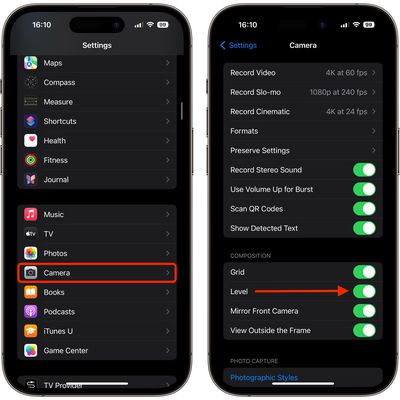
How to Use Your iPhone's Hidden Camera Level Tool
Apple's native Camera app has plenty of tools for helping you get the right shot, but some are more hidden than others. The camera level is the perfect example of a really handy tool that many users don't even know exists, mainly because it's part of a feature that's turned off by default.
If you tend to take pictures of things when standing directly over your subject, like a meal on a table...
Read Full Article • 29 comments
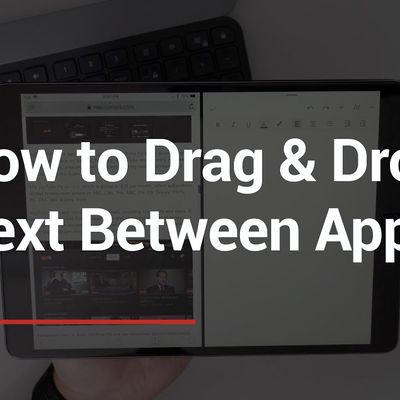
How to Drag and Drop Text Between Apps on the iPad
iOS 11 introduced handy new drag and drop features on the iPad, that let you drag photos, files, links, and more between apps. What you might not know, though, is that drag and drop also works for blocks of text.
Instead of copying and pasting text on the iPad, you can select a block of text and then drag it right into another app using the drag and drop features.
Here's how:
Select a...
How to Create Alarms on Your HomePod
HomePod, much like an iPhone or iPad, can be used as an alarm clock replacement to wake you up in the morning or remind you of important tasks.
Using HomePod as an alarm clock is simple, but it is controlled separately than alarms on your iPhone and there are a few tricks to be aware of.
Setting Using Siri
The easiest way to set an alarm on the HomePod is to ask Siri. Siri can set a...
How to AirPlay Audio From Your Mac to HomePod
To play music from third-party music services like Spotify to your HomePod, you don't need an iOS device -- a Mac will work too. You can send any audio playing on your Mac right to your HomePod, and not just audio from iTunes.
To AirPlay from Mac to HomePod, your Mac and your HomePod need to be on the same Wi-Fi network.
Make Sure Volume is Enabled in Menu Bar
It's easiest to AirPlay...
How to Reset Your HomePod
If you're having trouble with HomePod and need to return it to its factory settings, there are two simple methods for resetting the device and erasing all of your content.
You can either use the Home app on the iPhone, or manually reset the HomePod on the device itself. Here's how:
Resetting HomePod with iPhone
Open up the Home app.
3D Touch or long press on the HomePod icon.
Ch...
How To Play and Control Podcasts on HomePod With Siri
Siri on HomePod lets you listen to any show found in Apple's Podcasts catalog with a few voice controls that are similar to those for Apple Music playback. In this guide, we've listed some of the most useful Siri controls for Podcasts, along with basic commands that will help you do things like pause and rewind parts of a Podcast you might have missed, subscribe to a podcast, change the volume,...
How to Ask Siri on HomePod to Play Apple Music Playlists, Genres, Moods, and More
One of the main uses for Siri on HomePod is to control your Apple Music collection. There are Siri voice commands for accessing content like playlists, genres, moods, liking or disliking songs, playing more music based on something you've heard, starting a new radio station, and much more.
Because the list of Siri commands is so extensive, this guide won't be covering every possible option...
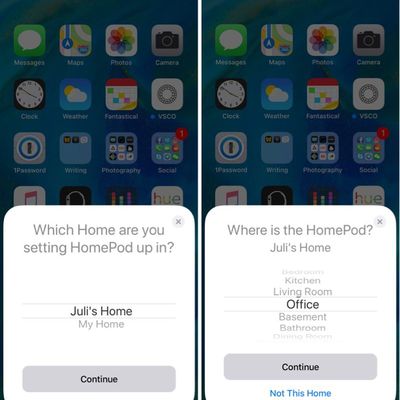
How to Use HomePod to Control Your HomeKit Devices
Apple's new $349 HomePod sounds incredible and is the ultimate speaker for Apple Music subscribers, but it's also an excellent way to manage your HomeKit-compatible devices through Siri voice commands.
Controlling HomeKit accessories with Siri on HomePod isn't radically different from controlling them via an iOS device, but there are some extra HomePod benefits to be aware of.
Subscribe to ...
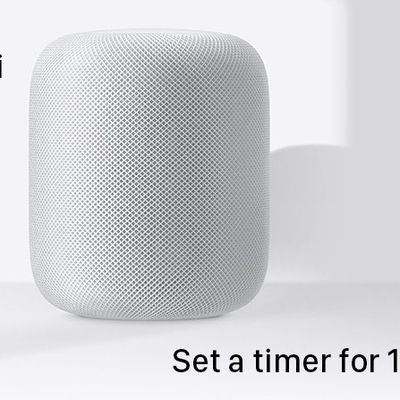
How to Set a Timer on HomePod
HomePod has built-in Siri functionality, which means it can be used to do a lot of the same things that can be done with an iPhone or an iPod, like setting an alarm or a timer.
If your HomePod is in the kitchen, setting a timer while cooking can be useful, and it's as simple as using a single Siri command.
All you need to say is "Hey Siri, set a timer for [x amount of time]."
You can...
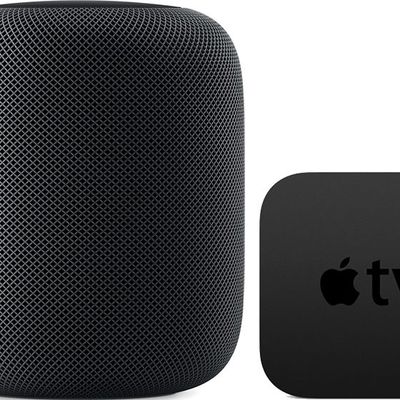
How to Use Your HomePod as a Speaker for Your Apple TV
The HomePod offers great sound, and with AirPlay connectivity, you can set the HomePod up to function as a speaker for your Apple TV, routing Apple TV sound through the HomePod.
You can use Apple TV and HomePod together as long as you have a third, fourth, or fifth-generation Apple TV
Pairing Apple TV and HomePod
Open the Settings app on the Apple TV.
Scroll down to the Video and...
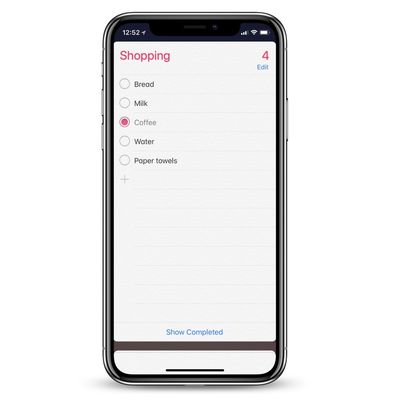
How To Make Notes and Reminders With Siri on HomePod
There are many commands that Siri can understand on the HomePod that make it super simple to take quick notes and set up reminders for later, which all sync to any iOS device connected to the smart speaker. As long as you allowed the HomePod access to Contacts, Messages, Reminders, and Notes in the initial pairing process, you'll be able to ask Siri to do the commands in this guide.
First,...
How to Use Spotify With HomePod Through AirPlay
Apple's new HomePod smart speaker is designed primarily for Apple devices, and it's heavily tied to the Apple ecosystem. Natively, you can only stream music on the HomePod through an Apple Music subscription, iTunes purchases, or iTunes Match content uploaded to iCloud Music Library.
It might sound like you're out of luck if you subscribe to a third-party music service like Spotify, Pandora,...
How to Use the HomePod's Physical Controls
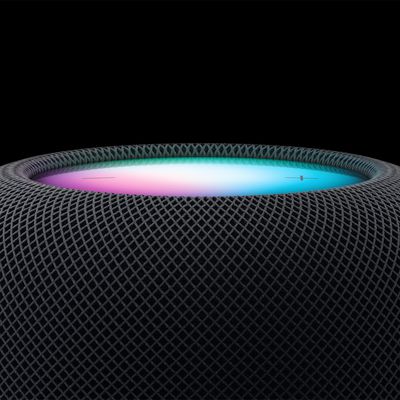
As a smart speaker, HomePod comes with built-in Siri support, so you can use it without ever touching it, but Apple did include a touch panel at the top of the device that supports several gestures.
HomePod gestures can activate Siri, control the volume of what's playing, skip to the next song, pause/play and more. All of the touch gestures you can use with the HomePod are below.
Volume
V...
How to Access Your HomePod's Settings
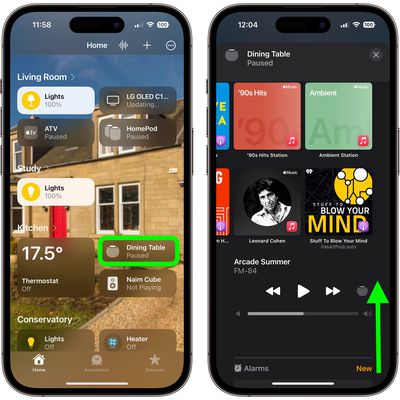
If you're new to HomePod and don't regularly use the "Home" app for HomeKit devices, you might be wondering how you get to the HomePod's settings, because it's not immediately obvious.
HomePod is controlled entirely through Apple's Home app, much like any other HomeKit-compatible accessory. Accessing HomePod settings is simple once you know where to go, so here's how:
Open the Home app.
...
How to Prevent Others' HomePod Requests From Skewing Your Apple Music Recommendations
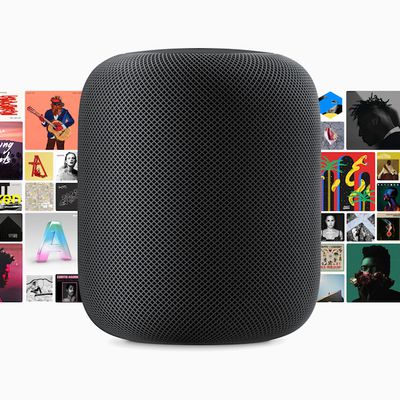
Apple's HomePod speaker is best enjoyed when linked to an Apple Music subscription, since this allows you to make the most of Siri's enhanced music smarts and its DJ-like role as a personal music curator, or "mixologist", as Apple calls it.
As Apple Music subscribers will know, the streaming service learns your music preferences based on what you say and play, which helps it populate the...
How to Disable Personal Requests on HomePod
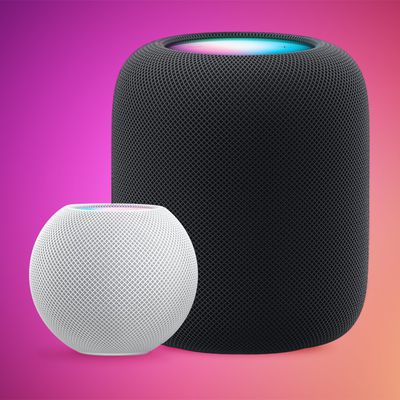
You can use Siri on your HomePod to access your messages, notes, and reminders, all of which are what Apple calls Personal Requests. As a rule, these only work when the device that was used to set up HomePod is connected to the same local network, which Siri interprets to mean that you're home.
If the option is enabled, Siri can also recognize your voice so it knows that it's you if a...
How to Use Your HomePod as a Speakerphone
Apple's HomePod smart speaker is primarily geared towards playing songs from the Apple Music catalog and listening to music and podcasts in your iTunes library, but it also features a handy speakerphone function that's ready to use out of the box.
The speakerphone feature is available on both the HomePod mini and larger HomePod, but it works best with the latter device since it has a...
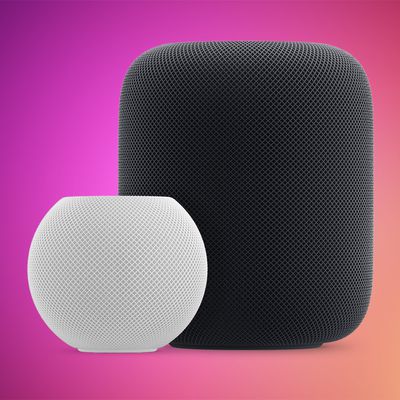
How to Set Up Your New HomePod
Before you can start using your new Apple HomePod, you'll need to set it up using an iPhone or iPad that's synced to an iCloud account.
During the setup process, HomePod will link the iCloud account to personal request features accessed through the speaker via Siri voice commands, such as the ability to send messages, set up reminders, and get calendar notifications.
It will also link...

How to Use iCloud Keychain on Your iOS Devices
iCloud Keychain is a feature of your Apple account that you can use to keep your website login credentials, personal details, credit card details, and wireless network information up to date and available across all your Apple devices.
With so many usernames and passwords to remember these days, iCloud Keychain provides a convenient way of always having this information at hand. And with its...

How to Make a New Key Photo in Live Photos
Apple's Live Photos, introduced in 2015, are photos that capture 1.5 seconds of video before and after you take a picture, with the aim of adding a little bit of life and movement to still images.
When you take a photo with an iPhone, not every shot comes out crisp and clear, but with Live Photos, if you get a blurry image, you can open it up and see if other frames you captured are clearer. ...
