

How to Hide Pictures in the Photos App on iPhone and iPad
Sometimes you might not want certain pictures shot on your iPhone or iPad to take pride of place in your Photo Library, but for whatever reason, you don't want to just outright delete them. Fortunately, Apple's Photos app includes an option to hide certain photos from the main library. This article shows you how.
Bear in mind that hiding pictures via the following method ensures they won't ...
Read Full Article • 39 comments
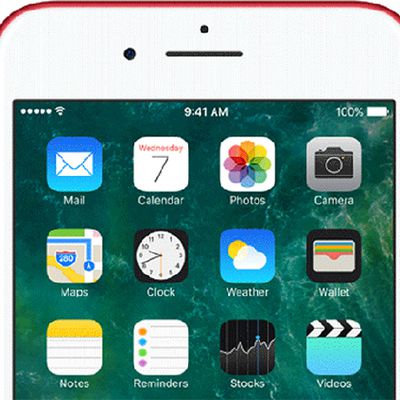
iPhone 7: How to Hard Reset
If your iPhone 7 or iPhone 7 Plus is acting up and needs a quick restart, you can follow these steps to force it to reboot without the need to shut it down.
The iPhone 7 and iPhone 7 Plus feature a haptic Home button rather than a physical Home button, so forcing a restart is different than on earlier devices. It's also different than restarting an iPhone 8 or later.
How to Force Restart...
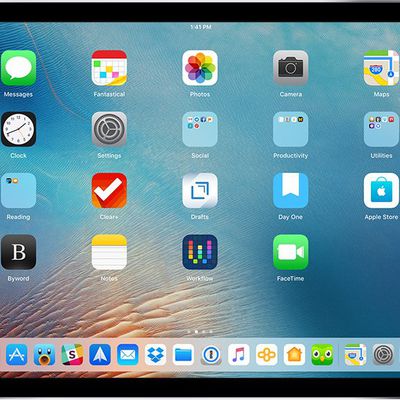
How to Access Control Center and Home Screen in iOS 12 With the iPad's New Gestures
Apple in iOS 11 revamped the iPad's interface and changed the way we interact with the tablet through a new Dock, a revamped App Switcher, and Drag and Drop, and with iOS 12, further iPad changes have been implemented.
There are new gestures to learn for accessing the Home screen, App Switcher, and the Control Center, along with a new status bar.
Subscribe to the MacRumors YouTube channel ...
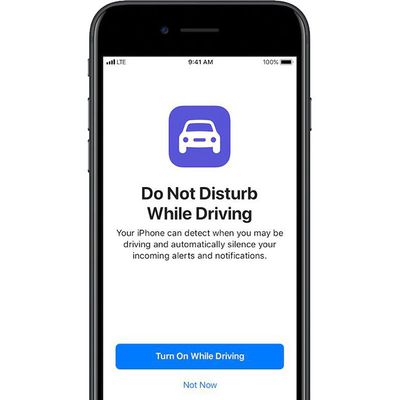
How to Use Do Not Disturb While Driving
Starting with iOS 11, Apple introduced a Do Not Disturb While Driving Feature that's designed to mute incoming calls, texts, and notifications while you're driving to cut down on accident-causing distractions.
Do Not Disturb While Driving is not a feature that's enabled automatically, but you will see a popup prompting you to turn it on when Apple detects the motion of a car after installing...
How to Share Your Wi-Fi Password With a Friend on iPhone or iPad
In the iOS operating system, there's a handy feature that's designed to let you quickly share your Wi-Fi password with a friend, and, if you're at a friend's house, to get the Wi-Fi password with just a tap.
Subscribe to the MacRumors YouTube channel for more videos.
There are two prerequisites to use this feature: you must be running iOS 11 or later and you and your friend need to have each...
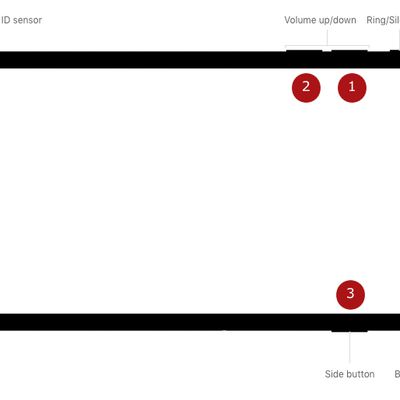
iPhone 8: How to Hard Reset or Force Restart
Apple in 2017 changed the method to force restart or hard reset an iPhone 8 or iPhone 8 Plus.
While rebooting an iPhone 7 or iPhone 7 Plus requires pressing and holding both the Sleep/Wake and Volume Down buttons for at least 10 seconds until the Apple logo appears, restarting an iPhone 8 or iPhone 8 Plus is a three step process that involves the Volume Up button, the Volume Down button, and...
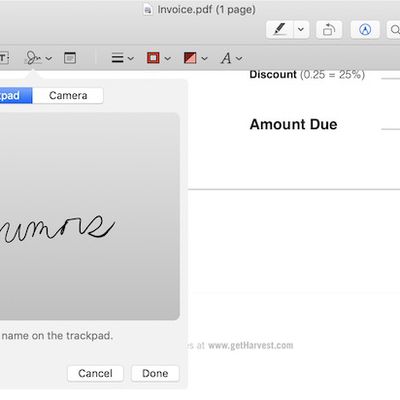
How to Electronically Sign a PDF Using Preview on Mac
When you receive a PDF document by email that you must sign, the process of printing out the file, signing on the dotted line with a pen, scanning the signed document and sending it back can be a rather tedious task. Fortunately, Apple has added the ability to electronically sign a PDF document using Preview, a program that comes preinstalled on every Mac running OS X Lion or later.
The...
How to Stop Receiving Beta Updates for macOS Mojave
If you signed up to test an early beta version of macOS Mojave, it's very likely that your system hasn't been updated to the final official release. Before your Mac can be updated to the latest stable version of Apple's new desktop operating system, you'll need to manually opt out of the beta program. This article shows you how.
Note that after following the simple steps below, you'll stop...
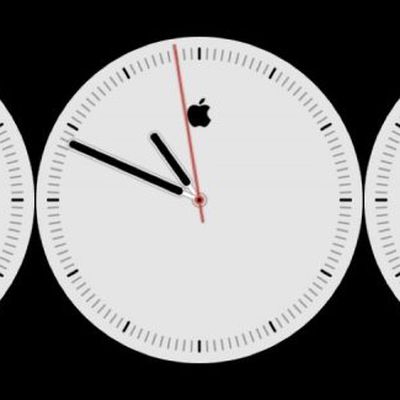
How to Customize the Monogram on Your Apple Watch
The monogram complication on Apple Watch is designed to let you choose up to four letters to appear on your watch's display. Previously it was only available on the Color watch face, but if you're a Series 4 owner, you can also use it on the new Infograph watch face.
The idea behind the monogram is to let you add your initials to your watch display, but there's nothing stopping you from...
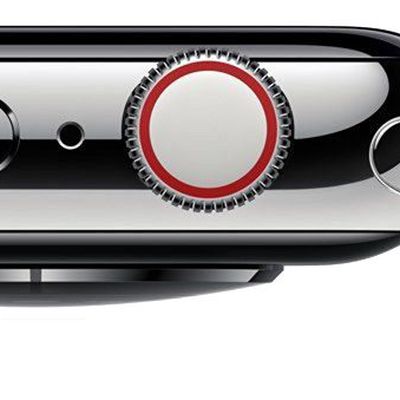
How to Force-Quit Misbehaving Apple Watch Apps
Apple Watch apps rarely misbehave, but if one becomes non-responsive or fails to refresh data, sometimes force-quitting the app and relaunching it can solve the issue.
Fortunately, it's a simple procedure. The following steps show you how it's done on Apple Watch models running watchOS 4 or later.
Open the misbehaving app on your Apple Watch, either by tapping its complication or...
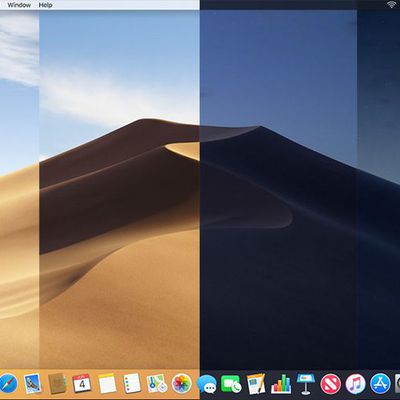
How to Use macOS Mojave's New Dynamic Desktop Feature
Apple in macOS Mojave introduced Dynamic Desktops, which are wallpapers that shift with the time of day, changing the lighting and look of the wallpaper with the progress of the sun across the sky.
For example, in the afternoon, the lighting in the wallpaper is at its peak brightness and the image of the Mojave desert is depicted as it would be if you visited it in the daytime with well-lit...
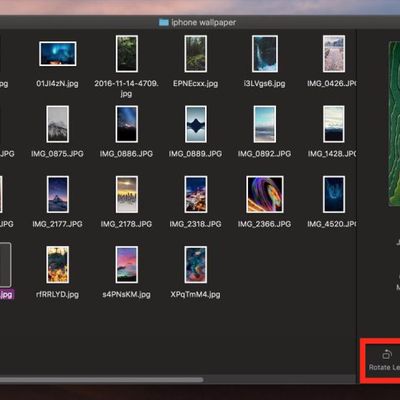
How to Use Finder Quick Actions in macOS Mojave
In macOS Mojave, Apple has introduced a range of new Finder Quick Actions that make it easier for you to perform quick edits to files without having to open the apps associated with them.
To view available Quick Actions, you need to enable the Preview panel in Finder. To do this, open a Finder window and select the menu bar option View -> Show Preview, or press the keys Shift-Command-P.
Qu...
How to Use Quick Look in macOS Mojave
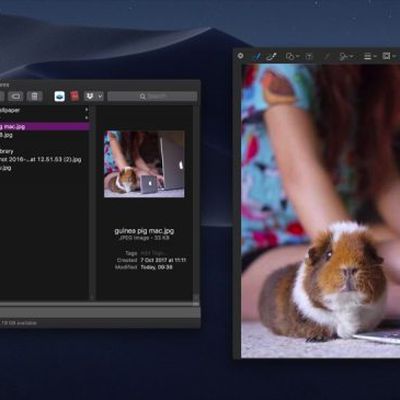
In previous versions of macOS, the Quick Look feature lets you view photos and files without having to open them in an app. In macOS Mojave, Apple has also introduced some convenient new editing tools to Quick Look, allowing you to perform actions specific to the kind of file you're viewing. Let's take a look at how it all fits together.
How Quick Look Works
For those unfamiliar with Quick...
How to Use the New Continuity Camera Feature in macOS Mojave
In macOS Mojave, Apple has extended its Continuity features so that now you can use your iPhone or iPad's camera to take a photo or scan a document, and it will be immediately available on your Mac.
Continuity Camera works in several native Mac apps, including Pages, Keynote, and TextEdit. The following steps explain how to use it. Bear in mind that both your iOS device and your Mac need to...
How to Organize Your Mac's Desktop With Stacks in macOS Mojave
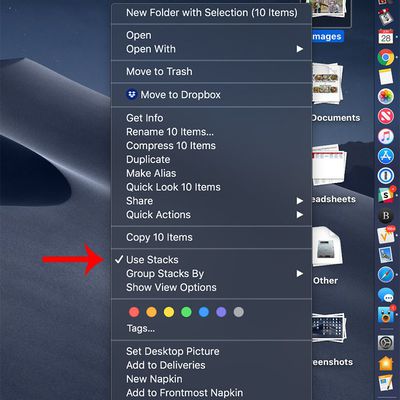
If you're someone that has a lot of files on your desktop, you're going to love the new Stacks feature in macOS Mojave, which is designed to organize all of your files into neat little piles on your desktop, getting rid of clutter.
Unfortunately, Stacks is an option that's limited to the desktop and not available within individual file folders.
Subscribe to the MacRumors YouTube channel for ...
How to Enable Dark Mode on Mac
MacOS includes a Dark Mode option that works across the entire system, from the dock and menu bar to all of your apps.
Here's how to turn on Dark Mode:
Choose System Preferences on the menu bar.
Select General.
In the "Appearance" section at the top of the window, click the "Dark" option.
Those are the only steps required to enable Dark Mode. If you want to turn it off again, ...
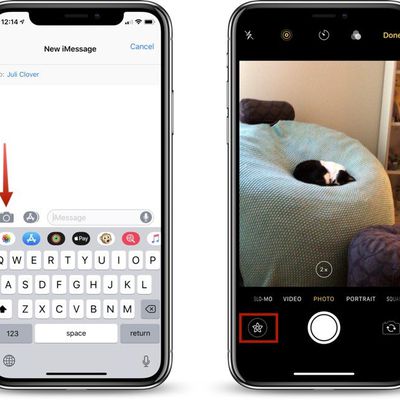
How to Use the Effects Camera in Messages
In iOS 12, Apple added a new Effects camera in Messages that's similar to the live camera features in Snapchat and Instagram, allowing you to take a photo in the Messages app and then edit it with stickers, filters, text, and more.
On devices with a TrueDepth camera system, the Effects camera even works with Memoji and Animoji, allowing you to overlay cartoon emoji heads over your own head.
...

How to Use Automatic Strong Passwords and Password Auditing in iOS 12
In iOS 12, Apple has introduced new password-related features that are designed to make it easier for iPhone and iPad users to create strong, secure, and unique passwords for app and website logins. In this guide, we'll show you how to use two of those features: automatic strong passwords and password auditing.
Automatic strong passwords ensures that if you're prompted by a website or app...
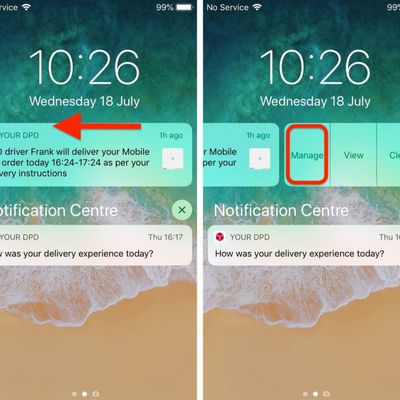
How to Use Instant Tuning in iOS 12 and Change Notification Behavior on the Fly
As part of its digital health initiative in iOS 12, Apple has introduced some improvements to the way app notifications can be managed, enabling users to more easily reduce the number of daily distractions their iPhone or iPad throws their way.
One of these new features is called Instant Tuning, which allows you to quickly adjust the future behavior of app notifications whenever they appear...
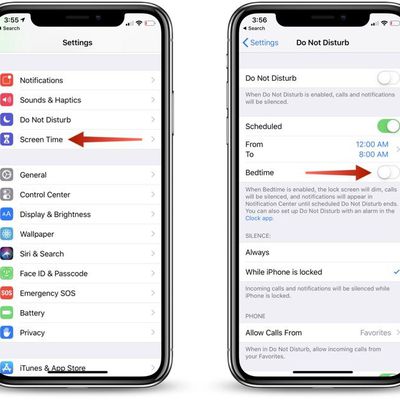
How to Enable iOS 12's New Do Not Disturb at Bedtime Feature
There's nothing worse than waking up in the middle of the night, glancing over at your iPhone to check the time, and seeing a bunch of notifications that demand your attention and distract you from getting back to sleep.
Apple is aiming to prevent this in iOS 12 with a new Do Not Disturb at bedtime feature that prevents notifications from being displayed on the iPhone's Lock Screen during your ...
