Skip to Content

How to Use Instant Markup to Quickly Edit Screenshots

by

When you take a screenshot in iOS 11 or later, there's a new feature that's designed to let you open it right up and edit it with Apple's Markup tools.

Using the screenshot editing feature, you can capture what's on the screen of your iPad or iPhone and then add text, crop, highlight specific areas, and more.

Using Instant Markup

  1. Press the Home button and the sleep/wake button simultaneously to capture a screenshot.
  2. A preview of the screenshot will pop up in the lower left of the display. Tap it to open up the Instant Markup interface. You'll have about five seconds before it disappears.ipadscreenshoteditingios11
  3. Use a finger to adjust the blue outline if you want to crop your image.
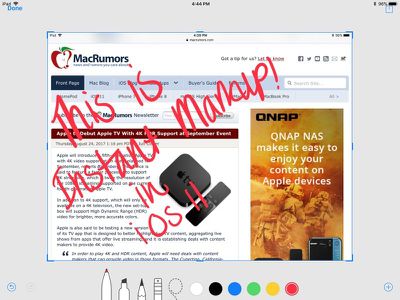
  4. Choose a pen/marker/pencil and a color and then draw with a finger or the Apple Pencil (on iPad Pro) to edit your screenshot. instantmarkupinterface

If you take multiple screenshots at once, they'll all be displayed in Instant Markup and you can swipe between them.

There are all kinds of tools in Instant Markup, including a pen, pencil, highlighter, eraser, drop shadow tool, crop, multiple pen colors, and undo/redo.

instantmarkupinterfaceios11
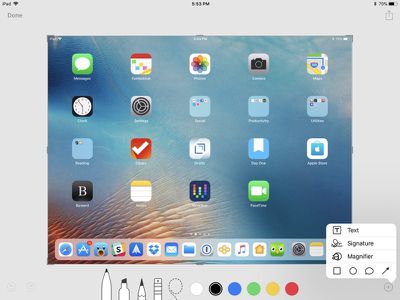
To access even more tools, tap on the "+" button. This gives you access to a text entry field, a signature tool to add a signature to a screenshot, a magnifier tool, and various shapes.

Saving, Sharing, or Deleting an Edited Screenshot

When you're done editing your screenshot, you can save it to photos, delete it, or share it.

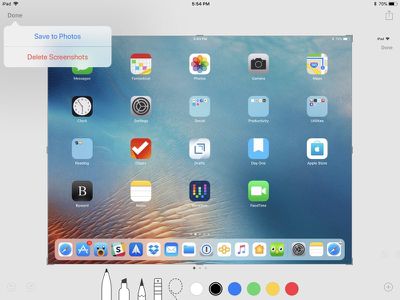
  1. To save a photo or delete it, tap the "Done" button in the upper left of the iPad's display and then choose the appropriate option.instantmarkupios11savetophotos
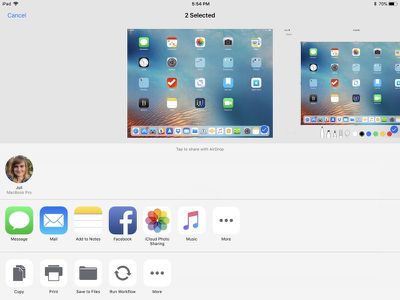
  2. To share, tap on the Share Sheet icon at the upper right of the display, which will pop up icons to share the screenshot in an iMessage, email, or social network. instantmarkupscreenshotshareios11
  3. The Share Sheet also includes options to save the screenshot to the Files app, add it to the Photos app, and more.

Instant Markup is a feature that's present on the iPhone and the iPad in iOS 11. There is no way to turn it off at the current time, so if you dislike those little screenshot popups, the only option is to wait the few seconds for them to disappear or swipe them away to the left of the display.

Related Forums: iOS 11, iPad Accessories

Top Rated Comments

Xavier Avatar
120 months ago
Such a useful feature!
Score: 4 Votes (Like | Disagree)
cecil444 Avatar
120 months ago
The markup feature existed before, you just had to dig a little to use it. Now it's super easy.

One odd note: the screenshot preview feature turned off for me somehow and I can't get it to reappear. I've been testing iOS 11 on a 6S (it's been a crazy battery hog... like horrendous, for the last couple days... hoping it gets better or a fix is issued soon). The first screenshot I took showed the preview and I was able to view and markup the image as described. But every screenshot since has (1) failed to show me the preview of the screenshot -- it just drops it in my photos as with iOS 10; and (2) failed to "blink" the screen indicating that a screenshot was successfully taken. With the sound on I do hear the camera shutter sound, but the screen no longer "blinks" as it always used to. Anyone else experiencing this same issue?
Score: 3 Votes (Like | Disagree)
wolfshades Avatar
120 months ago
Does this only work with screenshots? Or can you use those tools on your saved photos?
Yes they are. Go into Photos, Edit, click on the ellipses (the "more" button) and then hit Markup, and you should be good to go.
Score: 2 Votes (Like | Disagree)
Carlos Adell Avatar
81 months ago

Try a reboot on ipad.
Yes did that too, still not working. Thanks for helping bro!
Score: 1 Votes (Like | Disagree)
macguruireland Avatar
120 months ago
When you take a screenshot in iOS 11, there's a new feature that's designed to let you open it right up and edit it with Apple's Markup tools.

Using the screenshot editing feature, you can capture what's on the screen of your iPad or iPhone and then add text, crop, highlight specific areas, and more.

Using Instant Markup

[LIST=1]
* Press the Home button and the sleep/wake button simultaneously to capture a screenshot.

* A preview of the screenshot will pop up in the lower left of the display. Tap it to open up the Instant Markup interface. You'll have about five seconds before it disappears.



* Use a finger to adjust the blue outline if you want to crop your image.

* Choose a pen/marker/pencil and a color and then draw with a finger or the Apple Pencil (on iPad Pro) to edit your screenshot.

If you take multiple screenshots at once, they'll all be displayed in Instant Markup and you can swipe between them.

There are all kinds of tools in Instant Markup, including a pen, pencil, highlighter, eraser, drop shadow tool, crop, multiple pen colors, and undo/redo.


To access even more tools, tap on the "+" button. This gives you access to a text entry field, a signature tool to add a signature to a screenshot, a magnifier tool, and various shapes.

Saving, Sharing, or Deleting an Edited Screenshot

When you're done editing your screenshot, you can save it to photos, delete it, or share it.
[LIST=1]
* To save a photo or delete it, tap the "Done" button in the upper left of the iPad's display and then choose the appropriate option.


* To share, tap on the Share Sheet icon at the upper right of the display, which will pop up icons to share the screenshot in an iMessage, email, or social network.


* The Share Sheet also includes options to save the screenshot to the Files app, add it to the Photos app, and more.
Instant Markup is a feature that's present on the iPhone and the iPad in iOS 11. There is no way to turn it off at the current time, so if you dislike those little screenshot popups, the only option is to wait the few seconds for them to disappear or swipe them away to the left of the display.


Article Link: How to Use Instant Markup to Quickly Edit Screenshots in iOS 11 ('https://www.macrumors.com/how-to/instant-markup-edit-screenshots-ios-11/')
[doublepost=1506036921][/doublepost]Has anybody found the way to increase the thickness of the pen tool?
Score: 1 Votes (Like | Disagree)
I7guy Avatar
120 months ago
I like these “how to’s”. Keep em coming.
Score: 1 Votes (Like | Disagree)

Popular Stories

apple design award 2025

Apple Announces 2025 Design Award Winners Ahead of WWDC 2025

Tuesday June 3, 2025 10:14 am PDT by
As we wait for WWDC to kick off next Monday, Apple today announced the winners of its annual Apple Design Awards, recognizing apps and games for their innovation, ingenuity, and technical achievement. The 2025 Apple Design Award winners are listed below, with one app and one game selected per category: Delight and Fun - CapWords (App) and Balatro (Game) Innovation - Play (App) and PBJ -...
1password deal blue

1Password Security Breach: What Was Accessed and What Wasn't

Wednesday November 25, 2026 1:09 pm PST by
Popular password management app 1Password today said it experienced a security breach earlier this month. 1Password says some customer names and email addresses were accessed, but no customer vault contents were compromised. On November 19, 1Password saw indications that an employee's GitHub account had been breached and began investigating. The company says the breached GitHub account was...
apple store down feature

Here's Why the Apple Store is Going Down

Thursday November 26, 2026 5:49 am PST by
Apple's online store is going down for a few hours on a rolling country-by-country basis right now, but do not get your hopes up for new products. Apple takes its online store down for a few hours ahead of Black Friday every year to tease its annual gift card offer with the purchase of select products. The store is down in Australia, New Zealand, and Thailand, right now, and it will...
Latest Stories
The 50+ Best Apple Black Friday Deals Still Available on AirPods, iPads, and More
7 hours ago
HomePod Mini 2 in (RED) Seemingly Spotted Ahead of Announcement
5 hours ago
Apple's M6 and PROLED MacBook Pro Reach New Low Prices for Black Friday
15 hours ago
The MacRumors Show: iPhone Air 2 and iPhone 18 Are Coming
15 hours ago
Apple Store in Brisbane Reopening Next Month With New Design
15 hours ago
The 60+ Best Black Friday Accessory Deals on iPhone Chargers, TVs, Headphones, and More
16 hours ago
GTA VI Now (Barely) Running on Apple Silicon Macs
17 hours ago
The Best Black Friday Streaming Deals on Apple TV, Disney+, and More
17 hours ago
Apple TV's 'Carême' Wins International Emmy for Best Drama
18 hours ago
iPhone 18 Production Delay Leaves Apple Little Time Before Launch
19 hours ago
The Best Black Friday AirPods Deals Still Available
11 hours ago
The Best Black Friday Deals on Apple Home Products
19 hours ago
The Best Black Friday iPhone Deals Still Available
11 hours ago
The Best Black Friday iPad Deals Still Available
11 hours ago
The Best Black Friday Apple Watch Deals Still Available
11 hours ago
The Best Black Friday AirTag Deals Still Available
11 hours ago
The Best Black Friday Mac Deals Still Available
11 hours ago
iPhone Share of US Smartphone Market Hits 57% as Rivals Slip
20 hours ago
iPhone 20 Pro Rumored to Feature 3D-Printed Titanium Frame
22 hours ago
Apple's Official 2026 Black Friday Offer Starts Rolling Out
2 days ago
Halide Adds Fill Light Feature for iPhone Duo
2 days ago
MacBook Air Black Friday Deals Now Live With Massive $399 Savings
2 days ago
Amazon Discounts All MacBook Neo Models by $99 for Black Friday
2 days ago
Kodak Launches Unique AirTag Rival With E-Ink Display
2 days ago
Here's Why the Apple Store is Going Down
2 days ago
Apple Still Working on Giant Foldable iPad That Could Cost $5,000
2 days ago
iPhones Dominate China's Weak Singles' Day Smartphone Sales
2 days ago
iPhone 20 Pro Could Feature Ceramic in Limited-Edition Model
2 days ago
Apple Faces Korean Regulator Review Over iPhone 16 AI Advertising
2 days ago
Apple Watch Ultra 4 Hits New Best-Ever Price of $649.99 for Black Friday
2 days ago
Related Apple News: Local News | News | Technology | South Africa | Politics