Skip to Content

10 Things the Digital Crown and Side Button Do on Apple Watch

by

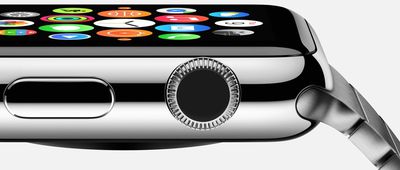
Other than touch-based screen gestures like tapping and swiping, the Digital Crown and Side buttons are the Apple Watch's only control mechanisms. You can use the Digital Crown to scroll through lists and zoom into pictures and maps, plus it can be used to control slider bars like volume and font size. The Side button is the Apple Watch's one-step access to contacts on your favorites list who you can then call, write a text, or even send your heartbeat.
digitalcrownfriendsbutton
The Digital Crown and Side buttons have a few additional uses that you may not already know about. We've got a list of 10 important actions that the Apple Watch's external controls activate.

Activate Siri

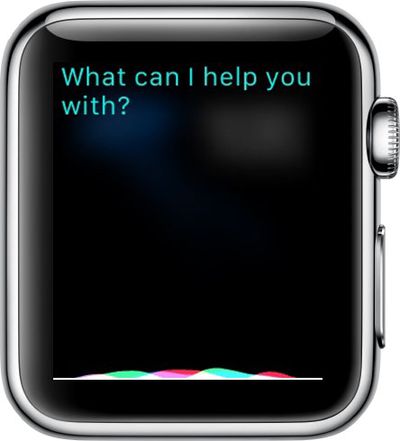
In addition to saying "Hey Siri," you can activate the personal assistant by holding down the Digital Crown until you see "What can I help you with?" You will also feel a tap on your wrist, acknowledging that Siri is listening.
Siri on Apple Watch

Trigger Apple Pay

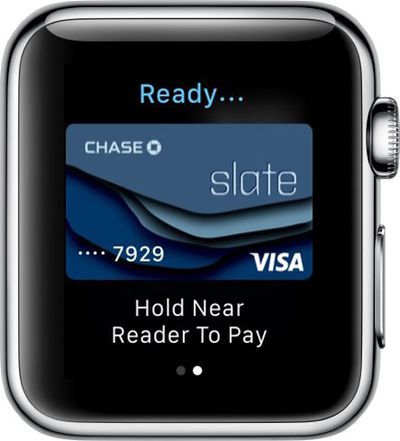
When near a supported terminal, you don't have to open the Apple Pay app on Apple Watch to activate it. Simply double-tap the Side button to bring up your card information. Then hold it near a terminal to make the purchase.
Apple Pay on Apple Watch

Return to Home Screen

The Digital Crown is like the home button on Apple Watch. No matter what screen you are on, you will be able to get to the home screen with one click.
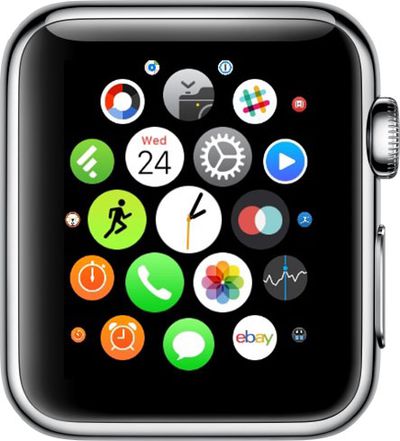
Home Screen on Apple Watch

Return to Watch Face

After returning to the home screen by clicking the Digital Crown once, you can click it again (not a double-click) to return to the center app, which is the clock app. Then, rotate the Digital Crown upward to switch to the watch face. You can also click the Digital Crown a third time to switch to the watch face.
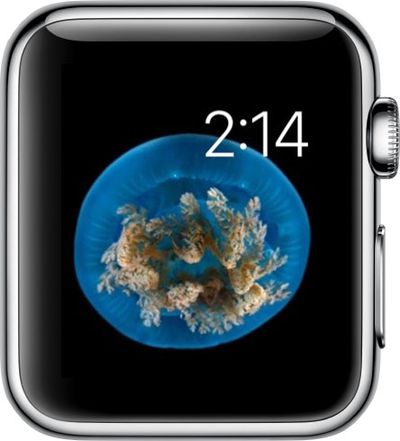
Watch Face on Apple Watch

Return to Last Used App

Whether you are looking at your calendar or checking your email, you can quickly switch to the last app you used by double-clicking the Digital Crown. You can switch between the two apps easily by double clicking each time. It also works with the watch face. If you went from the watch face to the Messages app, double-clicking the Digital Crown will switch between those two views.

Open an App

When on the Home Screen, you can center on an app and simply rotate the Digital Crown upward to open it. This helps you avoid those accidentally tapping on the wrong icon because it's so small.

Take a Screenshot

As with taking a screenshot on your iPhone, you need to press two buttons at once on the Apple Watch to capture what's on its display. Briefly press down on the Side button and the Digital Crown at the same time to take a screenshot. If it's not working, try holding the Side button down first and then pressing and releasing the Digital Crown. If a screenshot is successfully taken, you'll see a white flash, feel a tap, and hear the shutter sound if volume is enabled.

Activate VoiceOver

Just like on the iPhone, you can use VoiceOver on Apple Watch to help you know what is happening on the screen. Triple-click the Digital Crown to activate VoiceOver. You will hear a chime, and Siri will announce "VoiceOver on." Then you can tap on anything on the screen to have it read to you. Some gestures will change when VoiceOver is on, but it is familiar territory for anyone who has used the accessibility feature on the iPhone.
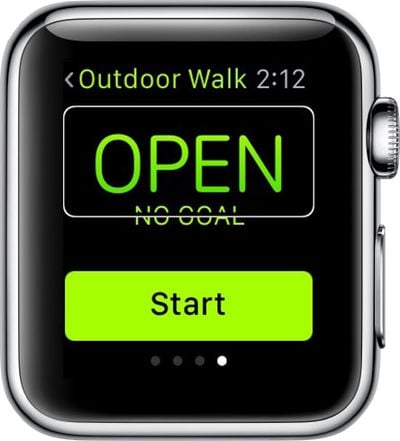
Voiceover on Apple Watch

Power Off and On Apple Watch

If, for any reason, you need to restart your Apple Watch, you can do so by holding down the Side button until the power options appear, prompting you to turn off, activate Power Reserve, or lock Apple Watch. Once this pops up, slide the bar to shut your Apple Watch down. To start it up again, press and hold the Side button until you see the Apple logo.
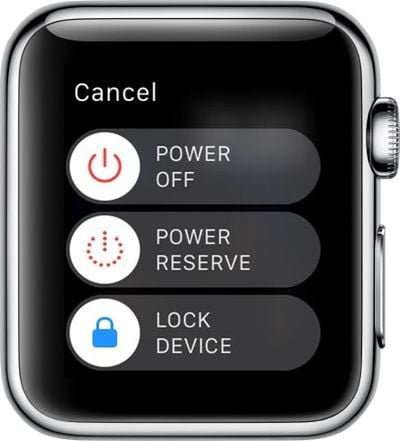
Apple Watch Power Off

Force Quit an App

Sometimes, an app will freeze up on you. It rarely happens, but it is good to know what to do in such a situation. Hold down the Side button while the frozen app is open. When the power options appear, hold down the Side button again until the app quits.

Now you know about the actions that both the Digital Crown and Side button can perform. They are more than just controls for zooming, scrolling, and finding your friends.
Related Roundup: Apple Watch 12
Buyer's Guide: Apple Watch (Buy Now)
Related Forum: Apple Watch

Top Rated Comments

AngerDanger Avatar
148 months ago
Unlike the 'How to use [insert app]' articles, this one sheds some light on multifunctional, unlabeled buttons. I'm glad to have read it.
Score: 9 Votes (Like | Disagree)
148 months ago
Slightly more informative than MR's usual Watch how-to posts.
Score: 4 Votes (Like | Disagree)
Chuck Kostalnick Avatar
148 months ago
The only useful one on this list was how to force-quit an app.
Score: 3 Votes (Like | Disagree)
148 months ago
I hope everyone who has one of these watches is enjoying it, but I just don't get the appeal of it.
Well, at least you never miss an opportunity to bash the watch. How many times does one individual have to indicate they hate the watch?


Apple Pay strikes me as clunky, having to reach over with your wrist and hold it awkwardly next to the terminal. I feel the phone is much better for this purpose.
You've obviously have never done it, so it amazes me how you can pass judgement. I've used Apple Pay on the watch many, many times. It's incredibly easy to do. While twisting my wrist to let the watch face the terminal might be uncomfortable is I had to hold it there for a minute, it only takes a second and there is absolutely no discomfort involved. It's so much easier than using the phone.

How can people continue to criticize something that they have never tried and what's even worse make up erroneous fantasies based upon unfounded and blind hatred of something. I'll never understand that.
Score: 2 Votes (Like | Disagree)
Billberryjuice Avatar
148 months ago
Hoping we'll get to see plenty of richly conceived and completely relevant comments from individuals who don't get the appeal of the watch!
I hope everyone who has one of these watches is enjoying it, but I just don't get the appeal of it.
Christmas in July!
Score: 2 Votes (Like | Disagree)
Benjamin Frost Avatar
148 months ago
I hope everyone who has one of these watches is enjoying it, but I just don't get the appeal of it.

Apple Pay strikes me as clunky, having to reach over with your wrist and hold it awkwardly next to the terminal. I feel the phone is much better for this purpose.
Score: 2 Votes (Like | Disagree)

Popular Stories

apple watch series 3 design

Apple Offers Steps to Fix Daylight Saving Time Bug on Apple Watch

Sunday November 1, 2026 3:34 am PST by
Apple has published a support document describing what to do if your Apple Watch continues to show time that's off by one hour after daylight savings time changes. "This incorrect time appears only on the Always On display when your wrist is down," says Apple. "When you activate the display by tapping it or raising your wrist, the time changes to the correct hour." To fix the issue, Apple says ...
muse apple watch app

Meta's Muse AI Agent Comes to Apple Watch

Monday November 9, 2026 1:55 pm PST by
Meta today updated the Muse app for iOS to add Apple Watch support, which means Muse users can access the proactive AI agent from the watch. The app adds the Muse character to the watch with an option to text it, dictate text to it, or call it. There's also a Muse complication for quick access. Muse is Meta's personal AI agent that can complete tasks for users. It is available as a...
siri recap live rewind

watchOS 27.3 Brings Live Rewind and Siri Recap to Apple Watch

Tuesday November 3, 2026 10:35 am PST by
With the first beta of watchOS 27.3, Apple is introducing new Audio Intelligence features it previewed for the Apple Watch Series 12 and Ultra 4 earlier this year. Powered by the S11 chip, Audio Intelligence includes Live Rewind, Siri Recap, Sound Recognition, and Shazam Music Recognition. Sound Recognition and Shazam are already on the watch, but Live Rewind and Siri Recap are now available ...
Latest Stories
The 50+ Best Apple Black Friday Deals on AirPods, iPads, MacBooks, and More
3 hours ago
Apple's M6 and PROLED MacBook Pro Reach New Low Prices for Black Friday
3 hours ago
The MacRumors Show: iPhone Air 2 and iPhone 18 Are Coming
3 hours ago
Apple Store in Brisbane Reopening Next Month With New Design
4 hours ago
The 60+ Best Black Friday Accessory Deals on iPhone Chargers, TVs, Headphones, and More
5 hours ago
GTA VI Now (Barely) Running on Apple Silicon Macs
5 hours ago
The Best Black Friday Streaming Deals on Apple TV, Disney+, and More
6 hours ago
Apple TV's 'Carême' Wins International Emmy for Best Drama
6 hours ago
iPhone 18 Production Delay Leaves Apple Little Time Before Launch
7 hours ago
The Best Black Friday AirPods Deals
8 hours ago
The Best Black Friday Deals on Apple Home Products
8 hours ago
The Best Black Friday iPhone Deals
8 hours ago
The Best Black Friday iPad Deals
8 hours ago
The Best Black Friday Apple Watch Deals
8 hours ago
The Best Black Friday AirTag Deals
8 hours ago
The Best Black Friday Mac Deals
8 hours ago
iPhone Share of US Smartphone Market Hits 57% as Rivals Slip
9 hours ago
iPhone 20 Pro Rumored to Feature 3D-Printed Titanium Frame
10 hours ago
Apple's Official 2026 Black Friday Offer Starts Rolling Out
1 day ago
Halide Adds Fill Light Feature for iPhone Duo
1 day ago
MacBook Air Black Friday Deals Now Live With Massive $399 Savings
1 day ago
Amazon Discounts All MacBook Neo Models by $99 for Black Friday
1 day ago
Kodak Launches Unique AirTag Rival With E-Ink Display
1 day ago
Here's Why the Apple Store is Going Down
1 day ago
Apple Still Working on Giant Foldable iPad That Could Cost $5,000
1 day ago
iPhones Dominate China's Weak Singles' Day Smartphone Sales
1 day ago
iPhone 20 Pro Could Feature Ceramic in Limited-Edition Model
1 day ago
Apple Faces Korean Regulator Review Over iPhone 16 AI Advertising
1 day ago
Apple Watch Ultra 4 Hits New Best-Ever Price of $649.99 for Black Friday
1 day ago
New Apple Store Opening in India, Download the Special Wallpaper Now
2 days ago
Related Apple News: Business | Travel | Health | Iphone | Opinion