Skip to Content

8 Tips to Extend Your iPhone's Battery Life

With New Year's Eve and New Year's Day approaching, many iPhone users may need to get the most out of their iPhone's battery life for extended parties and other festivities. We've rounded up some helpful battery tips that you might want to put into action to ensure your iPhone keeps working long into the night.
best early black friday iphone 2

1. Disable Haptic Keyboard Feedback

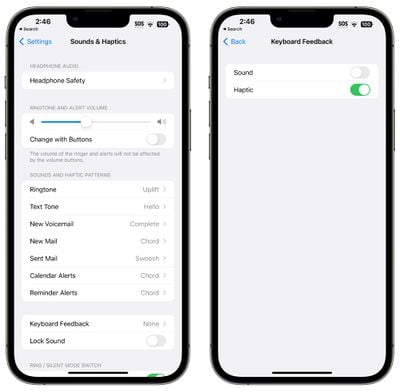
If you've turned on the keyboard option that provides haptic feedback when you tap the on-screen keys, you might want to turn it off temporarily because it can affect battery life.
haptic keyboard feedback
Here's how to turn it off:

  1. Open up the Settings app.
  2. Tap on Sounds & Haptics.
  3. Tap on Keyboard Feedback.
  4. Toggle off Haptic.

2. Turn Off Proximity AirDrop Sharing

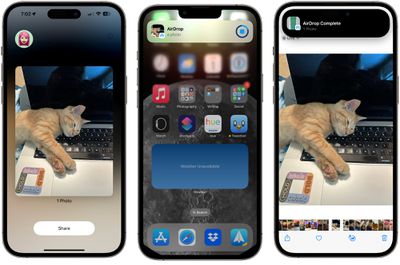
When you hold two iPhones running iOS 17 together, or an iPhone running iOS 17 and an Apple Watch running watchOS 10.1 or later, the iPhone initiates a proximity-based AirDrop or contact transfer protocol. If you're continually triggering this, it can drain battery, so if your iPhone is near many other iPhones and you're getting the AirDrop interface over and over again, you should turn it off.
airdrop proximity sharing
To do so, go to Settings > General > AirDrop and toggle off "Bringing Devices Together."

3. Use Offline Maps

If you're traveling somewhere, you can save some battery life if you download Apple Maps for offline usage, a feature available on iPhones running iOS 17 or later. Offline maps are especially useful if you're going somewhere with poor cellular connectivity because you can get turn-by-turn directions without the battery drain. Just make sure to turn cellular off in spotty areas.
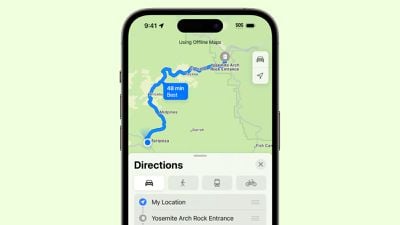
Apple Maps Offline
Downloading a map is as simple as searching for a location, tapping on the download button, and selecting the area of the map to download. We have a dedicated how-to that walks you through all of the steps.

4. Turn Off Live Activities

Live Activities let apps keep an ongoing notification on the Lock Screen or in the Dynamic Island, which can cause noticeable battery drain.
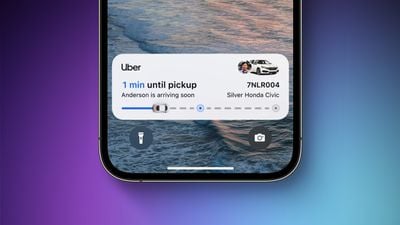
ios 16 live activities feature
Live Activities can be disabled by following these steps:

  1. Open up the Settings app.
  2. Go to Face ID & Passcode.
  3. Enter your passcode to unlock the iPhone.
  4. Scroll down and toggle off Live Activities.

This will prevent Live Activities from showing up on the Lock Screen, but you'll want to take this one step further. In the individual app sections in the Settings app, you can disable Live Activities on an app-by-app basis, or avoid using Live Activities features within apps.

5. Turn Off Always-On Display

If you have an iPhone 14 Pro or an iPhone 15 Pro, the always-on display leaves the time, your wallpaper, widgets, and Live Activities visible on the Lock Screen even when your iPhone is locked.
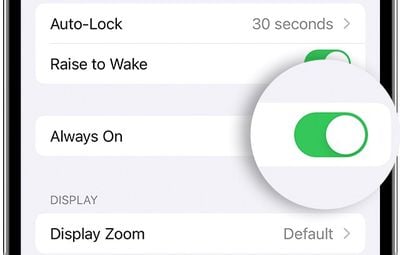
settings
The display uses a 1Hz refresh rate to preserve battery, and the display turns off when the iPhone is in a pocket, but always-on display still drains battery faster than no always-on display.

You can turn off the Always-On display by following these steps:

  1. Open up the Settings app.
  2. Tap on Display & Brightness.
  3. Tap on Always On Display.
  4. Toggle off Always On Display.

It's not entirely clear just how much battery life the always-on display drains because it's going to vary from use case to use case, but even if it's only a few percent, it can be worth turning off.

6. Use Focus Modes

Apple's built-in Focus option can cut down on the number of notifications that you're receiving, and fewer notifications means less opportunity for apps to wake up your display and cause battery drain.
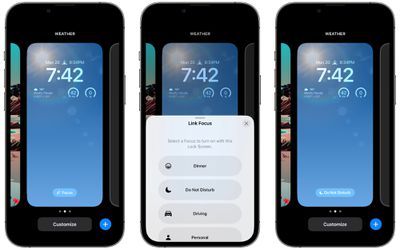
ios 16 lock screen focus
Focus modes let you choose which apps and people can send you notifications and when, so during work hours you can make sure you're only getting work notifications, and during personal time, you can limit your work notifications. You can limit notifications when driving, when you're asleep, when you're working out, and in any other scenario you can think of.

You'll still get all of your notifications when the Focus mode ends, but all in one alert rather than multiple. Turning off unwanted notifications from apps is still the best method for saving battery life, but Focus modes let you keep your notifications while still cutting down on the number that you receive.

Apple made Focus modes relatively easy to set up, but it still takes some work to get everything running, so we have a dedicated Focus guide. You can find all of the Focus features in the Focus section of the Settings app.

7. Limit When and How Often Apps Can Access Location

It's always good to check in on privacy and access settings to make sure apps and services aren't doing things you don't want them to be doing.
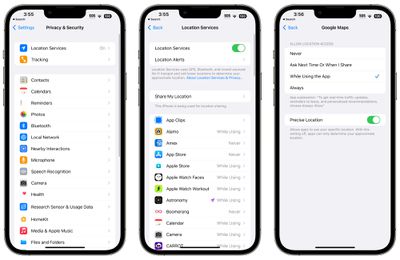
ios 16 location services
Limiting the apps that have access to your location and how often apps can access that data can save battery life.

  1. Open up the Settings app.
  2. Choose Privacy & Security.
  3. Tap Location Services.
  4. Review the list and edit settings by tapping on the name of each app in the list.

You have four possible choices for location settings for each app, though not all four choices will always be available for every app depending on what it does. You can select the following: Never, Ask Next Time Or When I Share, While Using the App, and Always.

Never will prevent an app from ever accessing your location, and unless there's a specific need for an app to know where you are, such as a mapping app, setting location access to Never is the best choice. While Using the App allows the app to detect your location only when the app is open and being actively used. If you close the app or switch over to another app, location access ends. This is the second best setting to use.

Ask Next Time Or When I Share will prompt an app to ask you with a pop-up the next time that it wants your location, so you can temporarily approve it. With this setting, location access is off until expressly allowed via the pop-up. Always lets an app to have access to your location at all times, regardless of whether it's open or closed. This will result in the most battery drain and should be limited to only the apps that you need the most.

Many apps ask for location information that don't really need it to function (for example, a banking app might want location access to show nearby ATMs, which is also available through entering a zip code), so clearing the cruft will ensure no apps are accessing your location without express permission.

8. Use Low Power Mode

Turning on Low Power Mode is an obvious choice for maintaining battery without having to hassle with a lot of settings, and you can toggle it on from Control Center, the Battery section of the Settings app, or using Siri. Low Power Mode cuts down on background activity, turns off your display after inactivity more quickly, limits display refresh rate, limits email fetch, cuts down on visual effects, and more.
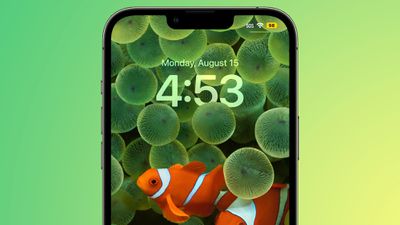
ios 16 beta 6 battery percent low power
Low Power Mode can be set to turn on at a certain battery percentage using Shortcuts, which is a handy way to have it automatically turn on when you need it, and it's the best option if you're someone who doesn't often remember to toggle on Low Power Mode.

More Tips

Have favorite tips for prolonging your iPhone's battery life? Let us know in the comments below.

Popular Stories

1password deal blue

1Password Security Breach: What Was Accessed and What Wasn't

Wednesday November 25, 2026 1:09 pm PST by
Popular password management app 1Password today said it experienced a security breach earlier this month. 1Password says some customer names and email addresses were accessed, but no customer vault contents were compromised. On November 19, 1Password saw indications that an employee's GitHub account had been breached and began investigating. The company says the breached GitHub account was...

apple design award 2025

Apple Announces 2025 Design Award Winners Ahead of WWDC 2025

Tuesday June 3, 2025 10:14 am PDT by
As we wait for WWDC to kick off next Monday, Apple today announced the winners of its annual Apple Design Awards, recognizing apps and games for their innovation, ingenuity, and technical achievement. The 2025 Apple Design Award winners are listed below, with one app and one game selected per category: Delight and Fun - CapWords (App) and Balatro (Game) Innovation - Play (App) and PBJ -...
ipad pro prime

Apple Has iPads Running macOS Internally, Says Gurman

Wednesday November 25, 2026 4:55 am PST by
Apple has iPads running macOS internally and has had them "for some time," according to Bloomberg's Mark Gurman, although he says no work is currently being done to bring the Mac operating system to iPads. Speaking on his latest Power On podcast, Gurman said there is "no work being done to consumerize macOS on the iPad." Rather, Apple will continue to bring Mac features and apps like Final Cut ...

Top Rated Comments

38 months ago
8. Turn off your phone
Score: 46 Votes (Like | Disagree)
38 months ago
Tips on how not to experience iPhone!
Score: 38 Votes (Like | Disagree)
38 months ago
Just turn off your iPhone and your battery will last for sure.
Score: 19 Votes (Like | Disagree)
contacos Avatar
38 months ago

Care to enlighten the masses on your two aforementioned shortcuts (steps for set up):cool:
Hope this makes sense. Don’t have access to my Mac right now to write it down properly.

Attachment Image

Attachment Image

Attachment Image

Attachment Image

Attachment Image
Score: 16 Votes (Like | Disagree)
antiprotest Avatar
38 months ago
Leave on everything that you want on. Don't hesitate. You paid good money for all these features. Use all of them and a few more. Leave on always on display. Leave on live activities. Make your screen brighter than you need it. Don't bother downloading offline maps.

Keep a light weight charger on you if you think you can't make it through the day with one charge. When you are low, or if you expect to be without a charger for a long time, turn on low power mode. Low power mode will do a lot of other things anyway, including turning off always on display, background refresh, etc.

That's all you need to do.
Score: 16 Votes (Like | Disagree)
contacos Avatar
38 months ago
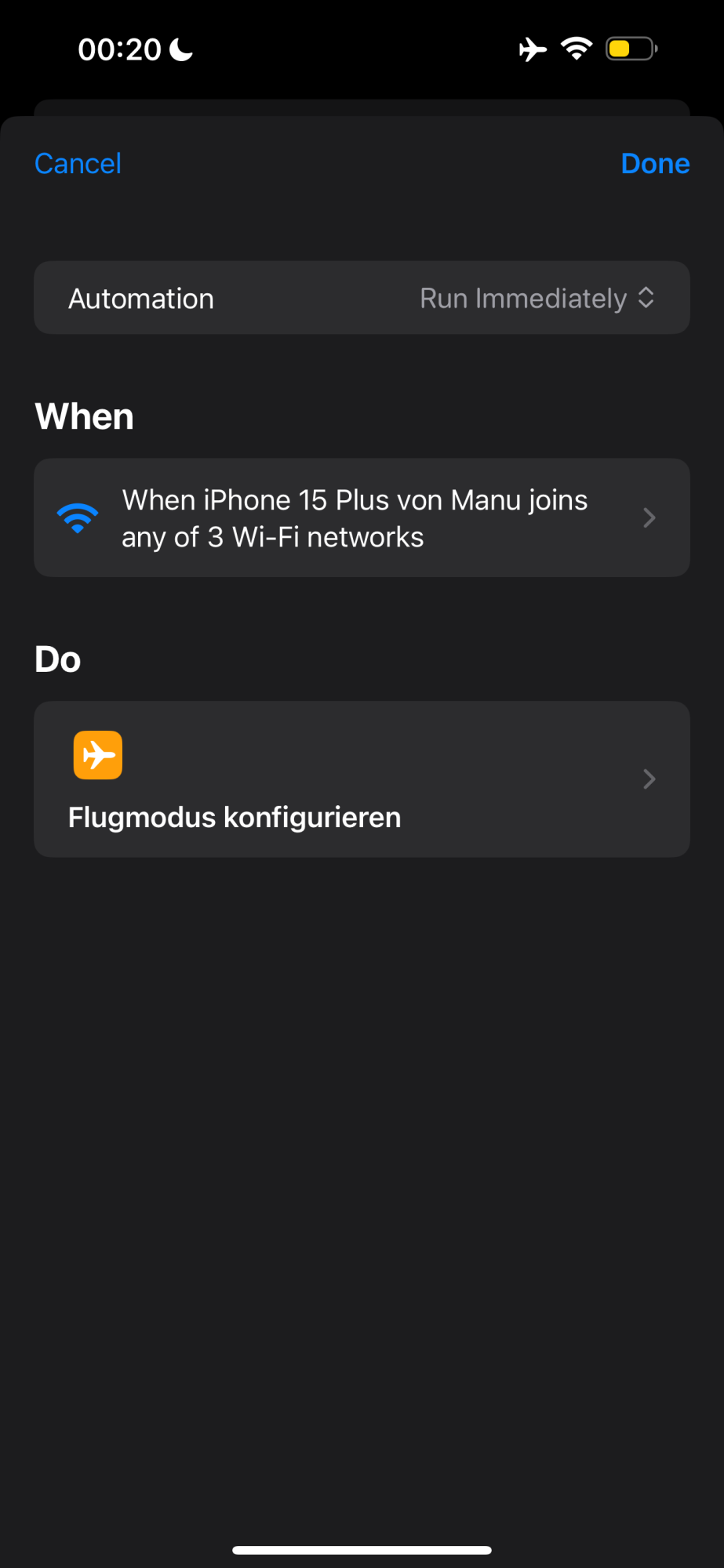
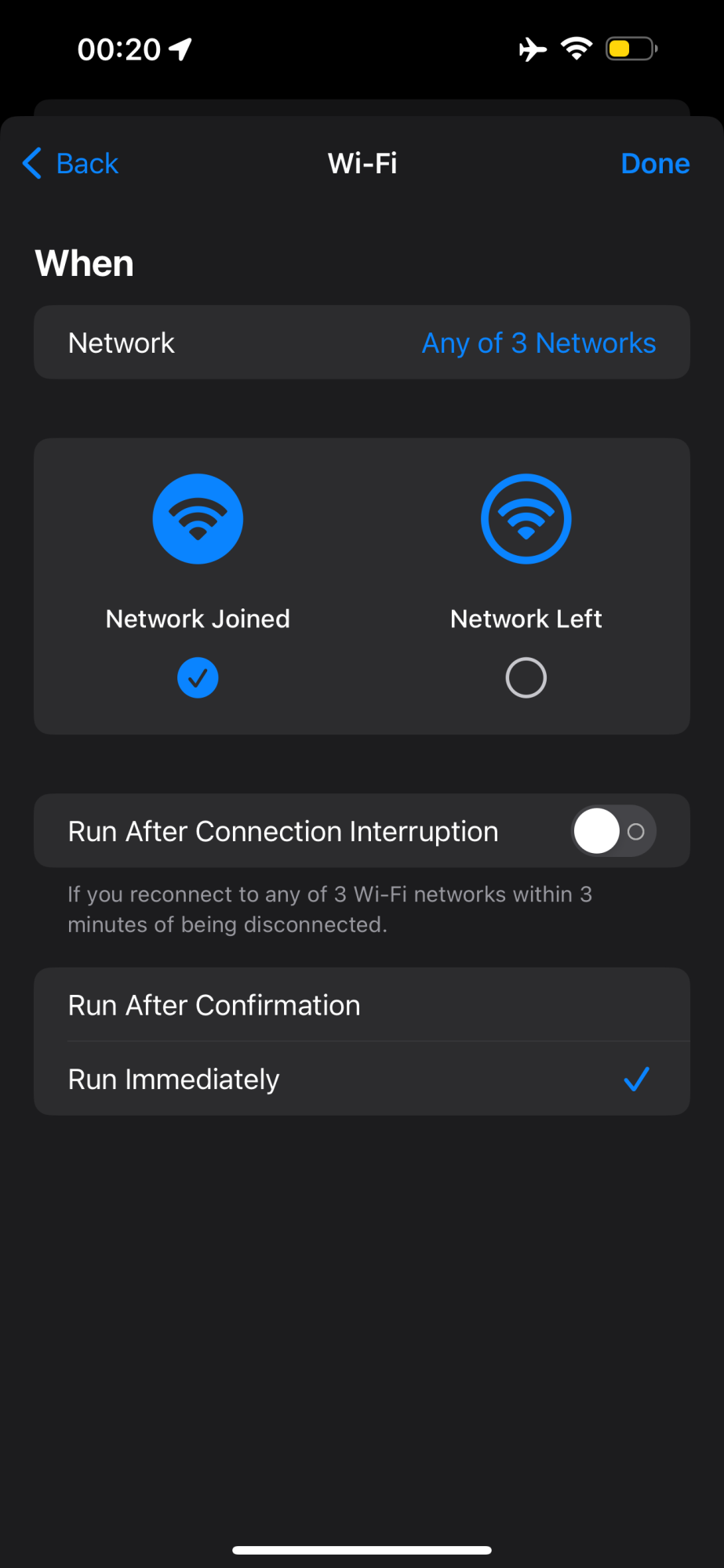
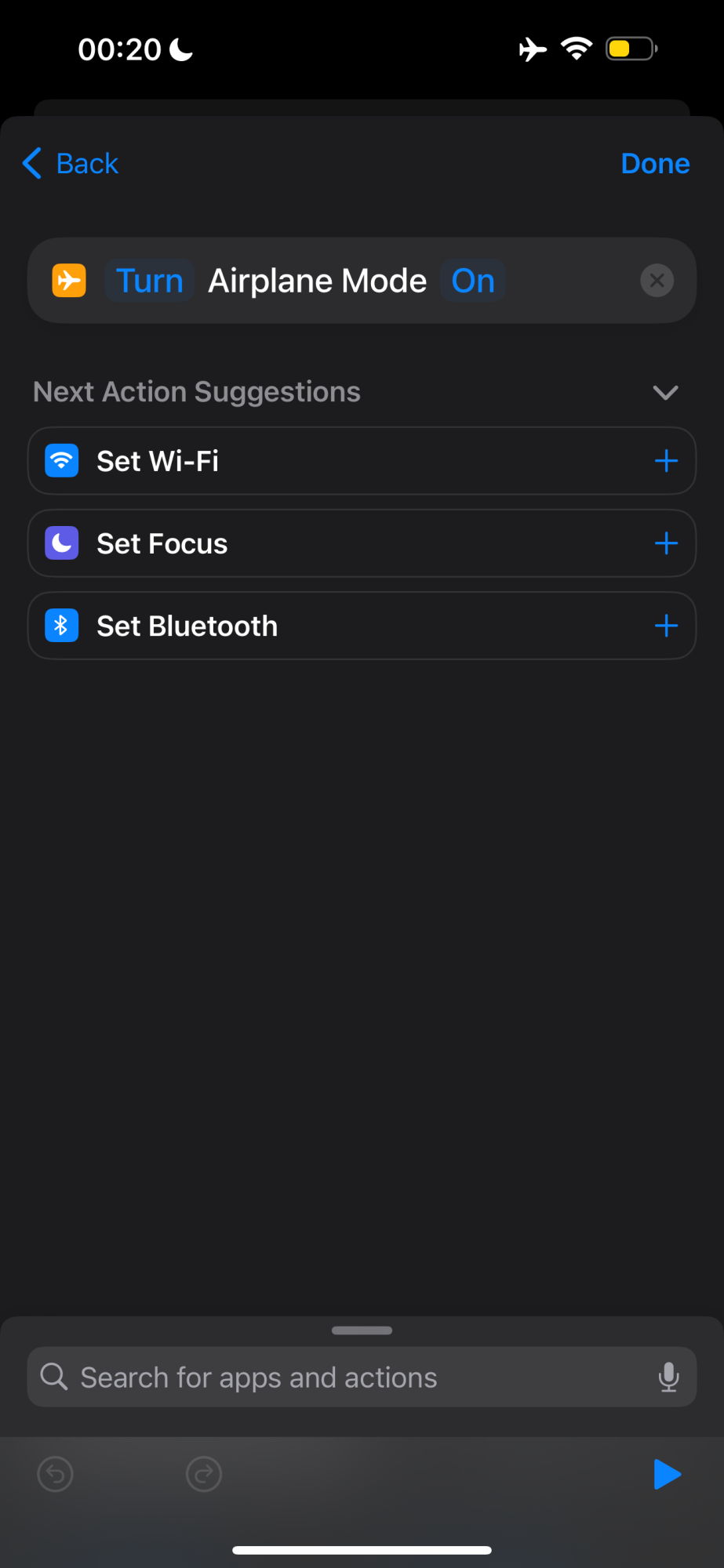
I created a shortcut to automatically turn on airplane mode when I enter my home network (WiFi calling is a thing) and to turn it off when I leave the WiFi network.

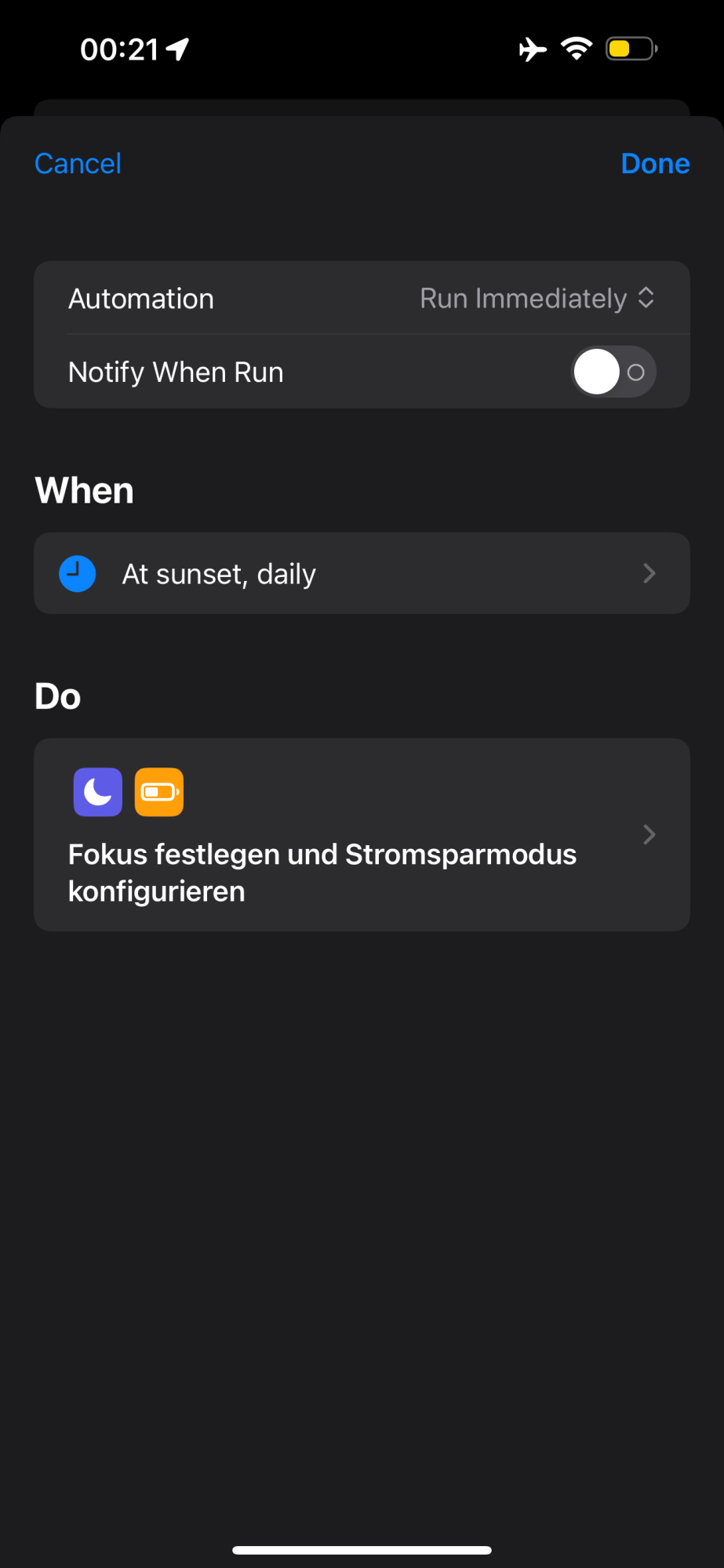
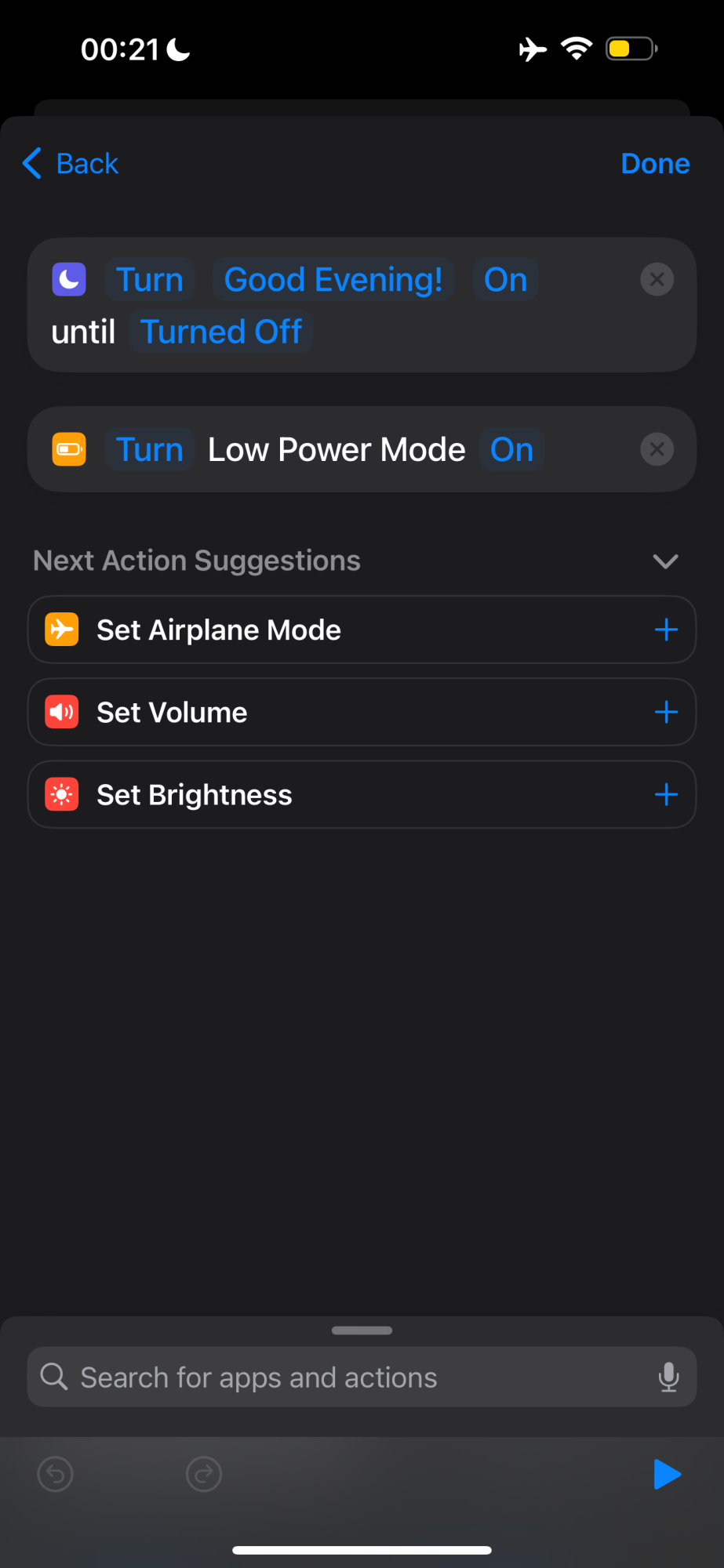
I made another one to automatically turn on low power mode when night mode turns on after sun set because that is also roughly the time of the day where my battery is around 50%.

I also have background refresh completely OFF because it never made a difference to me (functionality-wise)
Score: 14 Votes (Like | Disagree)
Latest Stories
The 50+ Best Apple Black Friday Deals on AirPods, iPads, MacBooks, and More
13 hours ago
Apple's Official 2026 Black Friday Offer Starts Rolling Out
18 hours ago
Halide Adds Fill Light Feature for iPhone Duo
18 hours ago
MacBook Air Black Friday Deals Now Live With Massive $399 Savings
19 hours ago
Amazon Discounts All MacBook Neo Models by $99 for Black Friday
19 hours ago
Kodak Launches Unique AirTag Rival With E-Ink Display
20 hours ago
Here's Why the Apple Store is Going Down
20 hours ago
Apple Still Working on Giant Foldable iPad That Could Cost $5,000
21 hours ago
iPhones Dominate China's Weak Singles' Day Smartphone Sales
21 hours ago
iPhone 20 Pro Could Feature Ceramic in Limited-Edition Model
22 hours ago
Apple Faces Korean Regulator Review Over iPhone 16 AI Advertising
23 hours ago
Apple Watch Ultra 4 Hits New Best-Ever Price of $649.99 for Black Friday
23 hours ago
New Apple Store Opening in India, Download the Special Wallpaper Now
1 day ago
Redesigned OLED MacBook Air Could Launch in 2027 or 2028
1 day ago
AirPods Pro 3 for $149 is One of The Best Black Friday Deals This Year
1 day ago
1Password Security Breach: What Was Accessed and What Wasn't
2 days ago
WhatsApp Finally Adds Scheduled Messages
2 days ago
Get Apple's Cheapest iPad for $379 During Amazon's Black Friday Sale
2 days ago
Rumor: iOS 28 to Revamp Notifications
2 days ago
iPhone 18 Pro Max Battery Exhausts a Toy Cyclops in New Apple Ad
2 days ago
$799 Smart Glasses Promise Vision Pro-Style Controls in a 45g Frame
2 days ago
How To Get an iPhone Duo or iPhone 18 Pro at No Cost Through T-Mobile for Black Friday
2 days ago
Apple Has an iPhone Notifications Problem
2 days ago
Amazon Sweetens Black Friday Deals on PROLED MacBook Pro
2 days ago
Apple Has iPads Running macOS Internally, Says Gurman
2 days ago
Apple Is Far From Done With 2026: Here's What's Still Coming
2 days ago
Threads App for iPad Now Available
2 days ago
Claude Now Lets You Install Artifacts as Desktop Apps
2 days ago
Tidal Bans AI Music, While Apple Music Sticks to Labels
2 days ago
Add Holiday Lights and Snow to Your Mac With Festivitas
2 days ago
Related Apple News: Business | South Africa | Mac | Iphone | Politics