Skip to Content

How to Use Screen Time on Mac

by

With the release of macOS Catalina, Apple introduced Screen Time functions that enable users to keep track of their usage and place self-imposed limits on the time they spend using their Mac. Screen Time also serves as a parental control system, since it can be used to place restrictions on what a child can access, who they can contact, and how long they spend on apps, websites, and more.
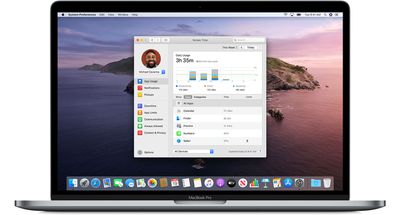
macos catalina 10 15 4 screen time hero
This article explains how to use Screen Time on your Mac and covers the following subjects. Click one to go straight to it.

How to Enable Screen Time on Mac

Make sure that your Mac is running macOS Catalina, then follow these steps:

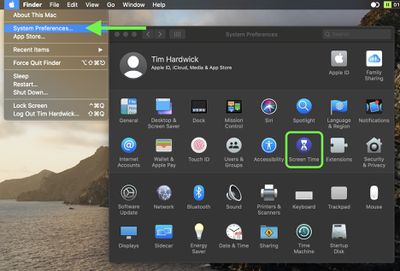
  1. Launch System Preferences from your Mac's Dock, from the Applications folder, or from the Apple menu bar ( -> System Preferences...).
  2. Select Screen Time in the preference panel.
    sys prefs

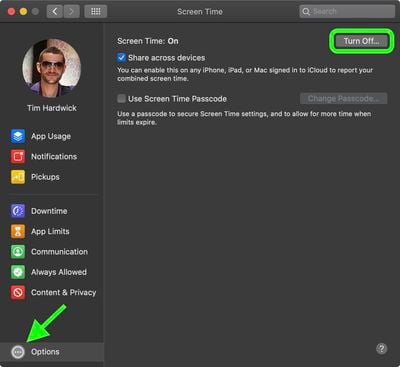
  3. Click the Options button in the bottom-left corner.
  4. Click the Turn On button in the top-right corner.
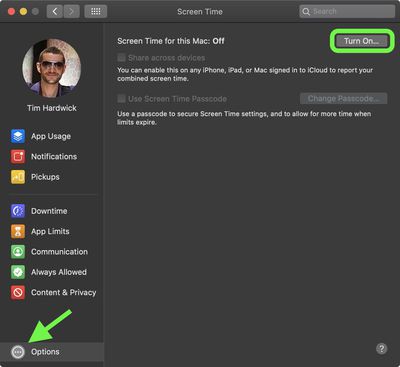
    turn on screen time mac

How to Disable Screen Time on Mac

To stop using Screen Time on Mac, follow these steps:

  1. Launch System Preferences from your Mac's Dock, from the Applications folder, or from the Apple menu bar ( -> System Preferences...).

  2. Select Screen Time in the preference panel.
  3. sys prefs

  4. Click the Options button in the bottom-left corner.
  5. Click the Turn Off button in the top-right corner.
  6. turn off screen time mac

How to Use a Screen Time Passcode on Mac

Setting a password in Screen Time on Mac allows you to secure your settings. You can also use the password to extend the allotted time for users.

  1. Select Screen Time in System Preferences.

  2. Click the Options button in the bottom-left corner.

  3. Check the box next to Use Screen Time Password, then enter a passcode to use.
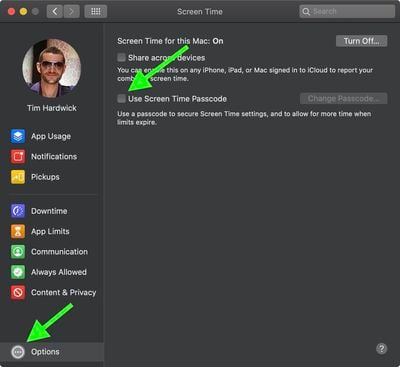
    screen time

How to Share Screen Time Across Devices on Mac

Sharing Screen Time across all of your devices allows you to get a more accurate idea of how much time you spend online. First though, you have to enable sharing:

  1. Select Screen Time in System Preferences.
  2. Click the Options button in the bottom-left corner.
  3. Check the box next to Share Across Devices.
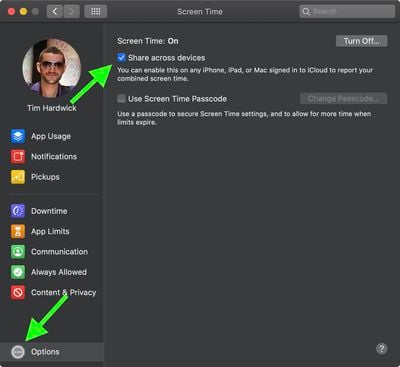
    screen time

How to View App Usage in Screen Time on Mac

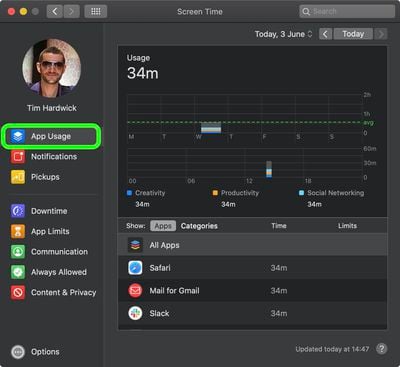
  1. Select Screen Time in System Preferences.
  2. Select App Usage in the sidebar.
  3. Check your app usage. You can break it down by day, by app, or by category. If there are limits, you'll see those here, too.
    screen time

How to Limit Usage in Screen Time on Mac

Screen Time allows you to set limits based on app categories. Here's how to go about it:

  1. Select Screen Time in System Preferences.
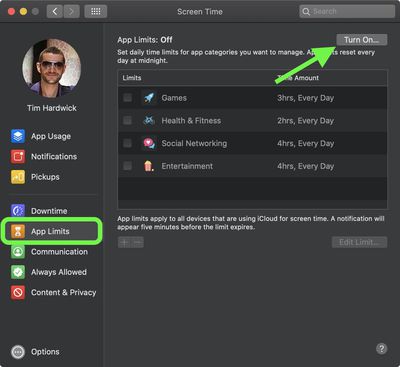
  2. Select App Limits in the sidebar.
  3. Click the Turn On button to activate App Limits.
  4. Click the plus (+) button to add an app category.
    screen time

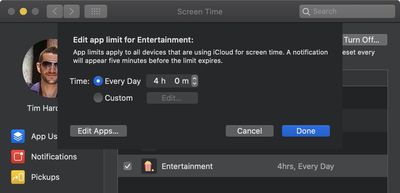
  5. Highlight the app category, then set the limit using the radio buttons. You can choose to set limits Every Day or create your own Custom schedule.
    screen time

  6. Repeat steps 5 to 6 for each app category you want to limit.

  7. Click Done to finish.

You can remove app limits by unchecking the box next to each app category you added, or you can turn off app tracking entirely by clicking the Turn Off... button in the top-right corner.

How to Approve Screen Time Requests on Mac

Screen Time shows Requests when you have unanswered requests from a child account. Here's how to find them:

  1. Select Screen Time in System Preferences.
  2. Select Requests in the sidebar.
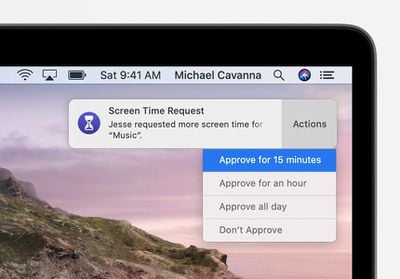
  3. Any requests for more time will appear under Requests. To manage a request, click Don't Approve or choose Approve..., then select one of three options from the dropdown: Approve for 15 minutes, Approve for an hour, or Approve all day.
    screen time

Requests for approval also arrive as notifications, and you can approve directly from the notification.

How to Schedule Downtime in Screen Time on Mac

During Downtime, only apps you choose to allow will be accessible, as well as phone calls, when applicable. Follow these steps to set up a Downtime schedule:

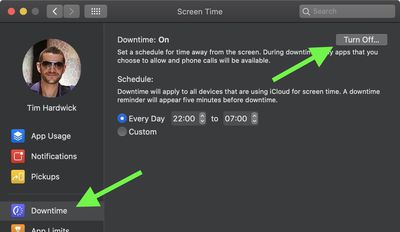
  1. Select Screen Time in System Preferences.
  2. Select Downtime in the sidebar.
  3. Click the Turn On button to activate Downtime.
  4. Click the radio button next to Every Day or Custom depending on the schedule you want to set.
    screen time

Every Day activates Downtime at the same time each day, while Custom allows you to adjust the time for each day of the week or turn off Downtime for certain days by unchecking the box next to them.

How to Set Always Allowed Content in Screen Time on Mac

You can allow certain things on your Mac such as communication with specific people or launching particular apps, regardless of other restrictions you might have set up. Here's how:

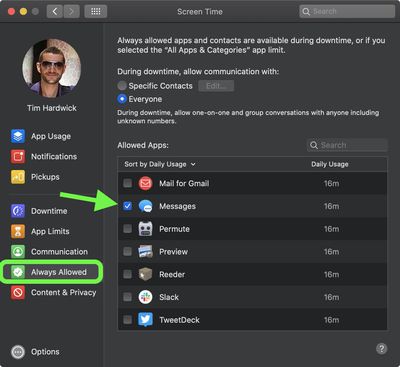
  1. Select Screen Time in System Preferences.
  2. Select Always Allowed in the sidebar.
  3. Check the box next to each item you want to always allow.
    screen time

How to Set Content and Privacy in Screen Time on Mac

To restrict content and adjust privacy controls in Screen Time, follow these steps:

  1. Select Screen Time in System Preferences.
  2. Select Content & Privacy in the sidebar.
  3. Click the Turn On button in the top-right corner to activate Content & Privacy.
  4. Use the tabs to select options for Content, Stores, Apps, and Other.
  5. Check the boxes next to the items you want to allow.
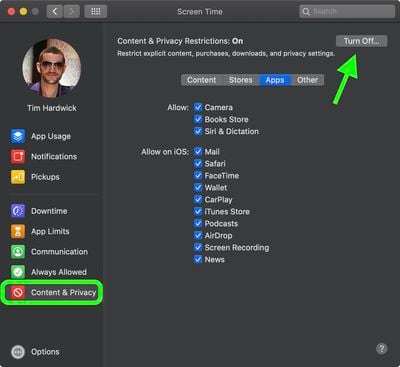
    screen time

With the release of macOS Catalina 10.15.4, Apple added new Screen Time options to let parents control who their children are able to contact on Mac. To learn more, check out our dedicated article detailing the new options.


Popular Stories

apple design award 2025

Apple Announces 2025 Design Award Winners Ahead of WWDC 2025

Tuesday June 3, 2025 10:14 am PDT by
As we wait for WWDC to kick off next Monday, Apple today announced the winners of its annual Apple Design Awards, recognizing apps and games for their innovation, ingenuity, and technical achievement. The 2025 Apple Design Award winners are listed below, with one app and one game selected per category: Delight and Fun - CapWords (App) and Balatro (Game) Innovation - Play (App) and PBJ -...
1password deal blue

1Password Security Breach: What Was Accessed and What Wasn't

Wednesday November 25, 2026 1:09 pm PST by
Popular password management app 1Password today said it experienced a security breach earlier this month. 1Password says some customer names and email addresses were accessed, but no customer vault contents were compromised. On November 19, 1Password saw indications that an employee's GitHub account had been breached and began investigating. The company says the breached GitHub account was...
Apple 2026 Black Friday Event Hero

Apple's Official 2026 Black Friday Offer Starts Rolling Out

Thursday November 26, 2026 8:37 am PST by
Apple's annual four-day Black Friday through Cyber Monday shopping event is now live in Australia, New Zealand, and Thailand, and it will continue to roll out across Europe, the U.S., and Canada as the calendar turns to Friday, November 27 around the world. In the U.S., Apple's terms and conditions say the promotion begins on November 27 at 12 a.m. Pacific Time and ends on November 30 at...
Latest Stories
The 50+ Best Apple Black Friday Deals Still Available on AirPods, iPads, and More
11 hours ago
HomePod Mini 2 in (RED) Seemingly Spotted Ahead of Announcement
8 hours ago
Apple's M6 and PROLED MacBook Pro Reach New Low Prices for Black Friday
18 hours ago
The MacRumors Show: iPhone Air 2 and iPhone 18 Are Coming
18 hours ago
Apple Store in Brisbane Reopening Next Month With New Design
19 hours ago
The 60+ Best Black Friday Accessory Deals on iPhone Chargers, TVs, Headphones, and More
19 hours ago
GTA VI Now (Barely) Running on Apple Silicon Macs
20 hours ago
The Best Black Friday Streaming Deals on Apple TV, Disney+, and More
20 hours ago
Apple TV's 'Carême' Wins International Emmy for Best Drama
21 hours ago
iPhone 18 Production Delay Leaves Apple Little Time Before Launch
22 hours ago
The Best Black Friday AirPods Deals Still Available
14 hours ago
The Best Black Friday Deals on Apple Home Products
22 hours ago
The Best Black Friday iPhone Deals Still Available
14 hours ago
The Best Black Friday iPad Deals Still Available
14 hours ago
The Best Black Friday Apple Watch Deals Still Available
14 hours ago
The Best Black Friday AirTag Deals Still Available
14 hours ago
The Best Black Friday Mac Deals Still Available
14 hours ago
iPhone Share of US Smartphone Market Hits 57% as Rivals Slip
1 day ago
iPhone 20 Pro Rumored to Feature 3D-Printed Titanium Frame
1 day ago
Apple's Official 2026 Black Friday Offer Starts Rolling Out
2 days ago
Halide Adds Fill Light Feature for iPhone Duo
2 days ago
MacBook Air Black Friday Deals Now Live With Massive $399 Savings
2 days ago
Amazon Discounts All MacBook Neo Models by $99 for Black Friday
2 days ago
Kodak Launches Unique AirTag Rival With E-Ink Display
2 days ago
Here's Why the Apple Store is Going Down
2 days ago
Apple Still Working on Giant Foldable iPad That Could Cost $5,000
2 days ago
iPhones Dominate China's Weak Singles' Day Smartphone Sales
2 days ago
iPhone 20 Pro Could Feature Ceramic in Limited-Edition Model
2 days ago
Apple Faces Korean Regulator Review Over iPhone 16 AI Advertising
2 days ago
Apple Watch Ultra 4 Hits New Best-Ever Price of $649.99 for Black Friday
2 days ago
Related Apple News: Technology | Health | Politics | South Africa | Lifestyle