Skip to Content

How to Use App Limits and Downtime in iOS 12

by

In iOS 12, Apple's digital health push includes a couple of special new features for iPhone and iPad users who want to cut down on their app usage: App Limits and Downtime. In this article, we'll show you how to use them.

App Limits allows you to set specific time limits on a particular app category (games, for example). When you've spent the designated time using the app category, iOS sends you an alert notifying you of the fact. Of course, you're free to ignore these alerts, but the idea behind them is that they'll help you manage your time better.
how to set app limits in ios 12
The second feature, Downtime, enables you to set a daily schedule for when you'd rather not use your iOS device at all. Once activated, the feature restricts device usage to phone calls and any apps you've specifically exempted from Downtime. Like App Limits, you can override these restrictions – they're more like good guidance than anything else, and can still help if you honestly want to self-regulate your mobile usage.

How to Set Individual App Limits in iOS 12

  1. Launch the Settings app on your iPhone or iPad.
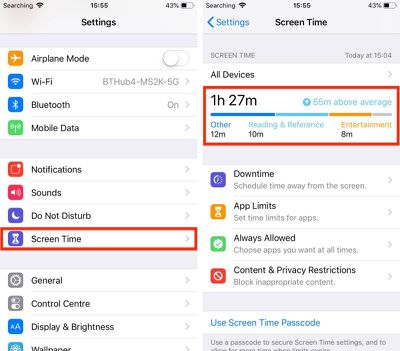
  2. Tap Screen Time.
  3. Tap the Screen Time graph for this device. Alternatively, tap All Devices.
    ios 12 app limits

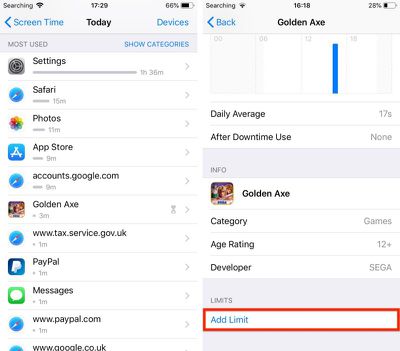
  4. Scroll down to the Most Used list and tap an app you want to set a limit for.
  5. Tap Add Limit at the bottom of the menu.
    IMG 0075

  6. Select a time limit using the hour and minute wheels. If you want to set different limits for particular days of the week, tap Customize Days.
  7. Tap Add to apply the app limit.

How to Set App Category Limits in iOS 12

  1. Launch the Settings app on your iPhone or iPad.
  2. Tap Screen Time.
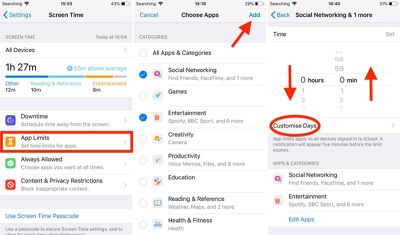
  3. Tap App Limits.
  4. Tap the categories in the list that you'd like to include in the limit, or select All Apps & Categories.
    ios 12 app limits 1

  5. Tap Add in the upper right of the screen.
  6. Select a time limit using the hour and minute wheels. If you want to set different limits for particular days of the week, select Customize Days.
  7. Tap Back when you're done.
  8. Add another limit if desired, or tap Screen Time to return to the main Screen Time menu.
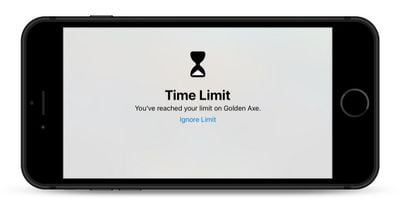
When you're approaching a designated limit, iOS will alert you in advance with a standard notification. When you finally reach the limit, the alert will take over the screen.
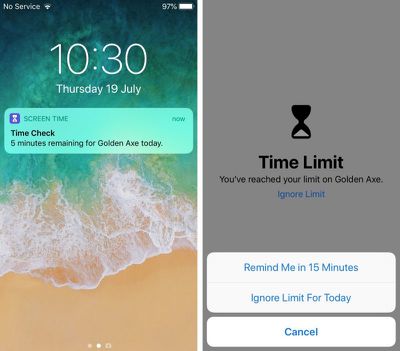
ios 12 app limit warnings
If you want to override the custom limit, simply tap Ignore Limit. You can then select either to Reminded Me in 15 Minutes or Ignore Limit for Today.

To delete app category limits and individual app Limits at any time, go to Settings -> Screen Time -> App Limits, tap on the limit you want to remove, then tap Delete Limit.

How to Use Downtime in iOS 12

  1. Launch the Settings app on your iPhone or iPad.
  2. Tap Screen Time.
  3. Tap Downtime.
    ios 12 downtime

  4. Slide the Downtime toggle to enable it.

  5. Select a Start and End time using the dropdown hour and minute wheels.
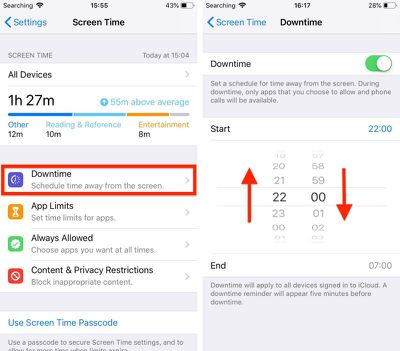
How to Exempt Certain Apps From Downtime

If there are particular apps which you'd like to remain accessible during Downtime, you can add these to your Allowed Apps list, located in Settings -> Screen Time -> Always Allowed.
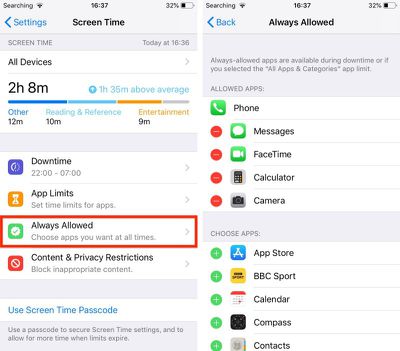
ios 12 downtime 1
Simply tap the green plus buttons beside apps that you want to add to the list, or the red minus buttons to remove them.


Related Forum: iOS 12

Top Rated Comments

109 months ago
Only if you give them the passcode you set up when you enable Time Limit.
No, I just tested it. There is no passcode required to tell it to ignore the time limit.

Edit: Oh, you're right! You have to turn on the Content and Privacy Restrictions (under a different menu item) to make it prompt them for a password.

This will actually let me give my daughter an iPad now. :-)
Score: 4 Votes (Like | Disagree)
109 months ago
They were SO close to having something that works for kids. As it works now, the kids can just ignore the limit...
If your kids have separate devices and their own appleID set up as part of the family, they will need to request permission from you to extend their time limit.
Score: 3 Votes (Like | Disagree)
Billberryjuice Avatar
107 months ago
A few things this still needs:

- bug fixes: not tried it on many other apps but on Safari when the limit has run out and I “ignore for 15 minutes”, instead of getting 15 minutes it will lock down again basically every time I change page or tap on something (on iPhone 6S). Looking at the Screen Time data, I guess this is something to do with the way it logs time for individual sites.

- A simpler way to set restrictions on individual apps: the current way almost feels like it’s unintentional by the way it’s hidden, completely unintuitive

- Categories editing

- Finer Downtime control: what if I want different rules for the weekend? The app restrictions allow custom limits by day, why not here? Ideally they would add even finer control than this (e.g. the ability to set two or more Downtime slots per day)

- Better implementation of “Share Across Devices”: on my main iPhone I spent ages adding apps to Always Allow, setting up Downtime and app limits, and turned on SAD, before moving on to my other phone and iPads - switching on SAD on another device should have picked up the settings I already changed on the first device and brought them to the second - nope, the opposite happens and the settings on the first seem to be wiped away. Thankfully, a way around this is to turn SAD off again on the first device and its own settings should come back. It looks like the way to get your settings to apply across all devices (without redoing them n times) is to turn on SAD on all the other devices *first*, then turn it on on the device that you changed all the settings of, as it seems the last one you switch it on for pushes its settings to all the others.

- Second thing on Share Across Devices: it seems that the only way to see all of your devices in your Screen Time bar chart is to enable SAD across all of them - but what if I want to set different limits for each but still be able to see the data from all of them in one place? Currently this doesn’t seem possible.

- (edit) Third thing on Share Across Devices: turning it on caused some old Apple apps to appear on my home screen for my iPhones in random places (e.g. top right corner) - one was iTunes Store and the other I forget but both were promptly deleted again. I can only guess why this happened but clearly wasn’t intentional!


TLDR: I like it but it needs some work.
Score: 1 Votes (Like | Disagree)
107 months ago
As a parent, there has to be way to completely ban an application. Currently, you have to assign at least 1 minute of time. This is not a good parental control.

Also, there is too much "security" based on Apple's view of app categories. If I want my child to use one "Social Networking" app and not others, there isn't a good way to do that except granting "Always Available". Then the downtime limits don't apply.

It looks like Our Pact or other parental controls will still be required in IOS 12.
You can download Apple Configurator on your Mac (if you have one) and create a configuration profile that blacklists certain apps.
Score: 1 Votes (Like | Disagree)
shareef777 Avatar
107 months ago
All I can say is it’s about damn time. This feature is AMAZING! I’m able to lock down my two younger sons iPads and my daughters iPhone. They can request more time (similar process to requesting app purchases), and I can grant an extra 15min, 1hr, or remainder of the day. Single greatest iOS feature addition since the App Store!!!
[doublepost=1537408914][/doublepost]
would be good to know how this works with family sharing. Eg can kids be set up so they can't ignore the limits? If they hit a limit can they request an extension from the parent?
Yep, they can request more time per app, and you can approve for an additional 15min, 1hr, or remainder of the day.
[doublepost=1537408946][/doublepost]
They were SO close to having something that works for kids. As it works now, the kids can just ignore the limit...
You can set a password to prevent that.
Score: 1 Votes (Like | Disagree)
KC in KC Avatar
109 months ago
They were SO close to having something that works for kids. As it works now, the kids can just ignore the limit...
As a parent, there has to be way to completely ban an application. Currently, you have to assign at least 1 minute of time. This is not a good parental control.

Also, there is too much "security" based on Apple's view of app categories. If I want my child to use one "Social Networking" app and not others, there isn't a good way to do that except granting "Always Available". Then the downtime limits don't apply.

It looks like Our Pact or other parental controls will still be required in IOS 12.
Score: 1 Votes (Like | Disagree)

Popular Stories

apple design award 2025

Apple Announces 2025 Design Award Winners Ahead of WWDC 2025

Tuesday June 3, 2025 10:14 am PDT by
As we wait for WWDC to kick off next Monday, Apple today announced the winners of its annual Apple Design Awards, recognizing apps and games for their innovation, ingenuity, and technical achievement. The 2025 Apple Design Award winners are listed below, with one app and one game selected per category: Delight and Fun - CapWords (App) and Balatro (Game) Innovation - Play (App) and PBJ -...
1password deal blue

1Password Security Breach: What Was Accessed and What Wasn't

Wednesday November 25, 2026 1:09 pm PST by
Popular password management app 1Password today said it experienced a security breach earlier this month. 1Password says some customer names and email addresses were accessed, but no customer vault contents were compromised. On November 19, 1Password saw indications that an employee's GitHub account had been breached and began investigating. The company says the breached GitHub account was...
Apple 2026 Black Friday Event Hero

Apple's Official 2026 Black Friday Offer Starts Rolling Out

Thursday November 26, 2026 8:37 am PST by
Apple's annual four-day Black Friday through Cyber Monday shopping event is now live in Australia, New Zealand, and Thailand, and it will continue to roll out across Europe, the U.S., and Canada as the calendar turns to Friday, November 27 around the world. In the U.S., Apple's terms and conditions say the promotion begins on November 27 at 12 a.m. Pacific Time and ends on November 30 at...
Latest Stories
The 50+ Best Apple Black Friday Deals Still Available on AirPods, iPads, and More
9 hours ago
HomePod Mini 2 in (RED) Seemingly Spotted Ahead of Announcement
6 hours ago
Apple's M6 and PROLED MacBook Pro Reach New Low Prices for Black Friday
17 hours ago
The MacRumors Show: iPhone Air 2 and iPhone 18 Are Coming
17 hours ago
Apple Store in Brisbane Reopening Next Month With New Design
17 hours ago
The 60+ Best Black Friday Accessory Deals on iPhone Chargers, TVs, Headphones, and More
18 hours ago
GTA VI Now (Barely) Running on Apple Silicon Macs
19 hours ago
The Best Black Friday Streaming Deals on Apple TV, Disney+, and More
19 hours ago
Apple TV's 'Carême' Wins International Emmy for Best Drama
20 hours ago
iPhone 18 Production Delay Leaves Apple Little Time Before Launch
21 hours ago
The Best Black Friday AirPods Deals Still Available
13 hours ago
The Best Black Friday Deals on Apple Home Products
21 hours ago
The Best Black Friday iPhone Deals Still Available
13 hours ago
The Best Black Friday iPad Deals Still Available
13 hours ago
The Best Black Friday Apple Watch Deals Still Available
13 hours ago
The Best Black Friday AirTag Deals Still Available
13 hours ago
The Best Black Friday Mac Deals Still Available
13 hours ago
iPhone Share of US Smartphone Market Hits 57% as Rivals Slip
22 hours ago
iPhone 20 Pro Rumored to Feature 3D-Printed Titanium Frame
1 day ago
Apple's Official 2026 Black Friday Offer Starts Rolling Out
2 days ago
Halide Adds Fill Light Feature for iPhone Duo
2 days ago
MacBook Air Black Friday Deals Now Live With Massive $399 Savings
2 days ago
Amazon Discounts All MacBook Neo Models by $99 for Black Friday
2 days ago
Kodak Launches Unique AirTag Rival With E-Ink Display
2 days ago
Here's Why the Apple Store is Going Down
2 days ago
Apple Still Working on Giant Foldable iPad That Could Cost $5,000
2 days ago
iPhones Dominate China's Weak Singles' Day Smartphone Sales
2 days ago
iPhone 20 Pro Could Feature Ceramic in Limited-Edition Model
2 days ago
Apple Faces Korean Regulator Review Over iPhone 16 AI Advertising
2 days ago
Apple Watch Ultra 4 Hits New Best-Ever Price of $649.99 for Black Friday
2 days ago
Related Apple News: Education | Buyers Guide | South Africa | Iphone | Iphone