Skip to Content

How to Apply Color Tags to Items in macOS Finder Using Custom Keyboard Shortcuts

by

In one of our previous macOS how-to guides, we explained how using tags can help you organize your files and folders and quickly locate them when they're needed. In this article, we're going to show you how to tag items in Finder using a simple custom keyboard shortcut, for even faster tagging.

The first series of steps below shows you how to create a handy key shortcut to activate Finder's inline tagging menu. Once you've done that, we explain how you can use one or more custom shortcuts to directly apply specific color tags to selected items in a Finder window.
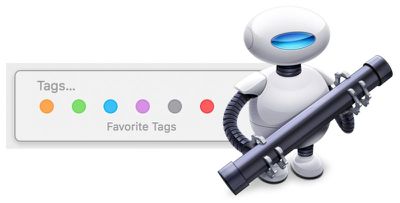
Automator tagging e1523634875463
This more powerful color tagging method requires creating a simple Automator service. If that sounds scary, don't worry – it's a simple process, and if you're a frequent user of tags then you'll find this quick recipe well worth the effort. Keep reading to learn how it's done.

How to Create a Shortcut for Tagging Items in Finder

  1. Launch System Preferences from the Apple menu bar ( -> System Preferences...).

  2. Select the Keyboard preference pane.

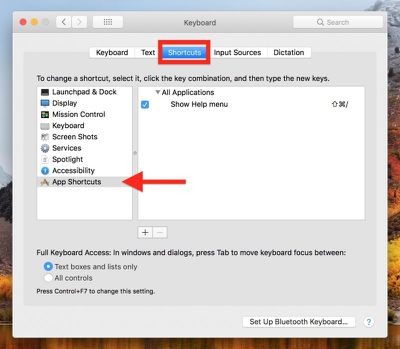
  3. Click the Shortcuts tab.
    Sysyem Prefs Keyboard Pane

  4. Select App Shortcuts in the left column and click the + button.

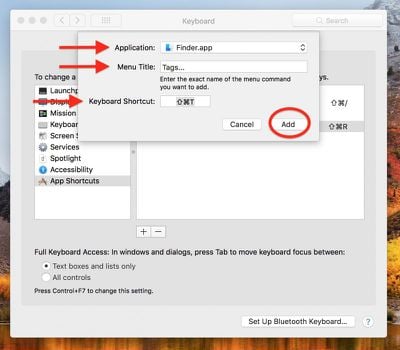
  5. Select Finder.app in the Application field.

  6. Type Tags... in the Menu Title field.
    sys prefs basic tag shortcut

  7. Click inside the Keyboard Shortcut field and press your preferred key combination for activating the service. In our example, we've used Shift-Command-T.

  8. Click Add.

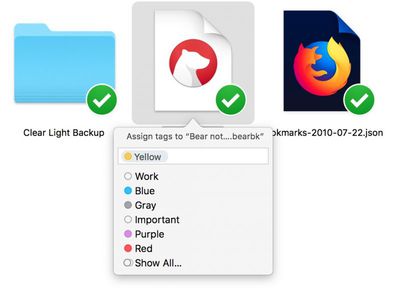
Now your shortcut is set up, it's time to try it out. Open a Finder window and select an item (or several) for tagging. Hit your chosen key combination and you should see a tag menu pop up beneath the selected item(s), like so.
tag a file in Finder
From there, just start typing the name of the tag you want to use and it should appear in the input field. Hit Enter to apply it. Alternatively, use the down arrow key to choose the tag you want from the dropdown list, and hit Enter.

How to Create a Color Tagging Service in Automator

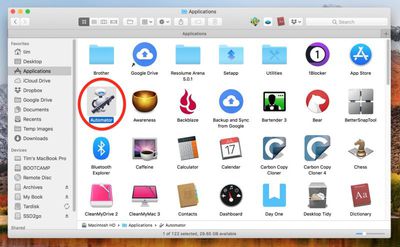
  1. Launch Automator from the Applications folder.
    1 Automator

  2. Click New Document.

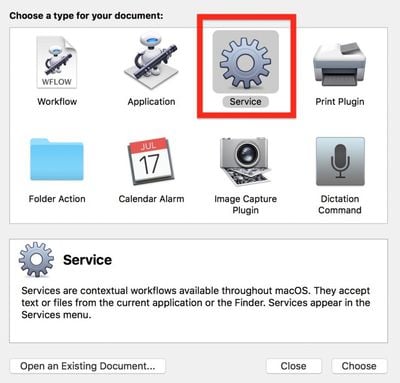
  3. Choose Service as the type of your document.
    2 Automator document type

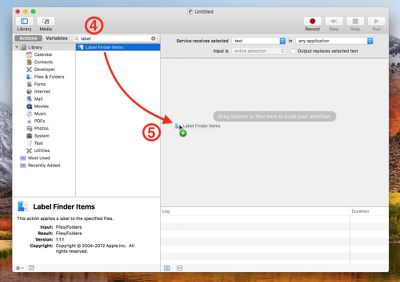
  4. Type label into the Library search field at the top of the Automator sidebar.

  5. Drag the Label Finder Items action into the empty workflow area.
    3 Label Finder Items

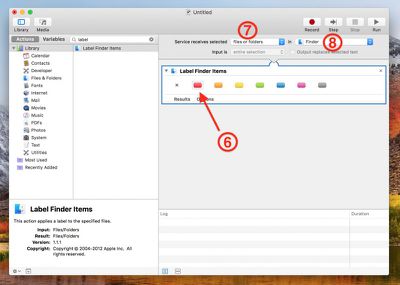
  6. Click the tag color you want to use for your first keyboard shortcut. (We're going for red in our example.)

  7. Select files or folders in the Service receives selected dropdown.

  8. Select Finder in the in application dropdown.
    4 Create Finder Label action

  9. Select File -> Save from the Automator menu bar, and give your service a name. We'll be using the name "Tag Red".

  10. Click Save.

How to Assign a Shortcut to Your New Tagging Service

  1. Launch System Preferences from the Apple menu bar ( -> System Preferences...).

  2. Select the Keyboard pane.

  3. Click the Shortcuts tab.

  4. Select App Shortcuts in the left column and click the + button.
    Sysyem Prefs Keyboard Pane

  5. Select Finder.app in the Application field.

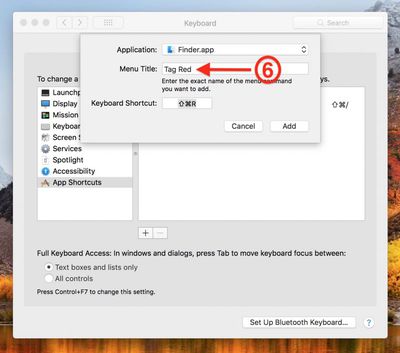
  6. In the Menu Title field, type the exact name of the service you just created in Automator ("Tag Red" in our example).
    sys prefs add specific tag shortcut

  7. Click inside the Keyboard Shortcut field and press your chosen key combination for activating the service. We've used Shift-Command-R.

  8. Click Add.

You should now be able to tag selected items in Finder with your chosen color using the keyboard shortcut you created.
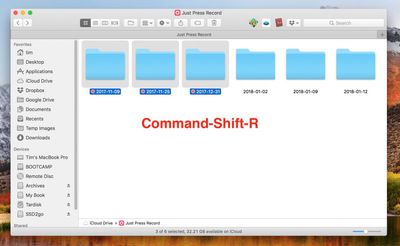
Tagging items in Finder
To create additional shortcuts for applying other tag colors, simply follow the Automator steps again but choose another color, and save the service under a corresponding name. Then simply assign a shortcut to the named service in the Keyboard preference pane as described above.


Top Rated Comments

blackxacto Avatar
112 months ago
I stopped using tags the day Apple switched to tiny dots. Ridiculous.
Score: 4 Votes (Like | Disagree)
112 months ago
I love the fact that these tags can sync over through iCloud Drive. The Files app is good but still child’s play to the Finder.
Dropbox syncs tags too, just to add another tool.

I love tags. I'm not great at using them yet -- still very much default to organizing with folders because of many years of habit but the idea of being able to apply multiple tags is a lot more powerful, ultimately, than the folder paradigm. Probably not going to give up folders anytime soon, but it's great to have an Apple-supported way to cross reference files and folders that may be in different folders or even different drives.

I stopped using tags the day Apple switched to tiny dots. Ridiculous.
The previous "color the whole file name" design that labels used to use starts to seriously break down when there's more than one tag applied. It was too much visual clutter to have a folder look like a rainbow of crazy colors if a bunch of files were tagged. Tagging something with a red tag shouldn't mean I'm now reduced to looking at a strip of bright red with black text inside it, bordered by another file that's a strip of blue, then orange... it was quick to see the labels, but man was it a mess after a while.

If it's hard to make out what labels are applied (and yeah, agreed, it can be awfully subtle) you can make them more visible and legible in list view by enabling the "tags" column.


Attachment Image
Score: 3 Votes (Like | Disagree)
chucker23n1 Avatar
54 months ago
Try https://dougscripts.com/itunes/scripts/ss.php?sp=mxchangefilelabelcolor

Or, you can change your Automator action to run a shell script with this tool: https://github.com/jdberry/tag
Score: 1 Votes (Like | Disagree)
chucker23n1 Avatar
99 months ago
Hmm, not sure that's correct. Maybe at some point they were called Labels, but the feature being discussed here is definitely called Tags in the current Finder interface.

Correct. Tags, since 10.9 Mavericks, supersede labels. They do so in a backwards-compatible way (your labels continue to work, from all the way back in System 7, if I'm not mistaken).

But Tags are far more powerful than labels. You can apply multiple, you can give them names, you can search by them, etc. And Apple added some more useful UI, such as setting tags right from the save file dialogs.

More: https://arstechnica.com/gadgets/2013/10/os-x-10-9/8/#tags
Score: 1 Votes (Like | Disagree)
103 months ago
I envy people that actually use this stuff and keep their computers cleaned up.
Score: 1 Votes (Like | Disagree)
TMRJIJ Avatar
112 months ago
I love the fact that these tags can sync over through iCloud Drive. The Files app is good but still child’s play to the Finder.
Score: 1 Votes (Like | Disagree)

Popular Stories

apple design award 2025

Apple Announces 2025 Design Award Winners Ahead of WWDC 2025

Tuesday June 3, 2025 10:14 am PDT by
As we wait for WWDC to kick off next Monday, Apple today announced the winners of its annual Apple Design Awards, recognizing apps and games for their innovation, ingenuity, and technical achievement. The 2025 Apple Design Award winners are listed below, with one app and one game selected per category: Delight and Fun - CapWords (App) and Balatro (Game) Innovation - Play (App) and PBJ -...
Apple 2026 Black Friday Event Hero

Apple's Official 2026 Black Friday Offer Starts Rolling Out

Thursday November 26, 2026 8:37 am PST by
Apple's annual four-day Black Friday through Cyber Monday shopping event is now live in Australia, New Zealand, and Thailand, and it will continue to roll out across Europe, the U.S., and Canada as the calendar turns to Friday, November 27 around the world. In the U.S., Apple's terms and conditions say the promotion begins on November 27 at 12 a.m. Pacific Time and ends on November 30 at...
1password deal blue

1Password Security Breach: What Was Accessed and What Wasn't

Wednesday November 25, 2026 1:09 pm PST by
Popular password management app 1Password today said it experienced a security breach earlier this month. 1Password says some customer names and email addresses were accessed, but no customer vault contents were compromised. On November 19, 1Password saw indications that an employee's GitHub account had been breached and began investigating. The company says the breached GitHub account was...
Latest Stories
The 50+ Best Apple Black Friday Deals Still Available on AirPods, iPads, and More
3 hours ago
Here Are the Best Apple Black Friday Leftover Deals You Can Get Today
1 hour ago
HomePod Mini 2 in (RED) Seemingly Spotted Ahead of Announcement
13 hours ago
Apple's M6 and PROLED MacBook Pro Reach New Low Prices for Black Friday
23 hours ago
The MacRumors Show: iPhone Air 2 and iPhone 18 Are Coming
23 hours ago
Apple Store in Brisbane Reopening Next Month With New Design
1 day ago
The 60+ Best Black Friday Accessory Deals on iPhone Chargers, TVs, Headphones, and More
1 hour ago
GTA VI Now (Barely) Running on Apple Silicon Macs
1 day ago
The Best Black Friday Streaming Deals on Apple TV, Disney+, and More
1 day ago
Apple TV's 'Carême' Wins International Emmy for Best Drama
1 day ago
iPhone 18 Production Delay Leaves Apple Little Time Before Launch
1 day ago
The Best Black Friday AirPods Deals Still Available
19 hours ago
The Best Black Friday Deals on Apple Home Products
1 day ago
The Best Black Friday iPhone Deals Still Available
19 hours ago
The Best Black Friday iPad Deals Still Available
19 hours ago
The Best Black Friday Apple Watch Deals Still Available
19 hours ago
The Best Black Friday AirTag Deals Still Available
19 hours ago
The Best Black Friday Mac Deals Still Available
19 hours ago
iPhone Share of US Smartphone Market Hits 57% as Rivals Slip
1 day ago
iPhone 20 Pro Rumored to Feature 3D-Printed Titanium Frame
1 day ago
Apple's Official 2026 Black Friday Offer Starts Rolling Out
2 days ago
Halide Adds Fill Light Feature for iPhone Duo
2 days ago
MacBook Air Black Friday Deals Now Live With Massive $399 Savings
2 days ago
Amazon Discounts All MacBook Neo Models by $99 for Black Friday
2 days ago
Kodak Launches Unique AirTag Rival With E-Ink Display
2 days ago
Here's Why the Apple Store is Going Down
2 days ago
Apple Still Working on Giant Foldable iPad That Could Cost $5,000
2 days ago
iPhones Dominate China's Weak Singles' Day Smartphone Sales
2 days ago
iPhone 20 Pro Could Feature Ceramic in Limited-Edition Model
2 days ago
Apple Faces Korean Regulator Review Over iPhone 16 AI Advertising
2 days ago
Related Apple News: Macbook Air | Iphone Mirroring Not Working In Macos Fix | Iphone | Apple Watch Se | Iphone Duo Split Keyboard Landscape Mode