Skip to Content

How to Set Up and Manage Notifications on Apple Watch

by

One of the Apple Watch's most important features is the ability to keep you connected to your notifications without needing to have your iPhone in your hand or even in your pocket all of the time. I often miss important text messages because my iPhone is too far away from me to hear my alerts.

But with Apple Watch, all of your notifications are at your fingertips, as if someone is next to you, tapping you on the wrist whenever you get an alert. We've got a tutorial for you today that will explain how to set up and manage notifications so that you get the alerts you want and aren't distracted by the ones you don't want.
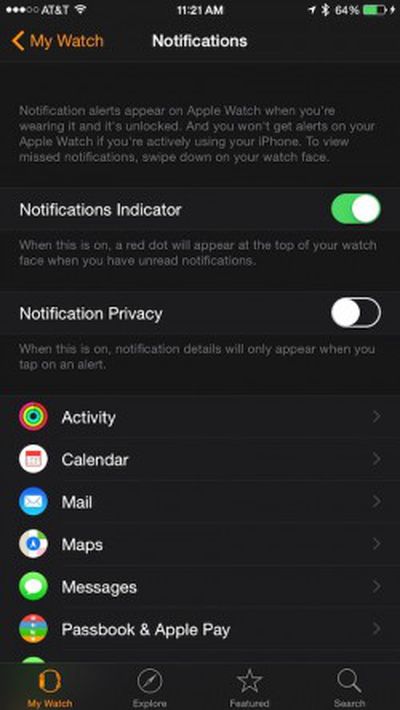
Notification Indicator Apple Watch

Set Up Notifications

Notifications on Apple Watch are actually mirrored from your iPhone by default, so any app you have notifications enabled for on your iPhone will also appear on your Apple Watch. To make sure you don't miss any notifications, you can turn on a Notification Indicator that will display a red dot on your watch face if you have unread notifications.

  1. Enable compatible apps on your iPhone via Notification Center that you want to receive alerts for. It is likely these apps are already enabled on your iPhone, but it is a good idea to check on them.
  2. Open the Apple Watch app on your iPhone.
  3. Tap the My Watch tab.
  4. Select Notifications from the menu list.
  5. Toggle Notification Indicator to the On position.
  6. You can also set your notifications to private so that it requires you to tap the screen in order to see it.
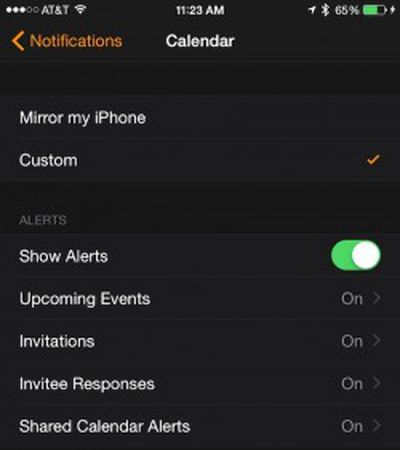

Calendar Notification Customization Apple Watch

Customize Notifications

Some Apple apps, like Calendar, Mail, and Messages are customizable with a few additional features. Be sure that the notification you wish to customize is already enabled on your iPhone first.

  1. Open the Apple Watch App on your iPhone
  2. Tap Notifications
  3. Select the app you wish to customize
  4. Change "Mirror my iPhone" to "Custom" to see your options, like sound, haptics, and repeat options.

Third-party apps do not have customization options, offering only a toggle to turn on or off the mirroring of notifications from your iPhone for a given app.

View and Respond to Live Notifications

Viewing a notification is as simple as raising your arm. To respond to it, scroll to the bottom of the notification and tap the button to perform the action.

You can also dismiss a notification by swiping down on it or scrolling to the bottom of it and tapping Dismiss.

Unread Notification Apple Watch

View and Respond to Unread Notifications

When you receive a notification on Apple Watch that you do not view right away, as long as you have the Notification Indicator turned on you will see a red dot at the top of your watch face, so you can access the notifications at any time.

  1. Navigate to the watch face, and then swipe down from the top of the screen.
  2. Rotate the Digital Crown or swipe up and down to scroll through unread notifications.
  3. Tap a notification to respond to it.
  4. Clear a notification by swiping to the left on it and then pressing clear. Use a hard "Force Press" on a notification to bring up an option to clear all notifications.

Silence Notifications

If you are in a meeting, going to the movies, or would like to otherwise be undisturbed for a short period of time, you can do so two ways.
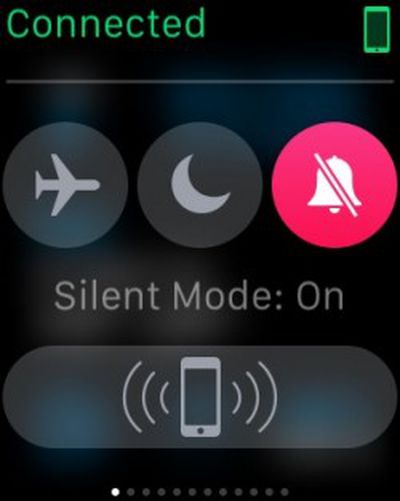
Silent Mode Apple WatchSilent Mode

  1. Navigate to the watch face, and then swipe up.
  2. Swipe to the Settings glance.
  3. Tap Silent Mode
  4. You will still feel a tap when a notification arrives.
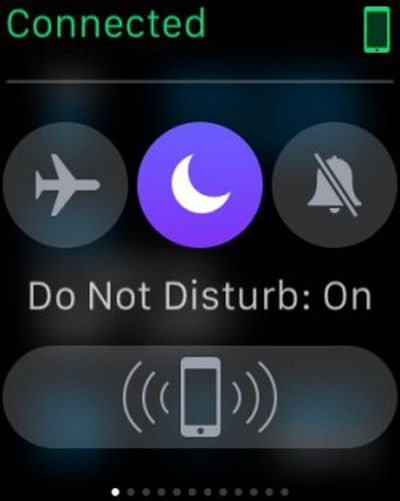
Do Not Disturb Apple WatchDo Not Disturb

  1. Navigate to the watch face, and then swipe up.
  2. Swipe to the Settings glance.
  3. Tap Do Not Disturb.
  4. Both sound and vibrations will be turned off.

By managing and customizing your Apple Watch notifications, you will be able to ensure that you stay connected to the things you want while avoiding distractions from unnecessary alerts. Plus, for those times when you just need to disconnect, you can silence your notifications temporarily.
Related Roundup: Apple Watch 12
Buyer's Guide: Apple Watch (Buy Now)
Related Forum: Apple Watch

Top Rated Comments

jclo Avatar
151 months ago
Here I am.

Just pointing out that this is yet another pointless article, mocking MR's regular readers while pandering to empty clicks from search engines, and once again posted under the name "Lory Gil". I would really like to hear from Lory on this matter, if she is a real person, or at least from a MR mod.

I think it's a mistake to assume that every MacRumors reader is at the same skill level. That an Apple Watch feature is obvious to you is not an indication that it's obvious to everyone, and honestly, the Apple Watch has a lot of complicated options and interactions to figure out. We feel that it's useful to meet the needs of users who might require a bit of help learning about all of the features on their devices (and this goes for the Mac, iPhone, and iPad too).

Even when Apple Watch features are obvious, there are often hidden little features that you might not find on your own, which also makes these posts useful for those who are already familiar with their devices.

There are a lot of people who come to MacRumors for help for a wide range of reasons, and while we realize that some of these how to posts are not useful for regular readers who are technically minded and very familiar with Apple products, people do find value in them.

We wish every post on the site would appeal to every reader, but that's just not the case. That's why we provide many different types of content aimed to meet different tastes and content preferences. That said, we appreciate the feedback -- we're always listening to what you guys have to say and we do take it into account when making content decisions.
Score: 2 Votes (Like | Disagree)
151 months ago
Here I am.

Just pointing out that this is yet another pointless article, mocking MR's regular readers while pandering to empty clicks from search engines...

It's hardly mocking; if it's something that is of no interest then it's easy enough to ignore or not get involved in. As a website I'm sure MR wants to grow its visitor numbers and repeat visitors; if it can convert an inexperienced Apple user into a regular visitor by providing them with information that's useful to them then why not? These inexperienced users will then hopefully become the experienced users of the future.

TBH I don't find the guides necessary for myself, the Apple Watch is simple to use, but I can see the benefit for others. However, it's easy to assume you know everything about something but sometimes these sort of guides have a little extra bit that of information that somehow passed you by so even for experienced users they can be useful.

I think as the Apple Watch is also quite scarce at the moment there will be a lot of people waiting on their Watch who will happily devour every bit of information about it and live vicariously through these guides until they can get their watch.

Other people may be sitting on the fence about a purchase What can the Watch do for me? How am I going to use one? These guides may assist in making that decision (whether as a sale or in the reader deciding it's not for them).
Score: 2 Votes (Like | Disagree)
151 months ago
I need DavidTheExpert's review of Lory's latest opus.
Here I am.

Just pointing out that this is yet another pointless article, mocking MR's regular readers while pandering to empty clicks from search engines, and once again posted under the name "Lory Gil". I would really like to hear from Lory on this matter, if she is a real person, or at least from a MR mod.
Score: 2 Votes (Like | Disagree)
151 months ago
I need DavidTheExpert's review of Lory's latest opus.
Score: 2 Votes (Like | Disagree)
151 months ago
Here I am.

Just pointing out that this is yet another pointless article, mocking MR's regular readers while pandering to empty clicks from search engines, and once again posted under the name "Lory Gil". I would really like to hear from Lory on this matter, if she is a real person, or at least from a MR mod.

10/10, would read again.
Score: 1 Votes (Like | Disagree)
151 months ago
My wife is finding these articles quite useful. She is learning about her watch bit by bit over time.

Really? She couldn't have figured out how to turn on calendar notifications by going to the Watch app and clicking on the big Calendar button on her own?
Score: 1 Votes (Like | Disagree)

Popular Stories

apple watch series 3 design

Apple Offers Steps to Fix Daylight Saving Time Bug on Apple Watch

Sunday November 1, 2026 3:34 am PST by
Apple has published a support document describing what to do if your Apple Watch continues to show time that's off by one hour after daylight savings time changes. "This incorrect time appears only on the Always On display when your wrist is down," says Apple. "When you activate the display by tapping it or raising your wrist, the time changes to the correct hour." To fix the issue, Apple says ...
muse apple watch app

Meta's Muse AI Agent Comes to Apple Watch

Monday November 9, 2026 1:55 pm PST by
Meta today updated the Muse app for iOS to add Apple Watch support, which means Muse users can access the proactive AI agent from the watch. The app adds the Muse character to the watch with an option to text it, dictate text to it, or call it. There's also a Muse complication for quick access. Muse is Meta's personal AI agent that can complete tasks for users. It is available as a...
siri recap live rewind

watchOS 27.3 Brings Live Rewind and Siri Recap to Apple Watch

Tuesday November 3, 2026 10:35 am PST by
With the first beta of watchOS 27.3, Apple is introducing new Audio Intelligence features it previewed for the Apple Watch Series 12 and Ultra 4 earlier this year. Powered by the S11 chip, Audio Intelligence includes Live Rewind, Siri Recap, Sound Recognition, and Shazam Music Recognition. Sound Recognition and Shazam are already on the watch, but Live Rewind and Siri Recap are now available ...
Latest Stories
The 50+ Best Apple Black Friday Deals Still Available on AirPods, iPads, and More
10 hours ago
HomePod Mini 2 in (RED) Seemingly Spotted Ahead of Announcement
7 hours ago
Apple's M6 and PROLED MacBook Pro Reach New Low Prices for Black Friday
18 hours ago
The MacRumors Show: iPhone Air 2 and iPhone 18 Are Coming
18 hours ago
Apple Store in Brisbane Reopening Next Month With New Design
18 hours ago
The 60+ Best Black Friday Accessory Deals on iPhone Chargers, TVs, Headphones, and More
19 hours ago
GTA VI Now (Barely) Running on Apple Silicon Macs
19 hours ago
The Best Black Friday Streaming Deals on Apple TV, Disney+, and More
20 hours ago
Apple TV's 'Carême' Wins International Emmy for Best Drama
21 hours ago
iPhone 18 Production Delay Leaves Apple Little Time Before Launch
21 hours ago
The Best Black Friday AirPods Deals Still Available
14 hours ago
The Best Black Friday Deals on Apple Home Products
22 hours ago
The Best Black Friday iPhone Deals Still Available
14 hours ago
The Best Black Friday iPad Deals Still Available
14 hours ago
The Best Black Friday Apple Watch Deals Still Available
14 hours ago
The Best Black Friday AirTag Deals Still Available
14 hours ago
The Best Black Friday Mac Deals Still Available
13 hours ago
iPhone Share of US Smartphone Market Hits 57% as Rivals Slip
23 hours ago
iPhone 20 Pro Rumored to Feature 3D-Printed Titanium Frame
1 day ago
Apple's Official 2026 Black Friday Offer Starts Rolling Out
2 days ago
Halide Adds Fill Light Feature for iPhone Duo
2 days ago
MacBook Air Black Friday Deals Now Live With Massive $399 Savings
2 days ago
Amazon Discounts All MacBook Neo Models by $99 for Black Friday
2 days ago
Kodak Launches Unique AirTag Rival With E-Ink Display
2 days ago
Here's Why the Apple Store is Going Down
2 days ago
Apple Still Working on Giant Foldable iPad That Could Cost $5,000
2 days ago
iPhones Dominate China's Weak Singles' Day Smartphone Sales
2 days ago
iPhone 20 Pro Could Feature Ceramic in Limited-Edition Model
2 days ago
Apple Faces Korean Regulator Review Over iPhone 16 AI Advertising
2 days ago
Apple Watch Ultra 4 Hits New Best-Ever Price of $649.99 for Black Friday
2 days ago
Related Apple News: Business | Politics | Culture | Mac | Entertainment