Skip to Content

How to Get Your Apple Watch Up and Running

by

If you are one of the lucky few to receive your Apple Watch on launch day, you are probably excitedly going through the steps to setting up and customizing your device. With a completely new operating system to get used to, we’ve got a couple of tips for getting your Apple Watch ready for daily use.

Apple Watch Overview
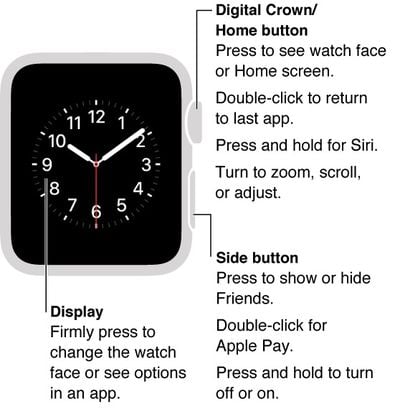
Apple Watch Front

Apple yesterday released a user guide for its wrist-worn device that provides a detailed overview of the case for those who aren't yet familiar with various features. For starters, you can easily identify the Digital Crown/Home button on the side of the watch case. Press it to go to the Home screen while viewing an app, or to display the watch face.

You can also double-click the Digital Crown to access your most recently used app. To activate Siri, press and hold it. Zoom in and out or scroll by turning the crown.

The side button, which sits just below the Digital Crown is used to show or hide friends, turn on or off Apple Watch, and access Apple Pay (with a double-click).
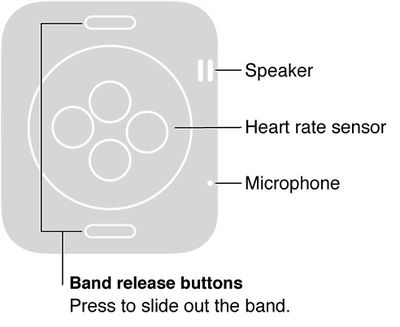
Apple Watch Back

The back side of the case houses the speaker, heart rate sensor, and microphone. You will also be able to remove your watch band by pressing the band release buttons on the back of the case.

Setting Up Apple Watch

  1. Charge Apple Watch (if it needs it). Your watch should generally arrive with at least 50 percent charge to get you going right out of the box.
  2. Press the Home button on the Digital Crown to start up the watch and following the prompts to select a language and proceed.
  3. Pair your Apple Watch with your iPhone.
  4. Open the Apple Watch app on iPhone to access your apps and customize your experience. During the setup process, you will be asked whether you want to automatically install all Apple Watch-compatible apps or manually select apps for installation.

Customizing Apple Watch

The Apple Watch app on your iPhone lets you customize notifications, app layout, and more. You can also use it to set up Apple Pay and access the App Store so you can download compatible Apple Watch apps. Open the Apple Watch app on your iPhone and tap "My Watch" to access the customizable settings.

For Apple Pay, you'll need to set up each card manually as you did on your iPhone, and the process will generally involve a confirmation step such as an activation code sent via email/text or a call to your bank to verify each card for use. Once your cards are set up, you can use Apple Pay from your watch even without your iPhone present.

Fine-Tune Apple Watch Settings

You may want to tweak the settings a bit if you discover that the alerts are too loud, the text is too small, or the screen is too bright, so head to the Settings app to make these adjustments.
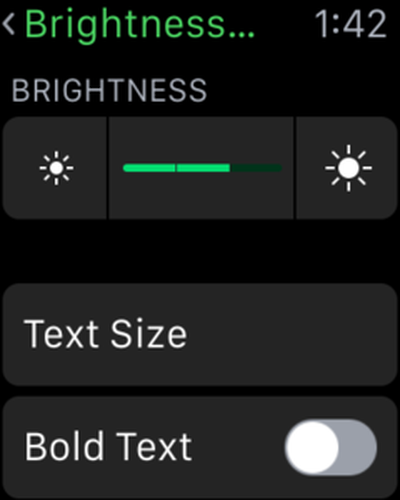
Brightness and TextAdjust Brightness

  1. On Apple Watch, open the Settings app.
  2. Scroll down to Brightness & Text Size.
  3. Tap the Brightness symbol.
  4. Turn the Digital Crown to adjust.
  5. Or, access the settings from the Apple Watch app on the iPhone under My Watch

Adjust Text Size

  1. On Apple Watch, open the Settings app.
  2. Scroll down to Brightness & Text Size.
  3. Tap Text Size.
  4. Turn the Digital Crown to increase or decrease the size of the font
  5. Toggle the Bold Text switch to the On position to make text bold. Apple Watch will reset after turning on or off Bold Text.
  6. Or, access the settings from the Apple Watch app on the iPhone under My Watch.
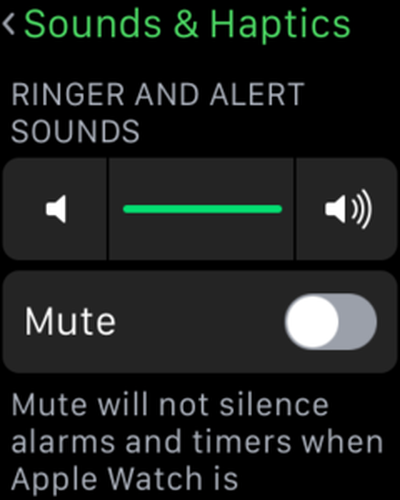
Sound and HapticsAdjust Sound

You can increase or decrease the volume of the ringer and alerts on Apple Watch, or mute everything.

  1. On Apple Watch, open the Settings app.
  2. Scroll down to Sounds & Haptics.
  3. Tap the volume button under Ringer and Alert Sounds.
  4. Turn the Digital Crown to adjust the volume.
  5. To mute Apple Watch, toggle the mute switch to the On position.
  6. You can also mute Apple Watch by swiping up on the watch face. Swipe to the Settings glance, then tap the mute button.
  7. Or, Access the settings from the Apple Watch app on the iPhone under My Watch.

You can quickly mute a new alert or notification sound by placing the palm of your hand over the watch display and holding it there for three seconds. This feature is great when you forget to silence your Apple Watch before going into a meeting.

You must turn the feature on to use it.

  1. Open the Apple Watch app on your iPhone.
  2. Tap My Watch.
  3. Tap Sounds & Haptics.
  4. Toggle the Cover to Mute switch to the On position.
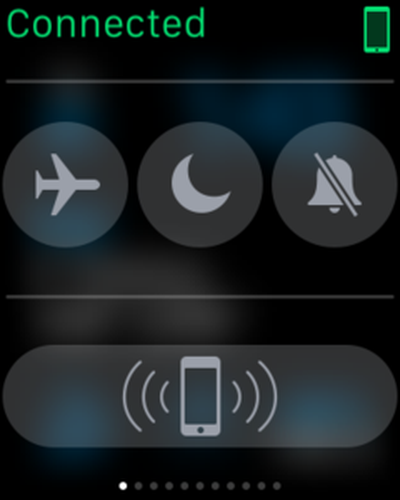
Settings GlanceTurn on Do Not Disturb

You can silence every aspect of Apple Watch, including screen lighting, using Do Not Disturb. You can specify a time period for the feature to turn on and off, designate certain contacts that can be filtered through, and quickly flip it on for a temporary silence.

  1. Swipe up on the watch face
  2. Swipe left or right to access the Settings glance.
  3. Tap the Do Not Disturb button.
  4. Or, on Apple Watch, open the Settings app.
  5. Tap Do Not Disturb.
  6. Toggle the switch to the On position.

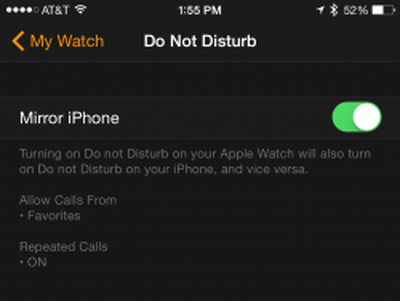
Do Not Disturb MirroringYou can also silence both your iPhone and Apple Watch at the same time from the Apple Watch app on your iPhone.

  1. Open Apple Watch app on iPhone
  2. Tap My Watch.
  3. Turn on Do Not Disturb.
  4. Then, turn on Mirror iPhone.
  5. Any time you change Do Not Disturb on iPhone or Apple Watch, the other will match it.

As a brand-new platform, there is a lot for users to learn about Apple Watch, and it takes some getting used to with multiple types of interaction methods. This guide is just a starting point for after you take it out of the box and before you leave the house, and we’ll keep you updated with more how-to guides to help you get the most out of your Apple Watch.
Related Roundup: Apple Watch 12
Buyer's Guide: Apple Watch (Buy Now)
Related Forum: Apple Watch

Top Rated Comments

151 months ago
Step first: Receive your Apple Watch in June.
Score: 4 Votes (Like | Disagree)
oneMadRssn Avatar
151 months ago
I thought the first step to getting it up and running is to post in 25 threads how your order placed mere seconds after pre-orders opened still hasn't shipped.
Score: 4 Votes (Like | Disagree)
Twimfy Avatar
151 months ago
Just learnt that a screen grab is possible with both buttons :-)
Score: 2 Votes (Like | Disagree)
151 months ago
Anyone think we should fully charge before powering on at all? I realize it will still charge powered on, but just curious...

Won't matter!
Score: 2 Votes (Like | Disagree)
CmdrLaForge Avatar
151 months ago
I love mine already and I prefer to discover new gadgets just by myself without any guide. Thats why I didn't watch the Apple guides.
Score: 2 Votes (Like | Disagree)
hlevolve Avatar
151 months ago
I love my Space Gray 42mm so far. I have to say the band is far far better than I thought it would be (Black Floroelastemer), it's extremely comfortable. I hardly even feel like I'm wearing a watch were most of them bug the crap out of me (band wise).

The haptic feedback scared me at first lol. Felt weird. It's enjoyable now though each time I get a message. I almost want to enable a ton of notifications from more apps just so I can get it to do this more often haha. I currently have it set to just the notifications that are most important such as texts, bill reminders, calls, and such.

Great product and I can see getting an enormous amount of use out of it, happy I was able to get it on launch day!
Score: 1 Votes (Like | Disagree)

Popular Stories

apple watch series 3 design

Apple Offers Steps to Fix Daylight Saving Time Bug on Apple Watch

Sunday November 1, 2026 3:34 am PST by
Apple has published a support document describing what to do if your Apple Watch continues to show time that's off by one hour after daylight savings time changes. "This incorrect time appears only on the Always On display when your wrist is down," says Apple. "When you activate the display by tapping it or raising your wrist, the time changes to the correct hour." To fix the issue, Apple says ...
muse apple watch app

Meta's Muse AI Agent Comes to Apple Watch

Monday November 9, 2026 1:55 pm PST by
Meta today updated the Muse app for iOS to add Apple Watch support, which means Muse users can access the proactive AI agent from the watch. The app adds the Muse character to the watch with an option to text it, dictate text to it, or call it. There's also a Muse complication for quick access. Muse is Meta's personal AI agent that can complete tasks for users. It is available as a...
siri recap live rewind

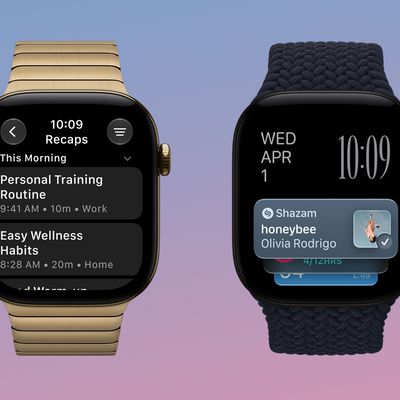
watchOS 27.3 Brings Live Rewind and Siri Recap to Apple Watch

Tuesday November 3, 2026 10:35 am PST by
With the first beta of watchOS 27.3, Apple is introducing new Audio Intelligence features it previewed for the Apple Watch Series 12 and Ultra 4 earlier this year. Powered by the S11 chip, Audio Intelligence includes Live Rewind, Siri Recap, Sound Recognition, and Shazam Music Recognition. Sound Recognition and Shazam are already on the watch, but Live Rewind and Siri Recap are now available ...
Latest Stories
The 50+ Best Apple Black Friday Deals on AirPods, iPads, MacBooks, and More
38 minutes ago
Apple's M6 and PROLED MacBook Pro Reach New Low Prices for Black Friday
43 minutes ago
The MacRumors Show: iPhone Air 2 and iPhone 18 Are Coming
49 minutes ago
Apple Store in Brisbane Reopening Next Month With New Design
1 hour ago
The 60+ Best Black Friday Accessory Deals on iPhone Chargers, TVs, Headphones, and More
2 hours ago
GTA VI Now (Barely) Running on Apple Silicon Macs
2 hours ago
The Best Black Friday Streaming Deals on Apple TV, Disney+, and More
3 hours ago
Apple TV's 'Carême' Wins International Emmy for Best Drama
4 hours ago
iPhone 18 Production Delay Leaves Apple Little Time Before Launch
4 hours ago
The Best Black Friday AirPods Deals
5 hours ago
The Best Black Friday Deals on Apple Home Products
5 hours ago
The Best Black Friday iPhone Deals
5 hours ago
The Best Black Friday iPad Deals
5 hours ago
The Best Black Friday Apple Watch Deals
5 hours ago
The Best Black Friday AirTag Deals
5 hours ago
The Best Black Friday Mac Deals
6 hours ago
iPhone Share of US Smartphone Market Hits 57% as Rivals Slip
6 hours ago
iPhone 20 Pro Rumored to Feature 3D-Printed Titanium Frame
8 hours ago
Apple's Official 2026 Black Friday Offer Starts Rolling Out
1 day ago
Halide Adds Fill Light Feature for iPhone Duo
1 day ago
MacBook Air Black Friday Deals Now Live With Massive $399 Savings
1 day ago
Amazon Discounts All MacBook Neo Models by $99 for Black Friday
1 day ago
Kodak Launches Unique AirTag Rival With E-Ink Display
1 day ago
Here's Why the Apple Store is Going Down
1 day ago
Apple Still Working on Giant Foldable iPad That Could Cost $5,000
1 day ago
iPhones Dominate China's Weak Singles' Day Smartphone Sales
1 day ago
iPhone 20 Pro Could Feature Ceramic in Limited-Edition Model
1 day ago
Apple Faces Korean Regulator Review Over iPhone 16 AI Advertising
1 day ago
Apple Watch Ultra 4 Hits New Best-Ever Price of $649.99 for Black Friday
1 day ago
New Apple Store Opening in India, Download the Special Wallpaper Now
2 days ago
Related Apple News: South Africa | Travel | News | Culture | Mac