Skip to Content

How to Send and Respond to Messages on Apple Watch

by

One of the main focal points of the Apple Watch is communication, and as such, it offers a Messages app much like the one on the iPhone. It's not quite as robust as the Messages apps available on other iOS and Mac devices, but Messages on Apple Watch lets you send pre-made replies, animated and non-animated emoji, and full voice-to-text messages.

For those of you who want to learn the ins and outs of creating and responding to messages on the Apple Watch, we've written up a detailed tutorial on the Messages app. Plus we've also got some tips on customizing the available options for communicating with others.

Sending a Message
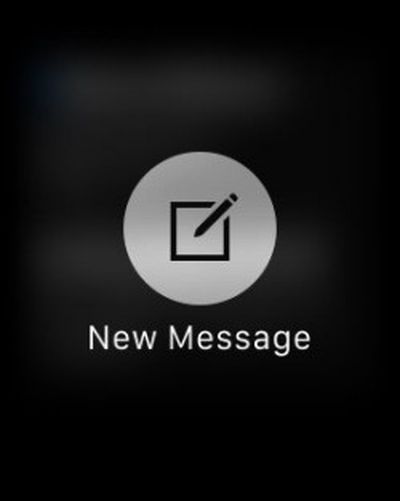
  1. How to send messages on Apple Watch 4Press the Digital Crown to go to the Home screen on Apple Watch.
  2. Open the Messages app.
  3. Firmly press on the Messages list until the icon for New Message appears.
  4. Tap "New Message."
  5. Tap "Add Contact" to select the recipient.
  6. Tap the icon to add a contact. (It looks like the silhouette of a person with a plus (+) symbol next to it.)
  7. Select a contact. Then, select the phone number or Apple ID you wish to use for that person.
  8. Tap "Create Message."
  9. Use the Default Replies, Emoji, or Dictate Text to send the message.

Sending a message can also be done quickly by tapping the button underneath the Digital Crown to bring up your friends list, where you can select a favorite contact. From there just tap the Message icon to get to the messaging options. If you've already got a list of conversations available in the Messages app (which you likely do if you use Messages on the iPhone), you can also just click there to continue a conversation from your wrist.

Responding to a Message

How to send messages on apple watchWith Messages on Apple Watch, you will get an alert when you receive a new iMessage or text message. To read it, simply raise your wrist. You can also view and respond to text messages directly from the Messages app.

  1. Press the Digital Crown to go to the Home screen on Apple Watch
  2. Open the Messages App.
  3. Select the message you wish to read.
  4. Turn the Digital Crown to scroll to the bottom of the message.
  5. Tap "Reply."
  6. Use the Default Replies, Emoji, or Dictate Text to send the message.

Customizing Default Replies
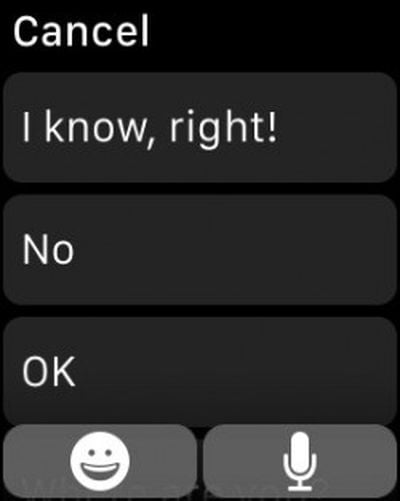
How to send messages on Apple Watch 2When responding to a text message on Apple Watch, Apple gives you a half dozen auto-reply phrases, like "OK" or "Sorry, I can’t talk right now." However, those phrases aren't exactly personal. For example, I don't think I've ever told someone that I can't talk right now. You can change the six phrases to be something a bit more akin to your personality.

  1. Open the Apple Watch app on your iPhone.
  2. Tap My Watch.
  3. Scroll down to Messages and select it.
  4. Tap "Default Replies."
  5. Select one of the grayed out messages, like "What's up?"
  6. Type your customized message in the text field.

On Apple Watch, when replying to a text message, the newly customized phrases will be listed.

Customizing Animated Emoji

How to send messages on Apple Watch 6There are three different animated emoji on Apple Watch: a smiley face, a heart, and a hand. Each one can be slightly altered to appear different. For example, the smiley face can become a frown or the fist-bump can become a wave.

  1. Under the Reply section of a message, tap the emoji icon.
  2. Swipe left or right to select the emoji you wish to use.
  3. When selected, turn the Digital Crown to view the different animation options, like a breaking heart or a crying face.
  4. If you force press on the animated smiley face or heart emoji, you can change their color.
  5. Tap Send.

It is important to note that you can send the emoji to an iOS device or Mac and the animated emoji will be displayed, but those platforms do not directly support sending animated emojis return without copying and pasting a previously received one. You can also send standard emoji to people from the Apple Watch by swiping all the way left to the fourth page of emoji options.

Sending Full Texts Using Dictate Text
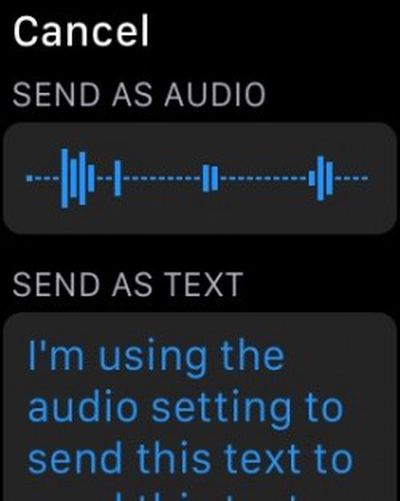
How to send messages on Apple Watch 3For responding to messages that require more than an emoji response or canned text, you can reply using the Dictate Text feature. This makes it possible for you to send longer messages by speaking text aloud, which is then sent as an audio message or converted to text. The Apple Watch's dictation feature is quite robust and it's a great way to quickly respond to messages.

  1. Under the Reply section of a message, tap the microphone icon.
  2. Begin speaking. Don't forget to include punctuation. For example, if you wish to add an exclamation point, speak the words, "Exclamation point."
  3. A sample sentence might be "I'm going to the grocery store period Do you need anything question mark." That'll translate into "I'm going to the grocery store. Do you need anything?"

  4. When finished, tap Done.
  5. You can choose to send it as an audio clip or as a text, but if you plan to send as audio, you'll want to skip dictating the punctuation.

Spend some time experimenting with the text to speech feature -- you'll likely find it useful. With that option plus custom pre-selected responses, you may find yourself sending messages more and more from your wrist instead of pulling out your iPhone. There are also several other ways to communicate more intimately with people on the Apple Watch, including taps, sketches, and heartbeats, and those options are also well worth exploring.
Related Roundup: Apple Watch 12
Buyer's Guide: Apple Watch (Buy Now)
Related Forum: Apple Watch

Top Rated Comments

151 months ago
As cool as it is that MacRumors is making these articles and I respect the writers and staff.

The fact these things even need to be said says to me the watch is too complicated and hard to use. I mean really a guide for responding to text messages?

Just my thoughts.
Some people find it hard to connect a DVD player to their TV even when it requires a single cable that comes with it. Doesn't mean that it's actually complicated or hard to use though.
Score: 9 Votes (Like | Disagree)
151 months ago
i suppose this is useful for the all 40 people that actually have one.
Score: 6 Votes (Like | Disagree)
Quu Avatar
151 months ago
As cool as it is that MacRumors is making these articles and I respect the writers and staff.

The fact these things even need to be said says to me the watch is too complicated and hard to use. I mean really a guide for responding to text messages?

Just my thoughts.

EDIT: Since some people didn't get what I was trying to say. This article is unnecessary, the watch is not hard to use. I was being perhaps a bit too sarcastic and it went over your heads. I thought I made that clear with "As cool as it is that MacRumors is making these articles and I respect the writers and staff." and [I]"I mean really a guide for responding to text messages?"[/I] but clearly not.
Score: 5 Votes (Like | Disagree)
151 months ago
How To. . . .

I'm 71 years old and consider myself pretty computer savvy, but each and every OS has it's own peculiarities and deviations, so I enjoy these little "how to" articles. Keep them coming. Even if one is not needed, overall, they all help.
Score: 4 Votes (Like | Disagree)
doelcm82 Avatar
151 months ago
And that right there is the problem with these posts. If you spend more than two minutes using the watch you'll see these posts are wholly unnecessary and are simply filler on a slow news day. It gives a very inaccurate impression of the watch which is quite intuitive to use.
I don't think these posts are for people who already have the Apple Watch.

When I first got my iPad, I took it to England (where I was working at the time). One of the people I worked with told me her husband had drawn an iPad out on paper, and was practicing on the paper version. It wasn't available in the UK yet. I gave her the box mine had come in, with the full-sized photo of the iPad on the front. I worried that it might be condescending, but she said he was really grateful.

The first computer I ever saw in person was a TRS-PC. A pocket computer with less than 1K RAM. My father let me play with it, and I was hooked. He wouldn't let me take the computer out of his sight, but he loaned me the instruction manual, which I read cover to cover.

These articles are p*rn for those who want an Apple Watch but haven't yet got one. If they had a Watch, they'd be figuring it out on their own, as you say, no problem. But they don't (yet). When they get their own, they'll pick it up even quicker than a novice, because they'll have already gone through the motions in their mind.
Score: 4 Votes (Like | Disagree)
Jason83 Avatar
151 months ago
As cool as it is that MacRumors is making these articles and I respect the writers and staff.

The fact these things even need to be said says to me the watch is too complicated and hard to use. I mean really a guide for responding to text messages?

Just my thoughts.

And that right there is the problem with these posts. If you spend more than two minutes using the watch you'll see these posts are wholly unnecessary and are simply filler on a slow news day. It gives a very inaccurate impression of the watch which is quite intuitive to use.
Score: 4 Votes (Like | Disagree)

Popular Stories

apple watch series 3 design

Apple Offers Steps to Fix Daylight Saving Time Bug on Apple Watch

Sunday November 1, 2026 3:34 am PST by
Apple has published a support document describing what to do if your Apple Watch continues to show time that's off by one hour after daylight savings time changes. "This incorrect time appears only on the Always On display when your wrist is down," says Apple. "When you activate the display by tapping it or raising your wrist, the time changes to the correct hour." To fix the issue, Apple says ...
muse apple watch app

Meta's Muse AI Agent Comes to Apple Watch

Monday November 9, 2026 1:55 pm PST by
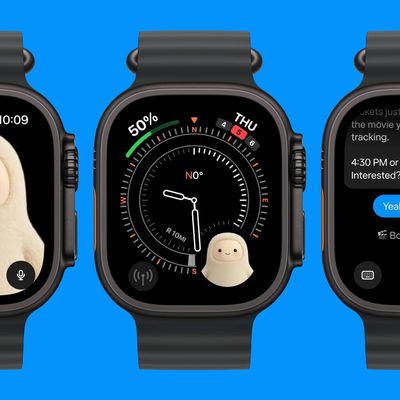
Meta today updated the Muse app for iOS to add Apple Watch support, which means Muse users can access the proactive AI agent from the watch. The app adds the Muse character to the watch with an option to text it, dictate text to it, or call it. There's also a Muse complication for quick access. Muse is Meta's personal AI agent that can complete tasks for users. It is available as a...
siri recap live rewind

watchOS 27.3 Brings Live Rewind and Siri Recap to Apple Watch

Tuesday November 3, 2026 10:35 am PST by
With the first beta of watchOS 27.3, Apple is introducing new Audio Intelligence features it previewed for the Apple Watch Series 12 and Ultra 4 earlier this year. Powered by the S11 chip, Audio Intelligence includes Live Rewind, Siri Recap, Sound Recognition, and Shazam Music Recognition. Sound Recognition and Shazam are already on the watch, but Live Rewind and Siri Recap are now available ...
Latest Stories
The 50+ Best Apple Black Friday Deals Still Available on AirPods, iPads, and More
9 hours ago
HomePod Mini 2 in (RED) Seemingly Spotted Ahead of Announcement
6 hours ago
Apple's M6 and PROLED MacBook Pro Reach New Low Prices for Black Friday
17 hours ago
The MacRumors Show: iPhone Air 2 and iPhone 18 Are Coming
17 hours ago
Apple Store in Brisbane Reopening Next Month With New Design
17 hours ago
The 60+ Best Black Friday Accessory Deals on iPhone Chargers, TVs, Headphones, and More
18 hours ago
GTA VI Now (Barely) Running on Apple Silicon Macs
18 hours ago
The Best Black Friday Streaming Deals on Apple TV, Disney+, and More
19 hours ago
Apple TV's 'Carême' Wins International Emmy for Best Drama
20 hours ago
iPhone 18 Production Delay Leaves Apple Little Time Before Launch
20 hours ago
The Best Black Friday AirPods Deals Still Available
13 hours ago
The Best Black Friday Deals on Apple Home Products
21 hours ago
The Best Black Friday iPhone Deals Still Available
13 hours ago
The Best Black Friday iPad Deals Still Available
13 hours ago
The Best Black Friday Apple Watch Deals Still Available
12 hours ago
The Best Black Friday AirTag Deals Still Available
12 hours ago
The Best Black Friday Mac Deals Still Available
12 hours ago
iPhone Share of US Smartphone Market Hits 57% as Rivals Slip
22 hours ago
iPhone 20 Pro Rumored to Feature 3D-Printed Titanium Frame
1 day ago
Apple's Official 2026 Black Friday Offer Starts Rolling Out
2 days ago
Halide Adds Fill Light Feature for iPhone Duo
2 days ago
MacBook Air Black Friday Deals Now Live With Massive $399 Savings
2 days ago
Amazon Discounts All MacBook Neo Models by $99 for Black Friday
2 days ago
Kodak Launches Unique AirTag Rival With E-Ink Display
2 days ago
Here's Why the Apple Store is Going Down
2 days ago
Apple Still Working on Giant Foldable iPad That Could Cost $5,000
2 days ago
iPhones Dominate China's Weak Singles' Day Smartphone Sales
2 days ago
iPhone 20 Pro Could Feature Ceramic in Limited-Edition Model
2 days ago
Apple Faces Korean Regulator Review Over iPhone 16 AI Advertising
2 days ago
Apple Watch Ultra 4 Hits New Best-Ever Price of $649.99 for Black Friday
2 days ago
Related Apple News: Ios 18 New Features | Ios 27 3 Beta Features | Turn Glowing Apple Logo Macbook Pro | Iphone | Macbook Air