Skip to Content

How to Set Up Out-of-Office Replies in Apple Mail and iCloud Mail

by

Mac OS X 10Apple's native Mail application in macOS lacks a specific option for enabling out-of-office replies, but there is another way you can set them up on a Mac, and that's with Rules. It's worth bearing in mind at the outset that your Mac needs to be powered on for this out-of-office method to work. That's because Apple Mail rules are only applied locally to incoming emails, and aren't active on the server side.

If you're looking for a longer term out-of-office solution, you'll want to check out Vacation mode in iCloud Mail, which we cover in the second part of this tutorial.

How to Create an Out-of-Office Reply Using Mail Rules

  1. Launch the Apple Mail app.

  2. From the menu bar, select Mail -> Preferences....

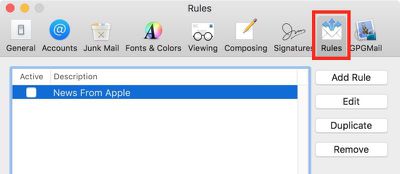
  3. Select the Rules tab.
    Rules Mail e1519290131337

  4. In the Rules dialog box that appears, click the Add Rule button and give the rule an identifiable description, such as "Out of Office Reply".

  5. Leave the default "any" selection in "If any of the following conditions are met".

  6. For the initial condition, select Account from the first dropdown menu, and then choose the email account that you want your out-of-office rule to apply to from the condition's second dropdown menu.

  7. In the second condition under "Perform the following actions:", select Reply to Message from the dropdown menu.
    Add Rule Mail e1519290288872

  8. Now click Reply message text....

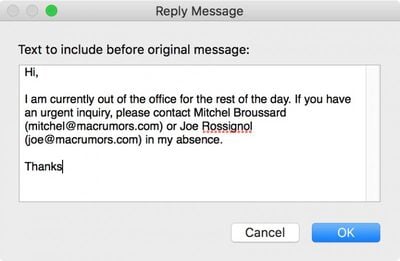
  9. In the input window that appears, type the text you want to appear in the automatic response email that will be sent when you're away.
    out of office rule text

  10. Click OK to close the input window when you're done.

  11. Click OK to close the Rules dialog box.

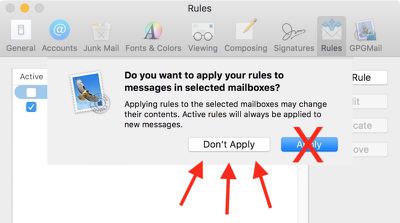
  12. WARNING! At this point, Apple Mail will ask if you want to apply the new rule to existing messages in your mailbox. Be very sure to respond to this question with a negative. In other words, click Do Not Apply, for the simple reason that clicking the alternative "Apply" option will cause Mail to send the automatic reply to all the messages currently sitting in your inbox, and you don't want that!Screen Shot 3 2 e1519290796563

  13. Your out-of-office reply rule is now active. Leave things as they are and keep your Mac on, and all incoming messages to that account will be responded to automatically. To make the out-of-office reply inactive upon your return, simply uncheck the box next to the said rule. The next time you're away, simply check the box again to reactivate it.
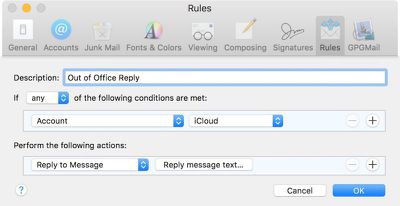
And that's it. It's worth noting that you can tweak the rule's conditions to suit your needs – so that the out-of-office reply is only sent out to specific people, or only in response to emails with certain subjects, for example.

How to Set Up Out-of-Office replies in iCloud Mail

Unlike Apple Mail in macOS, ‌iCloud‌ Mail has a dedicated out-of-office feature called Vacation mode that you can enable remotely from any web browser.

For obvious reasons, Vacation mode will only be useful to you if you have an ‌iCloud‌ email address. Other account holders looking for an out-of-office solution are better off using a third-party email client such as Mozilla Thunderbird. And with that caveat, here's how to get Vacation mode in ‌iCloud‌ Mail up and running.

  1. Open a browser and navigate to www.icloud.com.

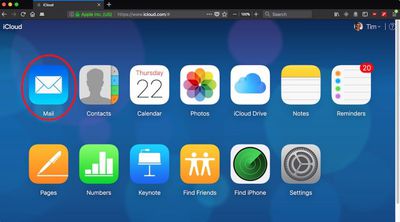
  2. Log in using your ‌iCloud‌ credentials and then click on the Mail icon.
    icloud mail

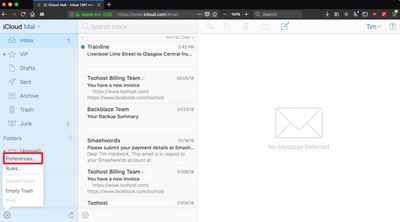
  3. When your Mail screen loads, click the cog icon in the lower left corner of the window and select Preferences... from the popup menu.
    Screen Shot 7

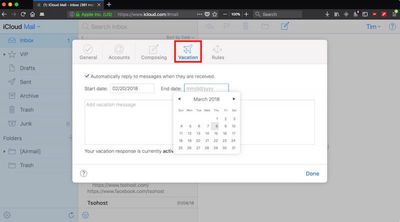
  4. Click the Vacation tab and check the box next to "Automatically reply to messages when they are received".
    Screen Shot 6

  5. Using the calendar dropdowns, click on a Start date and an End date between which you'd like your out-of-office replies to remain active.

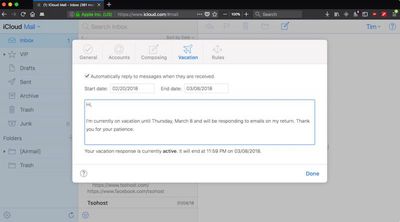
  6. Lastly, enter the text of your automatic reply into the input box, and then click Done.Screen Shot 8
Tag: iCloud

Top Rated Comments

Mefisto Avatar
114 months ago
Who needs to do this in 2018?

Almost anywhere you go, you’ll have internet access and be able to read email.
And? If there's no reply, people expect (at least in my case) that I've read, and will reply to their email. An automated response tells them not to wait, and that I will get back to them at my convenience, or at a specific date. And I'll be damned if I'm reading, let alone replying to work emails while on vacation, for example. This feature get's around all that quite nicely.

I struggle to see what the current year has to do with it, but then again I'm getting a feeling I'm completely misunderstanding your post anyway so...

Any rules you set up in mail.app should absolutely be sent to the iCloud server and applied server side. Shows a huge and obvious gap in functionality.
100% agreed.
Score: 7 Votes (Like | Disagree)
Stella Avatar
114 months ago
Any rules you set up in mail.app should absolutely be sent to the iCloud server and applied server side. Shows a huge and obvious gap in functionality.
Score: 5 Votes (Like | Disagree)
114 months ago
The first sentence if this article is wrong.

You say that the 10.13 apple mail client has no specific way to put on out of office but it does.

The option is in the mailbox porperties

Right click the mailbox on the left hand panel > Select Properties > Select the out of office tab.

This means you don’t have to set a rule that is relient on the machine and apple mail client being open.

The method i described sets a server side rule so it works all the time and is the correct way to do this
Score: 3 Votes (Like | Disagree)
MacDawg Avatar
114 months ago
I want to know when Apple is going to fix the Zombie Email problem.
Deleted emails still keep coming back from the dead regardless of whether you mark them as spam or delete them.
This has turned into a years long running joke.
Have literally never had this happen to me, and honestly it is the first time I've heard of it
Could be a widespread problem, but not something I have ever encountered

Mac mail is horrible - I still want to know why I cant delete all emails via ipad or iphone, without doing some stupid trick. Talk about annoying and inefficient.
As mentioned above, this is iOS you are talking about and not Mac Mail
But maybe you could explain a little more... are you trying to do a mass delete, or are emails not deleting from other devices?
What exactly is the problem?
Score: 2 Votes (Like | Disagree)
114 months ago
Mac mail is horrible - I still want to know why I cant delete all emails via ipad or iphone, without doing some stupid trick. Talk about annoying and inefficient.
Sorry... but... lol.

Apple Mail on macOS and iOS are different applications, first of all. So saying the Mac app Sucks, because on your phone you cannot delete things... makes no sense. So whixh App are you talking about?! My fridge can also not mow my lawn.

Second... I guess you mean you have one email address... and receive your mails on iPhone, iPad, and your Mac. If you have an IMAP account or set it up as such on all devices then deleting an email on ONE will delete it on ALL devices. Always.
If you set it up as POP (and some let you use either IMAP or POP) then the different devices dont know of one another and actions like deletions are NOT synced.

BUT, and this is A BIG BUT:
This has ZERO absolutely ZERO to do with Apple Mail. ALL Email applications will work exactly the same way. Windows software included.


I am not saying that Mail is perfect (altho stuff like Mail Drop, and Automatik shrinking of images is awesome!!!). But what you complain about has nothing to do with Apple Mail!
Score: 2 Votes (Like | Disagree)
114 months ago
I believe this is only for Exchange-based corporate servers. Surprisingly, Apple Mail still doesn’t provide a native option for out of office.
That is correct. It is actually under Account Info and ONLY applies to Exchange/Office 365 accounts. iCloud, gmail etc accounts in Apple mail do not have that function
Score: 2 Votes (Like | Disagree)

Popular Stories

General iCloud App Feature

Apple Says iCloud+ Plans Will Not Include Increased Siri AI Usage in UK

Tuesday November 17, 2026 7:07 am PST by
Apple on Monday announced that it is implementing daily usage limits on Siri AI and select other Apple Intelligence features that rely on "powerful server models" starting with iOS 27.3 and corresponding software updates, but increased access will be included with most iCloud+ plans at no additional cost in most countries, with one notable exception. In a support document, Apple said...
iCloud Link Harmful Content Feature 1

Apple Will Check Public iCloud Links for Harmful Content Starting in iOS 27.3

Wednesday November 4, 2026 11:12 am PST by
Apple says it will start checking public iCloud links for harmful content in iOS 27.3, iPadOS 27.3, macOS 27.3, and visionOS 27.3. Images in iCloud Photos and files in iCloud Drive shared using the "Anyone with the link" option will be "made accessible to Apple" for a content check. Apple doesn't define harmful content, but it could mean malware, malicious files, and/or child sexual abuse...
Siri AI Icon

Apple Continues to Say Some AI Features Will Have Fees for Extra Usage

Monday November 9, 2026 9:45 am PST by
Apple continues to advise customers that certain Apple Intelligence features that rely on its server-side Private Cloud Compute system have daily usage limits, with expanded access to such features to be "available for a fee in the future." Apple has repeatedly mentioned these upcoming fees in press releases over the past several months, but it has yet to provide any specific details about...
Latest Stories
The 50+ Best Apple Black Friday Deals Still Available on AirPods, iPads, and More
4 hours ago
Here Are the Best Apple Black Friday Leftover Deals You Can Get Today
3 hours ago
HomePod Mini 2 in (RED) Seemingly Spotted Ahead of Announcement
14 hours ago
Apple's M6 and PROLED MacBook Pro Reach New Low Prices for Black Friday
1 day ago
The MacRumors Show: iPhone Air 2 and iPhone 18 Are Coming
1 day ago
Apple Store in Brisbane Reopening Next Month With New Design
1 day ago
The 60+ Best Black Friday Accessory Deals on iPhone Chargers, TVs, Headphones, and More
3 hours ago
GTA VI Now (Barely) Running on Apple Silicon Macs
1 day ago
The Best Black Friday Streaming Deals on Apple TV, Disney+, and More
1 day ago
Apple TV's 'Carême' Wins International Emmy for Best Drama
1 day ago
iPhone 18 Production Delay Leaves Apple Little Time Before Launch
1 day ago
The Best Black Friday AirPods Deals Still Available
20 hours ago
The Best Black Friday Deals on Apple Home Products
1 day ago
The Best Black Friday iPhone Deals Still Available
20 hours ago
The Best Black Friday iPad Deals Still Available
20 hours ago
The Best Black Friday Apple Watch Deals Still Available
20 hours ago
The Best Black Friday AirTag Deals Still Available
20 hours ago
The Best Black Friday Mac Deals Still Available
20 hours ago
iPhone Share of US Smartphone Market Hits 57% as Rivals Slip
1 day ago
iPhone 20 Pro Rumored to Feature 3D-Printed Titanium Frame
1 day ago
Apple's Official 2026 Black Friday Offer Starts Rolling Out
2 days ago
Halide Adds Fill Light Feature for iPhone Duo
2 days ago
MacBook Air Black Friday Deals Now Live With Massive $399 Savings
2 days ago
Amazon Discounts All MacBook Neo Models by $99 for Black Friday
2 days ago
Kodak Launches Unique AirTag Rival With E-Ink Display
2 days ago
Here's Why the Apple Store is Going Down
2 days ago
Apple Still Working on Giant Foldable iPad That Could Cost $5,000
2 days ago
iPhones Dominate China's Weak Singles' Day Smartphone Sales
2 days ago
iPhone 20 Pro Could Feature Ceramic in Limited-Edition Model
2 days ago
Apple Faces Korean Regulator Review Over iPhone 16 AI Advertising
2 days ago
Related Apple News: Bloomberg Com | Apple Tv | Productred | Mac | Black Friday