Skip to Content

How to Use Messages' Tapback, Screen Effects and Bubble Effects in iOS 10

by

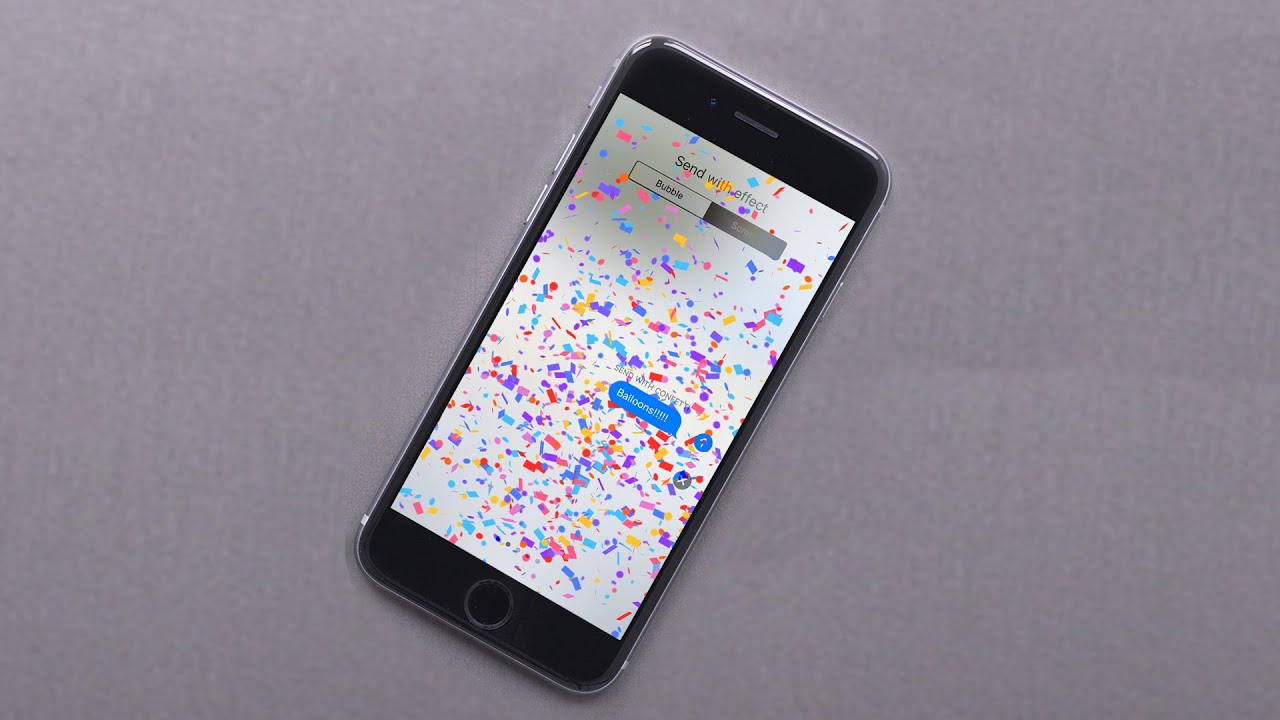
In iOS 10, Messages features creative tools to give users new ways to express themselves and communicate with friends and family. Additions include new bubble effects that change the way iMessage bubbles look, tapback reaction options for sending quick feedback on texts or photos, and screen effects that add fireworks, confetti, and more to the whole messages screen.

All of these tools are simple to use, but there are some hidden features and accessing them for the first time can be tricky, so make sure to check out our how-to for pointers.
Using Bubble Effects

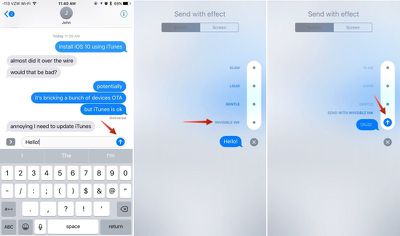
There are currently four kinds of bubble effects that can be added to chat bubbles to impact the mood of a message: Slam, Loud, Gentle, and Invisible Ink. Each one changes the way a chat bubble looks when it's delivered to a friend.

Slam, for example, expands the size of the chat bubble and slams it down onto the screen, while Loud enlarges the chat bubble and makes it shake for a few seconds before it settles down.

Gentle, meanwhile, makes the text within the chat bubble tiny for a few seconds before it expands in size, and Invisible Ink, the neatest effect, fully obscures the look of the text in the chat bubble until a finger is swiped over it to unveil it.
messagesbubbleeffects
Here's how to use Bubble Effects:

  1. Open the Messages app and select an existing conversation or start a new conversation.
  2. Type a message.
  3. On the iPhone 6s or 6s Plus, use a Force Press on the blue arrow next to the chat box to bring up the Bubble Effect options.
  4. On iPads or older iPhones, use a Long Press (press and hold for a few seconds) to bring up the Bubble Effect options.
  5. Select one of the Bubble Effect options to see a preview of what it will look like.
  6. Press the blue up arrow to send your message. It'll be delivered to the recipient with the effect.

Using Screen Effects

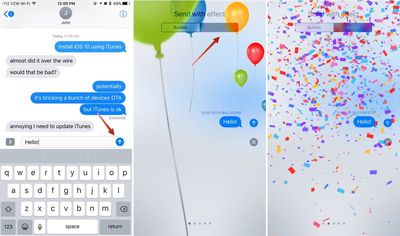
Bubble Effects change the look of the chat bubbles, but Screen Effects temporarily alter the look of the entire Messages display with full screen animations that play alongside text messages you send.
imessagescreeneffects

  1. Open the Messages app and select an existing conversation or start a new conversation.
  2. Type a message.
  3. On the iPhone 6s or 6s Plus, use a Force Press (use a long press on iPads and older iPhones) on the blue arrow next to the chat box to bring up the Bubble Effect and Screen Effect menu.
  4. The default option is Bubble Effects. Tap "Screen Effects" at the top of the display to change modes.
  5. Swipe left and right to cycle through all of the different options.
  6. When you've selected the desired effect, press the blue up arrow to send your message. It will be delivered to the recipient as a full screen animation.

Screen effects can be added to messages manually by following the above directions, but they're also an automatic effect that's activated by certain phrases. For example, if you text a friend "Happy Birthday!" your message will be sent with balloons. If you send a "Congratulations!" text, it'll be accompanied by confetti.

Using Tapback

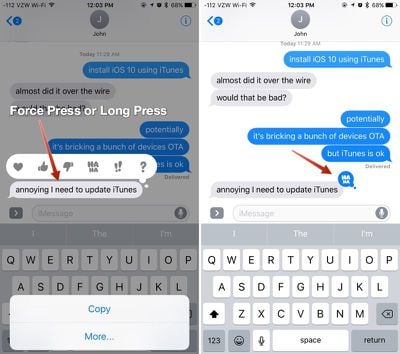
Tapback responses are little icons that can be added to any incoming message bubble, including texts, photos, GIFs, and more, allowing you to quickly share a reaction without having to type a full message. Tapback icons, when used, are added to the chat bubble that was selected and are visible to both you and the message recipient.

Tapback options include a heart, thumbs down symbol, thumbs up symbol, a "haha" icon, an exclamation point, and a question mark. Each symbol represents a different emotion or response, which is conveyed through both the icon and the accompanying notification.
tapbackresponses
Using a heart Tapback response means you "love" a photo or text message, for example, and when you send a heart response, your friend will see the message "Juli loved an image," if attached to a photo. Here's a full list of Tapback responses and the notification that accompanies them:

  • Heart - Juli loved an image
  • Thumbs up - Juli liked an image
  • Thumbs down - Juli disliked an image
  • Haha - Juli laughed at an image
  • Exclamation point - Juli emphasized an image
  • Question mark - Juli questioned an image

Here's how to respond to a message with Tapback:

  1. Open a conversation.
  2. Choose the message you want to respond to.
  3. Long press on the chat bubble. A selection of Tapback icons will be displayed.
  4. Choose the icon you want to respond with.
  5. The icon is attached to the chat bubble and sent to the message recipient.
  6. Want to remove or change a Tapback reaction? Press again and deselect the icon you chose the first time or choose a new one.

Troubleshooting

If you're having trouble getting Bubble Effects and Screen Effects to work, the Reduce Motion setting needs to be turned off if you've turned it on. The feature can be accessed in Settings --> General --> Accessibility --> Reduce Motion. Make sure it's toggled to off, aka not green.

With Reduce Motion turned on, Screen Effects and Bubble Effects do not work because they're motion-based. If you don't like Screen Effects and Bubble Effects, turning on Reduce Motion is a good way to disable them.

Bubble and Screen Effects are only displayed properly on iOS devices running iOS 10 and macOS Sierra.


Related Forum: iOS 10

Top Rated Comments

sudo1996 Avatar
133 months ago
I love how the example conversations are about iOS 10 bricking devices.
Score: 3 Votes (Like | Disagree)
133 months ago
Question:

My mother has an iPhone 6S and she recently updated to iOS 10. She can send messages using the effects and they work when I view them, but messages sent to her using the effects do not work. For instance, if she sends me a text on my phone using invisible ink the effect works on both phones, but if I send her a text from mine using invisible ink she only receives the text along with (sent using invisible ink). Any ideas on how to fix this?

I've made sure the "reduced motion" is off so that wasn't it.
Score: 3 Votes (Like | Disagree)
133 months ago
Is there anyway to turn off this? Also the drawing and App icon?

Prefer to not use these on iMessage
Score: 2 Votes (Like | Disagree)
133 months ago
If changing reduce motion isn't working, try settings>messages> turn iMessage off and back on.
Score: 2 Votes (Like | Disagree)
133 months ago
Ughhh. I wish reduce motion could be a feature by feature selection. Oh well. I'll put up with it now to have these additional message features. Also. It appears bubble and screen effects can only be selected in portrait mode. Kind of wack.
Score: 2 Votes (Like | Disagree)
133 months ago
I'm having trouble using force touch on my 7 plus Press on the blue arrow next to the chat box to bring up the Bubble Effect and Screen Effect menu... it does nothing even if I press really hard, I've adjusted force touch intensity on various levels and nothing.
Have you checked to make sure your reduce motion setting is disabled?
Score: 1 Votes (Like | Disagree)

Popular Stories

apple design award 2025

Apple Announces 2025 Design Award Winners Ahead of WWDC 2025

Tuesday June 3, 2025 10:14 am PDT by
As we wait for WWDC to kick off next Monday, Apple today announced the winners of its annual Apple Design Awards, recognizing apps and games for their innovation, ingenuity, and technical achievement. The 2025 Apple Design Award winners are listed below, with one app and one game selected per category: Delight and Fun - CapWords (App) and Balatro (Game) Innovation - Play (App) and PBJ -...
1password deal blue

1Password Security Breach: What Was Accessed and What Wasn't

Wednesday November 25, 2026 1:09 pm PST by
Popular password management app 1Password today said it experienced a security breach earlier this month. 1Password says some customer names and email addresses were accessed, but no customer vault contents were compromised. On November 19, 1Password saw indications that an employee's GitHub account had been breached and began investigating. The company says the breached GitHub account was...
apple store down feature

Here's Why the Apple Store is Going Down

Thursday November 26, 2026 5:49 am PST by
Apple's online store is going down for a few hours on a rolling country-by-country basis right now, but do not get your hopes up for new products. Apple takes its online store down for a few hours ahead of Black Friday every year to tease its annual gift card offer with the purchase of select products. The store is down in Australia, New Zealand, and Thailand, right now, and it will...
Latest Stories
The 50+ Best Apple Black Friday Deals Still Available on AirPods, iPads, and More
1 hour ago
Apple's M6 and PROLED MacBook Pro Reach New Low Prices for Black Friday
9 hours ago
The MacRumors Show: iPhone Air 2 and iPhone 18 Are Coming
9 hours ago
Apple Store in Brisbane Reopening Next Month With New Design
9 hours ago
The 60+ Best Black Friday Accessory Deals on iPhone Chargers, TVs, Headphones, and More
10 hours ago
GTA VI Now (Barely) Running on Apple Silicon Macs
10 hours ago
The Best Black Friday Streaming Deals on Apple TV, Disney+, and More
11 hours ago
Apple TV's 'Carême' Wins International Emmy for Best Drama
11 hours ago
iPhone 18 Production Delay Leaves Apple Little Time Before Launch
12 hours ago
The Best Black Friday AirPods Deals Still Available
4 hours ago
The Best Black Friday Deals on Apple Home Products
13 hours ago
The Best Black Friday iPhone Deals Still Available
4 hours ago
The Best Black Friday iPad Deals Still Available
4 hours ago
The Best Black Friday Apple Watch Deals Still Available
4 hours ago
The Best Black Friday AirTag Deals Still Available
4 hours ago
The Best Black Friday Mac Deals Still Available
4 hours ago
iPhone Share of US Smartphone Market Hits 57% as Rivals Slip
14 hours ago
iPhone 20 Pro Rumored to Feature 3D-Printed Titanium Frame
16 hours ago
Apple's Official 2026 Black Friday Offer Starts Rolling Out
1 day ago
Halide Adds Fill Light Feature for iPhone Duo
1 day ago
MacBook Air Black Friday Deals Now Live With Massive $399 Savings
1 day ago
Amazon Discounts All MacBook Neo Models by $99 for Black Friday
1 day ago
Kodak Launches Unique AirTag Rival With E-Ink Display
2 days ago
Here's Why the Apple Store is Going Down
2 days ago
Apple Still Working on Giant Foldable iPad That Could Cost $5,000
2 days ago
iPhones Dominate China's Weak Singles' Day Smartphone Sales
2 days ago
iPhone 20 Pro Could Feature Ceramic in Limited-Edition Model
2 days ago
Apple Faces Korean Regulator Review Over iPhone 16 AI Advertising
2 days ago
Apple Watch Ultra 4 Hits New Best-Ever Price of $649.99 for Black Friday
2 days ago
New Apple Store Opening in India, Download the Special Wallpaper Now
2 days ago
Related Apple News: Local News | Culture | World News | Motoring | Sport