Skip to Content

How to Use iCloud Photo Library in Photos to Sync Pictures Between Devices

by

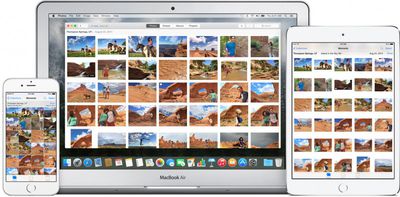
iCloud Photo Library was introduced with iOS 8, but with the launch of the Photos for OS X app, it's now available on the Mac. In a nutshell, ‌iCloud Photo Library‌ is Apple's newest photo service that lets you sync all of your images across all your devices and to iCloud.
icloud_photo_library_large
‌iCloud Photo Library‌ supports several photo and video formats, storing photos in their original format, and it makes all of your media available on any device that has ‌iCloud Photo Library‌ turned on. This how-to will walk you through how to turn ‌iCloud Photo Library‌ on for each of your devices and how to minimize the space your photos take up on each device.

Tips Before Getting Started

In order to fully take advantage of ‌iCloud Photo Library‌, you should turn it on for multiple computers, if necessary, as well as your iPhone, iPad or iPod touch. It is compatible with iOS 8.3 or later and OS X Yosemite 10.10.3 or later.

You must be connected to the Internet via Wi-Fi in order to begin the ‌iCloud Photo Library‌ upload process. Additionally, your device batteries must be fully charged, or at least connected to a power source.

Apple provides 5GB of ‌iCloud‌ storage for free. It is highly likely you will need more than that to store all of your pictures and videos. If you go over the 5GB limit, Apple will prompt you to upgrade to a larger storage capacity before continuing. ‌iCloud‌ storage starts at $0.99 per month for 20 GB of storage. The 200GB storage plan costs $3.99 per month, while the 500GB plan costs $9.99 per month and the 1TB plan costs $19.99 per month.

Be sure that all devices you wish to sync photos and videos on are signed in using the same Apple ID.

Turning on iCloud Photo Library

On OS X Yosemite:
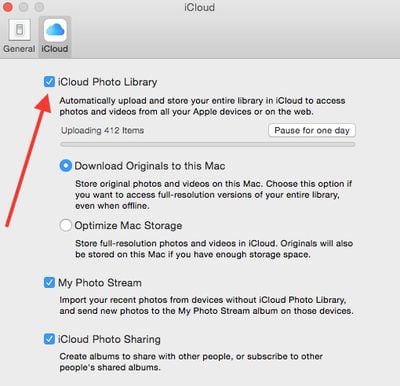
iCloud Photo Library 4

  1. Open ‌Photos‌ for OS X.
  2. Select ‌Photos‌ from the menu bar.
  3. Select Preferences from the available options.
  4. Click on the ‌iCloud‌ tab in the pop up window.
  5. Check the box titled "‌iCloud Photo Library‌."

Uploading of photos may take a long time, depending on the number of photos in your library and the speed of your Wi-Fi network. Some users have also found photo upload affecting overall performance of their Wi-Fi networks, so if you need to temporarily pause upload, you can do so for one day in preferences, with the option to manually resume uploading sooner than that if you wish.

Follow the steps above for any computer you wish to store and access the ‌iCloud Photo Library‌ from.

On iOS:

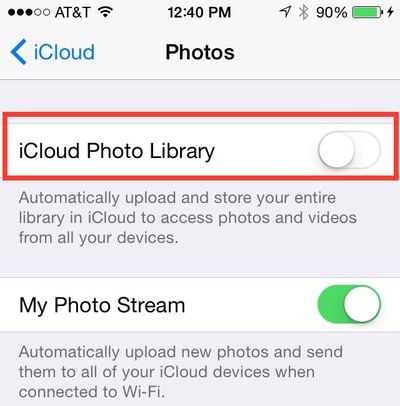
iCloud Photo Library 3

  1. Open the Settings app.
  2. Tap ‌iCloud‌.
  3. Select ‌Photos‌.
  4. Toggle ‌iCloud Photo Library‌ to the On position.

Now all of your photos and videos (not just the most recent 30 days worth, or 100 photos) will be available across all of your devices. You will also see all folders, albums, and smart albums. You will be able to search for keywords and find people based on Faces tags.

Additional features such as creating books, cards, calendars, and slideshows, last imported albums, and Faces Tiles and data will only be available on computers they were originally created on.

You can keep the amount of pictures stored on a mobile device or computer with limited storage to a minimum. Although you have complete access to all pictures and videos, you don't have to store them all on your device thanks to Apple's "optimized storage" option, which places recent, favorite, and frequently accessed images on your iPhone, ‌iPad‌, or Mac and stores older, less accessed ones in ‌iCloud‌. That way, you are only storing full resolution images of the most important pictures on your device.

Turn on Optimize iPhone Storage
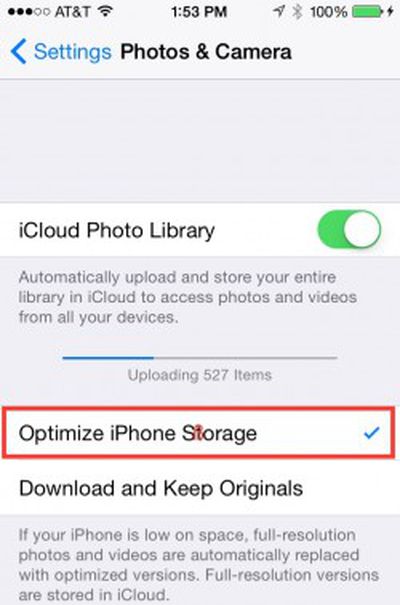
iCloud Photo Library 5

  1. Open the Settings app.
  2. Select ‌Photos‌ & Camera from the list.
  3. Tap "Optimize iPhone Storage." This will also de-select "Download and Keep Originals," which will help keep the amount of space you use on your iPhone or ‌iPad‌ to a minimum.

Turn on Optimize Mac Storage

  1. Open ‌Photos‌ on OS X Yosemite
  2. Select ‌Photos‌ from the menu bar.
  3. Click on Preferences from the available options.
  4. Click the ‌iCloud‌ tab in the pop up window.
  5. Select Optimize Mac Storage.

With ‌iCloud Photo Library‌ turned on across all of your devices, you have access to every picture you've ever taken and stored in ‌iCloud‌, including older photos, pictures you've uploaded to the ‌Photos‌ app from a DSLR camera, and videos you've taken since your baby’s birth.

Top Rated Comments

extricated Avatar
151 months ago
iCloud Photo Library Kills Internet for Some Users

I wanted to warn our forum members of an isolated, but significant, bug that I (and some others) encountered.
When I started the upload process, my Internet died and would not respond until I reset my modem. It only took a couple of times for me to link this problem to my new iCloud/Photo settings.
And, no, it has nothing to do with my upload speed or internet connection.

I found a post in Apple Support Communities (https://discussions.apple.com/thread/6992427) that speaks to this and one of the users offered a workaround (https://mayallit.wordpress.com/2015/04/23/how-to-fix-apple-photos-icloud-photo-library-upload-using-network-link-conditioner/).
Definitely worth visiting if you run into this issue and can't figure out what the heck is going on! It was maddening for me (still is, honestly).

Walt Mossberg ran into the exact same bug, detailed in his Photos review (https://recode.net/2015/04/14/review-photos-apples-replacement-for-iphoto/). Comments about the bug are near the end, under the section on iCloud Photo Library.
Score: 4 Votes (Like | Disagree)
151 months ago
I wanted to warn our forum members of an isolated, but significant, bug that I (and some others) encountered.
When I started the upload process, my Internet died and would not respond until I reset my modem. It only took a couple of times for me to link this problem to my new iCloud/Photo settings.
And, no, it has nothing to do with my upload speed or internet connection.

I found a post in Apple Support Communities (https://discussions.apple.com/thread/6992427) that speaks to this and one of the users offered a workaround (https://mayallit.wordpress.com/2015/04/23/how-to-fix-apple-photos-icloud-photo-library-upload-using-network-link-conditioner/).
Definitely worth visiting if you run into this issue and can't figure out what the heck is going on! It was maddening for me (still is, honestly).

Walt Mossberg ran into the exact same bug, detailed in his Photos review (https://recode.net/2015/04/14/review-photos-apples-replacement-for-iphoto/). Comments about the bug are near the end, under the section on iCloud Photo Library.

This isn't a bug, it's your provider not allowing you to use the service you're paying for. As the link regarding Network Link Conditioner states, "It appears that some ISPs (mine is Comcast) heavily throttle your connection if your computer is hitting the limit."

That's not a description of a bug, it's a description of an internet service provider ripping you off.
Score: 3 Votes (Like | Disagree)
rkRusty Avatar
151 months ago
Can this be achieved if you're using a Family plan (two adults and a child) so all three IDs under the plan consolidate photos to within one paid icloud plan?

No.

You cannot consolidate photos into one plan that is then shared by everybody who joins. You can only share individual photos by either right-clicking an image in Photos for OS X, hovering over 'share', selecting 'iCloud photo sharing' and adding it to your Family, or by selecting 'iCloud photo sharing' under the share button on images in iOS. As yet, there is no other way to allow all members of your Family plan to view your photos.

Ridiculous really. Apple seem unaware of what the term 'family' means.
Score: 3 Votes (Like | Disagree)
151 months ago
Can this be achieved if you're using a Family plan (two adults and a child) so all three IDs under the plan consolidate photos to within one paid icloud plan?

This isn't possible given Apple's current implementation of "Family Plans". My wife and I would like to share all our photos in my 200 GB iCloud Photo Library. But since she has her own Apple Id for mail, contacts, calendars, etc, this can't happen. You can "share" photos with any family and friends but you have to select them manually and place them in a "shared" album.

Basically, Apple needs to change things to allow family members with their own Apple Id's to share my iCloud Photo Library seamlessly.

Someone correct me if I'm wrong...
Score: 3 Votes (Like | Disagree)
151 months ago
I think what the original poster is saying is that it would be very nice to have the option to say "I would like no more than 4 GB used by the library".
Score: 2 Votes (Like | Disagree)
151 months ago
Can this be achieved if you're using a Family plan (two adults and a child) so all three IDs under the plan consolidate photos to within one paid icloud plan?

That would be the obvious implementation of the Family scheme, and one that many people are calling for. I'd say Apple are considering it, but iCloud has always been so buggy, and they have only just got it working how it should have when it was first released, so combining photo libraries is probably too difficult to implement at this time.
Score: 2 Votes (Like | Disagree)

Popular Stories

General iCloud App Feature

Apple Says iCloud+ Plans Will Not Include Increased Siri AI Usage in UK

Tuesday November 17, 2026 7:07 am PST by
Apple on Monday announced that it is implementing daily usage limits on Siri AI and select other Apple Intelligence features that rely on "powerful server models" starting with iOS 27.3 and corresponding software updates, but increased access will be included with most iCloud+ plans at no additional cost in most countries, with one notable exception. In a support document, Apple said...
iCloud Link Harmful Content Feature 1

Apple Will Check Public iCloud Links for Harmful Content Starting in iOS 27.3

Wednesday November 4, 2026 11:12 am PST by
Apple says it will start checking public iCloud links for harmful content in iOS 27.3, iPadOS 27.3, macOS 27.3, and visionOS 27.3. Images in iCloud Photos and files in iCloud Drive shared using the "Anyone with the link" option will be "made accessible to Apple" for a content check. Apple doesn't define harmful content, but it could mean malware, malicious files, and/or child sexual abuse...
Siri AI Icon

Apple Continues to Say Some AI Features Will Have Fees for Extra Usage

Monday November 9, 2026 9:45 am PST by
Apple continues to advise customers that certain Apple Intelligence features that rely on its server-side Private Cloud Compute system have daily usage limits, with expanded access to such features to be "available for a fee in the future." Apple has repeatedly mentioned these upcoming fees in press releases over the past several months, but it has yet to provide any specific details about...
Latest Stories
The 50+ Best Apple Black Friday Deals Still Available on AirPods, iPads, and More
1 hour ago
Here Are the Best Apple Black Friday Leftover Deals You Can Get Today
2 minutes ago
HomePod Mini 2 in (RED) Seemingly Spotted Ahead of Announcement
11 hours ago
Apple's M6 and PROLED MacBook Pro Reach New Low Prices for Black Friday
22 hours ago
The MacRumors Show: iPhone Air 2 and iPhone 18 Are Coming
22 hours ago
Apple Store in Brisbane Reopening Next Month With New Design
22 hours ago
The 60+ Best Black Friday Accessory Deals on iPhone Chargers, TVs, Headphones, and More
23 hours ago
GTA VI Now (Barely) Running on Apple Silicon Macs
23 hours ago
The Best Black Friday Streaming Deals on Apple TV, Disney+, and More
1 day ago
Apple TV's 'Carême' Wins International Emmy for Best Drama
1 day ago
iPhone 18 Production Delay Leaves Apple Little Time Before Launch
1 day ago
The Best Black Friday AirPods Deals Still Available
17 hours ago
The Best Black Friday Deals on Apple Home Products
1 day ago
The Best Black Friday iPhone Deals Still Available
17 hours ago
The Best Black Friday iPad Deals Still Available
17 hours ago
The Best Black Friday Apple Watch Deals Still Available
17 hours ago
The Best Black Friday AirTag Deals Still Available
17 hours ago
The Best Black Friday Mac Deals Still Available
17 hours ago
iPhone Share of US Smartphone Market Hits 57% as Rivals Slip
1 day ago
iPhone 20 Pro Rumored to Feature 3D-Printed Titanium Frame
1 day ago
Apple's Official 2026 Black Friday Offer Starts Rolling Out
2 days ago
Halide Adds Fill Light Feature for iPhone Duo
2 days ago
MacBook Air Black Friday Deals Now Live With Massive $399 Savings
2 days ago
Amazon Discounts All MacBook Neo Models by $99 for Black Friday
2 days ago
Kodak Launches Unique AirTag Rival With E-Ink Display
2 days ago
Here's Why the Apple Store is Going Down
2 days ago
Apple Still Working on Giant Foldable iPad That Could Cost $5,000
2 days ago
iPhones Dominate China's Weak Singles' Day Smartphone Sales
2 days ago
iPhone 20 Pro Could Feature Ceramic in Limited-Edition Model
2 days ago
Apple Faces Korean Regulator Review Over iPhone 16 AI Advertising
2 days ago
Related Apple News: South Africa | Politics | Opinion | Mac | Reviews