Skip to Content

iOS 14 Favorites Widget: How to Make a Replacement With Shortcuts

by

In iOS 14, Apple overhauled widgets and introduced an option for adding widgets to the Home Screen, but in the process, a well-loved Favorites widget that existed in iOS 13 was removed.
shortcutsfavorites
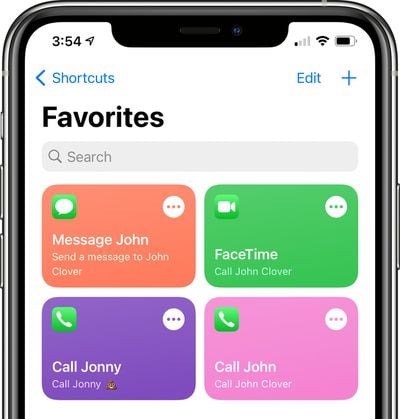
The Favorites widget allowed users to set certain contacts and contact methods as favorites that were easily accessible, so you could, for example, add a favorite option for messaging Eric or calling Dan, with those actions executed with a tap on the widget.

Why the Favorites widget was removed is a mystery and it could be a simple oversight with Apple planning to reintroduce it later, but for now, those who relied on the widget can recreate its functionality with Shortcuts. It takes some effort, but it may be worth the time investment if you often relied on your Favorites.

Creating a Favorites Shortcut

Making a shortcut that replicates the behavior of the Favorites widget isn't too tough, but if you want multiple favorite options, you'll need to create a separate shortcut for each one in the Shortcuts app.

  1. Open the Shortcuts app.
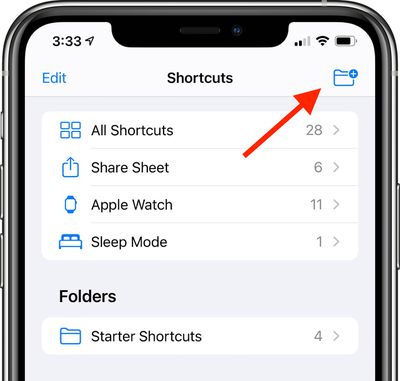
  2. Tap on the "← Shortcuts" label in the upper left hand corner.
  3. Tap on the folder icon in the top right to create a new folder. Your favorites shortcuts need to be in a folder if you want to use them with the Shortcuts widget. shortcutfoldersetup arrow
  4. Name the folder ("Favorites" in our case) and choose an icon.
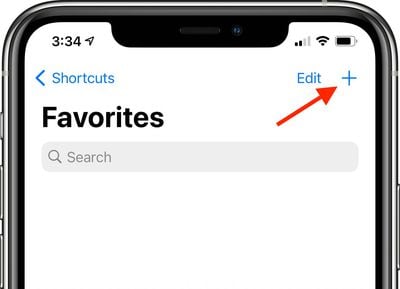
  5. Tap on the new folder ("Favorites") and then tap the "+" icon to start creating shortcuts. shortcutsfavoritefolder arrow
After this step, there are slightly different Shortcut creation methods that can be used to create quick contact options for calling, FaceTiming, and messaging someone.

Making a Shortcut to Call Someone

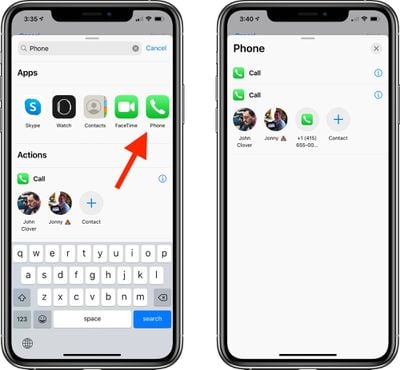
  1. Tap Add Action and then search for "Phone" or "Call."
  2. Tap the Phone app. callshortcutsetup arrow
  3. Tap on one of the suggested contacts that Shortcuts offers or tap on the "+" button to select a different contact.
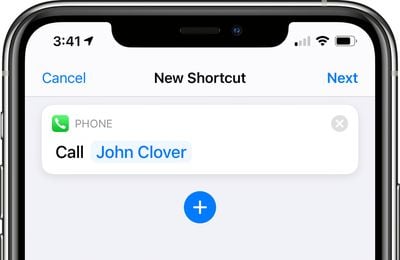
  4. Make sure the Shortcut you've created says Call [Contact Name]. phonecallcontactselection
  5. Tap Next.
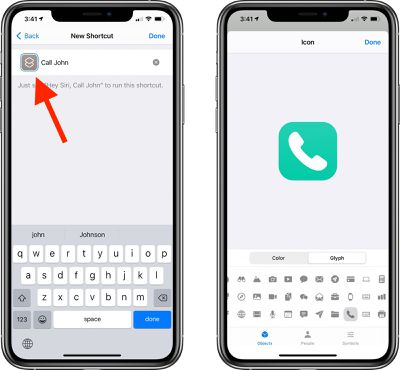
  6. Give the Shortcut a name. ("Call John" in our case)
  7. Tap the icon to the left to the name to select both a color and an icon for your Shortcut. shortcutphonecallcustom arrow
  8. Tap "Done."

After you tap Done, your shortcut to make a phone call to one of your contacts will be listed in the appropriate folder in the Shortcuts app. To activate it, just tap it and it will automatically call the intended person. Repeat these steps for anyone you want to create a call shortcut for.

Making a Shortcut to FaceTime Someone

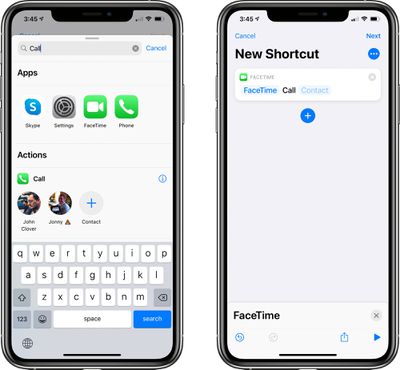
  1. Tap Add Action and then search for "FaceTime" or "Call."
  2. Tap the ‌FaceTime‌ app to get to the Shortcut editing options. facetimeshortcutsetup
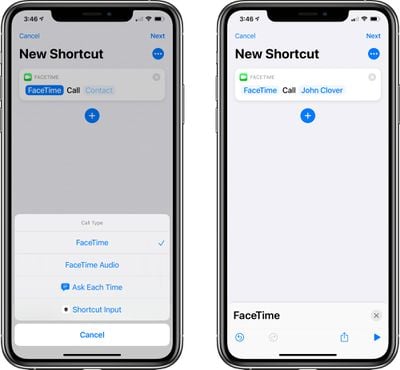
  3. Tap on "‌FaceTime‌" to select either standard ‌FaceTime‌ or ‌FaceTime‌ Audio. facetimeshortcutoptions
  4. Tap on the [Contact] blank to select a contact from the list.
  5. Make sure the Shortcut you've created says ‌FaceTime‌ [Contact Name].
  6. Tap Next.
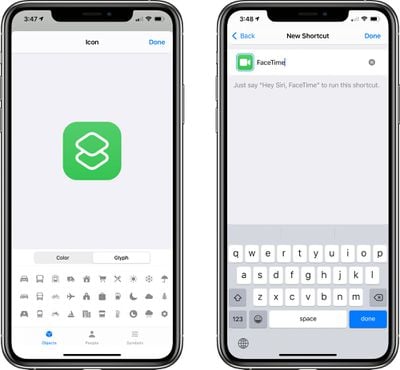
  7. Give the Shortcut a name. facetimeshortcutcustomization
  8. Tap the icon next to the name to select both a color and an icon for your Shortcut.
  9. Tap "Done."

When you tap this Shortcut, it will initiate a ‌FaceTime‌ call to the person that was added as the contact.

Making a Shortcut to Message Someone

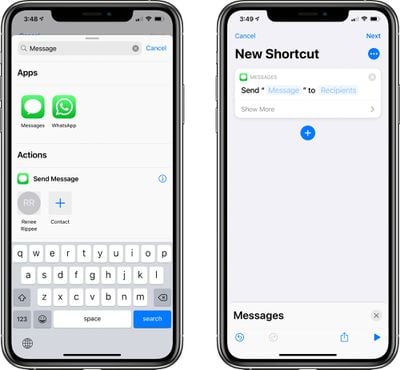
  1. Tap Add Action and then search for "Messages."messagesshortcutsetup
  2. Tap on "Send Message."
  3. Tap on the [Recipients] blank to select a contact.
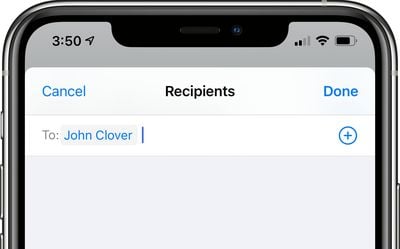
  4. Type in the name of the person you want to be able to message. messagesrecipientselect
  5. Make sure the Shortcut you've created says Send "Message" to [Contact].
  6. Tap Next.
  7. Give the Shortcut a name.
  8. Tap the icon next to the name to select both a color and an icon for your Shortcut.
  9. Tap "Done."

Tapping the finished Shortcut will open up the Messages app with a compose window for the person who you added as your target contact. Note that if you want to send a message to more than one person, just type in multiple names at the part where you're entering the name of your contact.

Adding the Shortcuts Favorites Widget to Your Home Screen

Once you've created all your shortcuts for quickly sending a message, calling, or FaceTiming your contacts, you're ready to add a widget that can be accessed from the widget interface or right from the ‌Home Screen‌.

  1. Go to the iPhone's ‌Home Screen‌.
  2. Swipe over to where you want to place your new Favorite Widget.
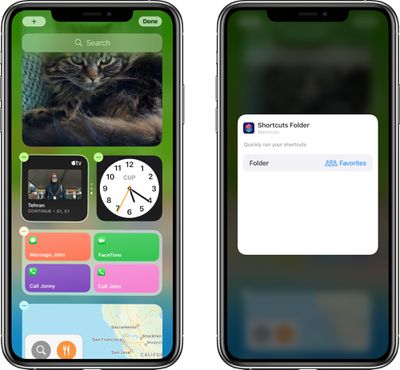
  3. Press and hold on the ‌Home Screen‌ to enter "Jiggle" Mode, and then tap the "+" button in the upper left hand corner. shortcutswidgetsetup
  4. Search for Shortcuts and tap the icon.
  5. Choose the widget you want. If you made a single favorites Shortcut, tap the single option. If you have two to four, tap the size with four, and choose eight if you have more.
  6. Tap Add Widget.
  7. Tap on the widget to customize it. shortcutsfolderselect
  8. Tap on the folder where you put all your favorites shortcuts.
  9. Tap out of the interface and tap "Done."
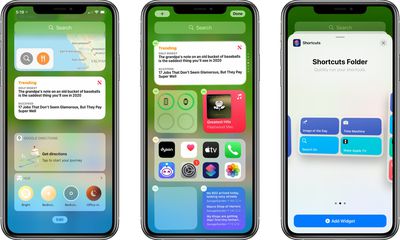
That's all there is to it. Once the Shortcuts widget is set up with the appropriate folder that contains all of your contact shortcuts, a tap on any one of the widget options will initiate the action right from the widget interface, just like the prior favorites widget.
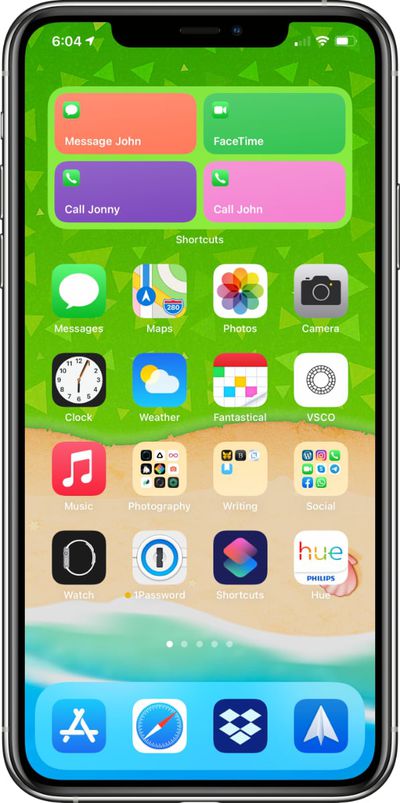
favoriteswidgethomescreen
Note that the Shortcuts widget has limited space when it comes to names, so you may need to shorten some of the Shortcut names you've created to make it clear who's going to be contacted if you have multiples.

If you need more detailed instructions on adding widgets, see our dedicated Widgets how to.

Favorites Still in the Contacts App

Just to be clear, it's the Favorites widget that's been removed, not the Favorites functionality in its entirety. You can still create and access your previously made favorite options in the Phone app under the "Favorites" tab if that's easier than making a whole bunch of Shortcuts.
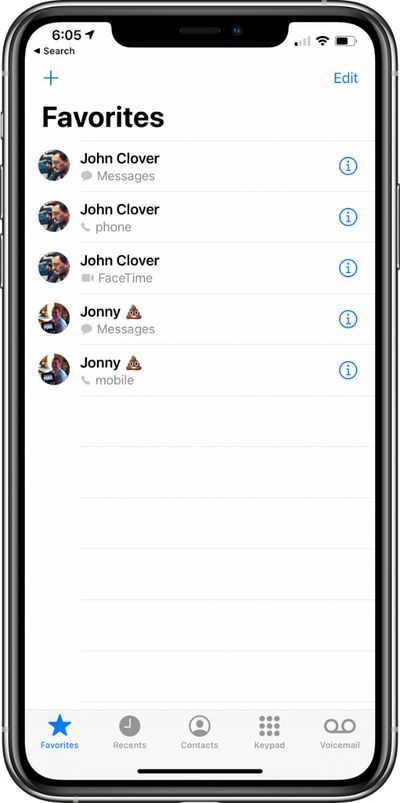
favoritesapp
For more on how to make use of widgets and the new ‌Home Screen‌ changes in iOS 14, make sure to check out our widget how to and our Home Screen guide.
Top Rated Comments

oldmacs Avatar
80 months ago
It would be great if apple could stop randomly removing things - they still haven’t made a replacement for the find my friends widget that disappeared in iOS 13 :(
Score: 7 Votes (Like | Disagree)
80 months ago

I pick up my iPhone and hold the power button and say "Ha Siri, call John or message John. Why do I need widgets for this? Serious question.
Not everyone cares to talk to their phone to issue commands.
Score: 2 Votes (Like | Disagree)
Dreamboy Avatar
80 months ago
Removing the widgets from the 3DTouch app menus is the worst thing Apple has made to iOS in years. I used this shortcuts all the time to call favorites, check stocks, weather, most used chats in WhatsApp...

This didn’t take any space on the home screen and was easily accessible. Now there’s no way to do many simple things and the new widget system seems much worst. I really see iOS 14 as a downgrade from iOS 13.
Score: 2 Votes (Like | Disagree)
JM Avatar
80 months ago
If anyone wants to get real jiggy-wit-it, you can add some lines of code in there to ask you who you want to call/text so you can have multiple people within one shortcut button.

Here we go, actually. You can set up multiple people just by hitting the plus button in the "speed dial" shortcut (under Quick Shortcuts, under Gallery)


Attachment Image
Score: 2 Votes (Like | Disagree)
80 months ago
I can't believe that there isn't a way to create a widget that just pulls the info directly from the Favorites you have saved in the Phone app, so that it updates automatically if you make a change in the Favorites in the Phone app? Maybe with the scripting? Weird?
Score: 1 Votes (Like | Disagree)
80 months ago

Search ‘phone’ in the widgets search box or look under Apps>Contacts for the 'Phone Number' action.

I've now added a list so I can choose multiple contact options from a single popup:


Result:


Thanks, I figured that out later.

My weird workaround also works, just using the Calculator as input if you paste in the correct number.
Score: 1 Votes (Like | Disagree)

Popular Stories

iphone duo cyber monday

iPhone Duo Could Get More Lock Screen Widgets, Leak Suggests

Sunday November 22, 2026 12:38 pm PST by
An experimental iPhone Duo interface tested by Apple would allow widgets to occupy two separate areas of the Lock Screen, according to findings shared by the leaker known as "pdfu." The unreleased layout adds a vertical pair of circular widgets on the right side of the screen. Crucially, pdfu says this arrangement can be used together with the existing bottom row, giving users access to more ...
1password deal blue

1Password Security Breach: What Was Accessed and What Wasn't

Wednesday November 25, 2026 1:09 pm PST by
Popular password management app 1Password today said it experienced a security breach earlier this month. 1Password says some customer names and email addresses were accessed, but no customer vault contents were compromised. On November 19, 1Password saw indications that an employee's GitHub account had been breached and began investigating. The company says the breached GitHub account was...
apple design award 2025

Apple Announces 2025 Design Award Winners Ahead of WWDC 2025

Tuesday June 3, 2025 10:14 am PDT by
As we wait for WWDC to kick off next Monday, Apple today announced the winners of its annual Apple Design Awards, recognizing apps and games for their innovation, ingenuity, and technical achievement. The 2025 Apple Design Award winners are listed below, with one app and one game selected per category: Delight and Fun - CapWords (App) and Balatro (Game) Innovation - Play (App) and PBJ -...
Latest Stories
The 50+ Best Apple Black Friday Deals on AirPods, iPads, MacBooks, and More
4 minutes ago
Apple's M6 and PROLED MacBook Pro Reach New Low Prices for Black Friday
9 minutes ago
The MacRumors Show: iPhone Air 2 and iPhone 18 Are Coming
15 minutes ago
Apple Store in Brisbane Reopening Next Month With New Design
42 minutes ago
The 60+ Best Black Friday Accessory Deals on iPhone Chargers, TVs, Headphones, and More
1 hour ago
GTA VI Now (Barely) Running on Apple Silicon Macs
2 hours ago
The Best Black Friday Streaming Deals on Apple TV, Disney+, and More
2 hours ago
Apple TV's 'Carême' Wins International Emmy for Best Drama
3 hours ago
iPhone 18 Production Delay Leaves Apple Little Time Before Launch
4 hours ago
The Best Black Friday AirPods Deals
4 hours ago
The Best Black Friday Deals on Apple Home Products
4 hours ago
The Best Black Friday iPhone Deals
5 hours ago
The Best Black Friday iPad Deals
5 hours ago
The Best Black Friday Apple Watch Deals
5 hours ago
The Best Black Friday AirTag Deals
5 hours ago
The Best Black Friday Mac Deals
5 hours ago
iPhone Share of US Smartphone Market Hits 57% as Rivals Slip
6 hours ago
iPhone 20 Pro Rumored to Feature 3D-Printed Titanium Frame
7 hours ago
Apple's Official 2026 Black Friday Offer Starts Rolling Out
1 day ago
Halide Adds Fill Light Feature for iPhone Duo
1 day ago
MacBook Air Black Friday Deals Now Live With Massive $399 Savings
1 day ago
Amazon Discounts All MacBook Neo Models by $99 for Black Friday
1 day ago
Kodak Launches Unique AirTag Rival With E-Ink Display
1 day ago
Here's Why the Apple Store is Going Down
1 day ago
Apple Still Working on Giant Foldable iPad That Could Cost $5,000
1 day ago
iPhones Dominate China's Weak Singles' Day Smartphone Sales
1 day ago
iPhone 20 Pro Could Feature Ceramic in Limited-Edition Model
1 day ago
Apple Faces Korean Regulator Review Over iPhone 16 AI Advertising
1 day ago
Apple Watch Ultra 4 Hits New Best-Ever Price of $649.99 for Black Friday
1 day ago
New Apple Store Opening in India, Download the Special Wallpaper Now
2 days ago
Related Apple News: Travel | Culture | Mac | Motoring | Buyers Guide