Skip to Content

How to Create and Use Memoji

by

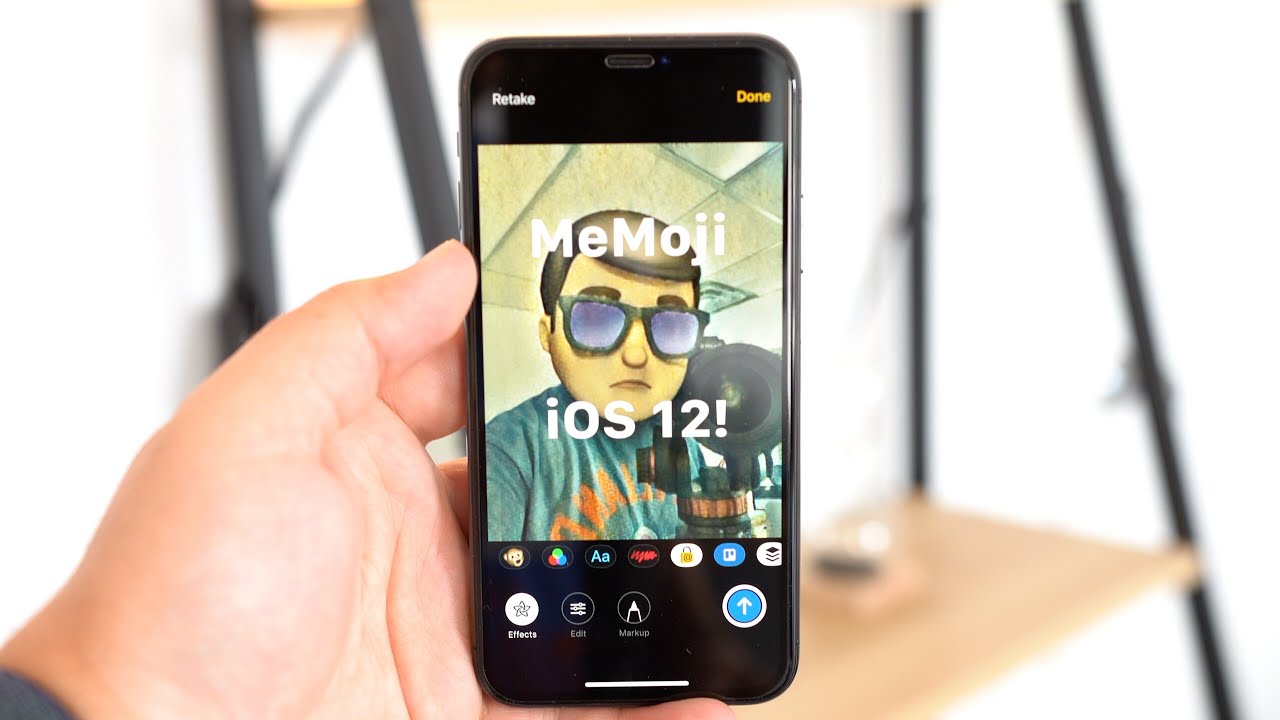
In iOS 11, Apple introduced animated emoji characters called Animoji, which are designed to mimic your facial expressions. As of iOS 12, Animoji have grown to encompass Memoji, which are customizable humanoid Animoji characters that you can design to look just like you.

Memoji can do all of the same things that Animoji can, mimicking your facial expressions to allow for cute videos, photos, and interactions with friends and family. In iOS 12 and iOS 13, you can also use Memoji and Animoji in photos through the Messages camera and in live FaceTime chats. And in iOS 14, Apple added new Memoji customization options, including the ability to select new hair styles, headwear, or masks, and more age options.
Making a Memoji

Animoji live in the Messages app, so creating a Memoji is also done in Messages.

  1. Open up the Messages app.
  2. Choose a conversation.
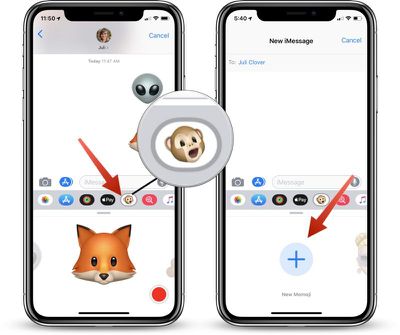
  3. Tap on Animoji Messages app from the Messages app bar, which looks like a little monkey.
  4. Swipe right until you see the "+" button and tap it. creatinganewmemoji
Customizing Your Memoji

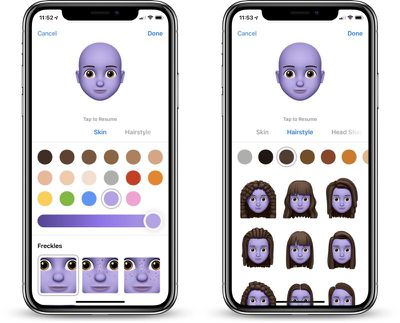
Memoji start out as a blank face, and it's up to you to customize it to look like you. The Memoji interface will open up to a display that lets you choose skin tone to begin with. Tapping buttons and sliders will let you customize features and choose options like freckles or no freckles.
memojiblankslate
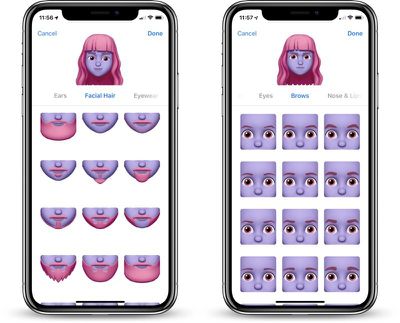
To move on from skin tone to other features, tap the labels at the top, cycling through Hairstyle, Head Shape, Eyes, Brows, Nose & Lips, Ears, Facial Hair, Eyewear, and Headwear.

During this entire process, your Memoji is active so you can see what all of the features look like when animated. Sometimes it will pause when changing a feature, but you can resume the animation by tapping on the Memoji.
morememojioptions
There are dozens of facial feature options and accessories to choose from when creating a Memoji, allowing for many different looks.

When your Memoji is all finished, just tap "Done" in the upper right hand corner.
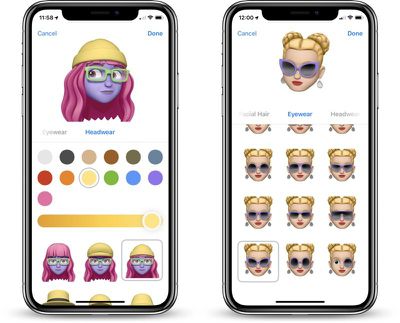
memojioptions
You can save as many Memoji as you want, so you can make Memoji for yourself, your friends, family, celebrities, characters, and more.
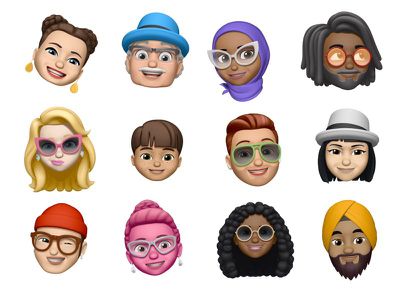
Apple iOS 12 Memoji

Editing and Deleting Memoji

You can edit an already-created Memoji or delete a Memoji at any time.

  1. Open up the Messages app.
  2. Choose a conversation.
  3. Tap on the little monkey icon in the Messages app drawer to open up the Animoji Messages app.
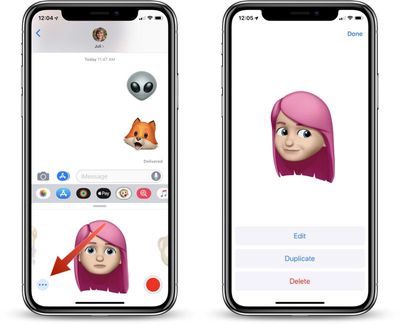
  4. With a Memoji in frame, tap on the three little dots in the left hand corner.
  5. Choose "Edit" to make changes to your Memoji, choose "Delete" to remove it, or choose "Duplicate" to use it as a base for a new Memoji. memojiedit

New Animoji Features in iOS 12 and later

In iOS 12 and later, facial recognition capabilities let your Animoji and Memoji mimic both your tongue sticking out and winks. All Animoji and Memoji have tongues, with some special touches like a glitter tongue for the unicorn, a green tongue for the alien, and an articulated tongue for the robot.
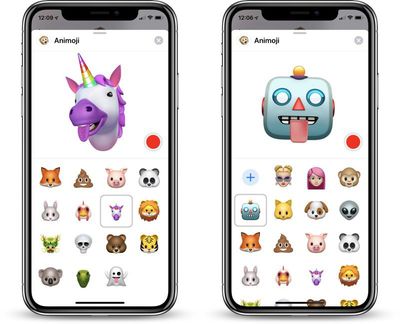
animojitongue

Recording a Memoji or Animoji Video in the Messages App

Recording a message, song, or facial expression in a video that can be sent to family and friends is done in the same way that it was done in iOS 11.

With the Animoji app open in Messages and an Animoji or Memoji selected, tap on the red record button to start recording a message. When finished, tap the red stop button, and then tap the blue up arrow to send.
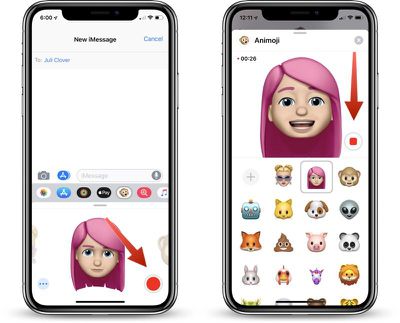
memojirecording
Tapping on the arrow sends the Animoji or Memoji recording automatically to the person you're conversing with.

Using a Memoji or Animoji as a Sticker

Your Memoji and Animoji can also be used as stickers if you just want to send a quick photo reaction but not a full video. To do this, make the desired face and then tap on the Animoji itself rather than the record button to create a quick little screenshot that can be sent using the blue up arrow.

If you want to use the Animoji or Memoji as a sticker to react to another message or to decorate a photo, press a finger on the Animoji and then drag it upwards into the iMessage conversation.
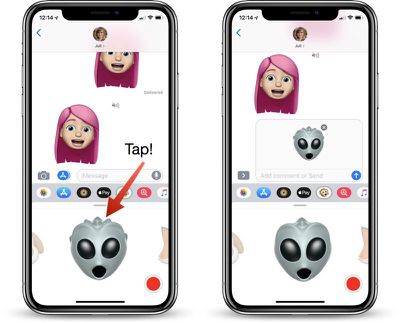
animojistillimage
While the sticker is attached to your finger, you can use gestures to rotate it and resize it to get the perfect position.
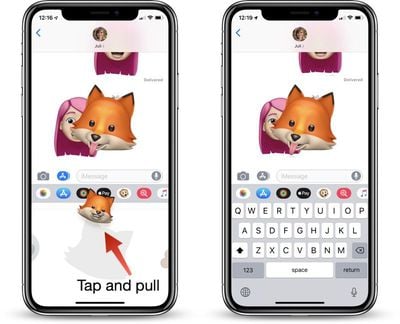
animojistickers

Animoji in the Messages Camera and in FaceTime

iOS 12 and later include a new Effects camera in both Messages and ‌FaceTime‌, which includes support for Animoji and Memoji. You can use Animoji and Memoji to create photos in Messages and to entertain friends and family while in ‌FaceTime‌ conversations.

Animoji in the Messages Camera

  1. Open the Messages app.
  2. Choose a conversation.
  3. Tap on the Camera icon that's next to the iMessage chat bar.
  4. Tap on the star-shaped icon in the bottom left corner. animojiinmessages
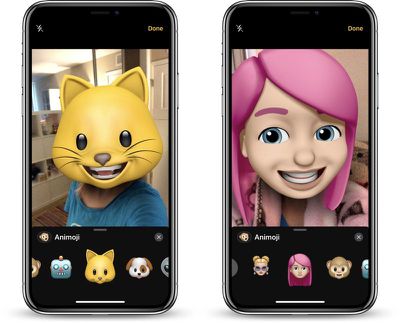
  5. Select the Animoji icon, which looks like a little monkey.
  6. Choose an Animoji or Memoji and it will pop up over your face. animojimemojimessagescamera
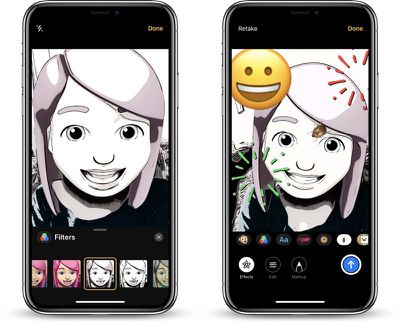
  7. After applying an Animoji, tap the small "X" in above the Animoji menu to exit out of the Animoji interface. Your Animoji will still be displayed, but you will also be able to add other camera effects.
  8. When all of your desired effects are applied, tap the photo button to snap a photo that can then be edited, marked up further, or shared. animojimessagesfilters
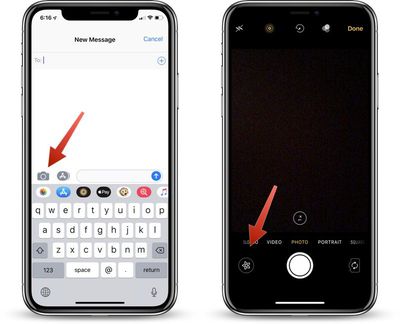
With the Messages camera, you can add Animoji, filters, text, shapes, and stickers to your images.

Animoji in FaceTime

  1. Initiate a ‌FaceTime‌ call.
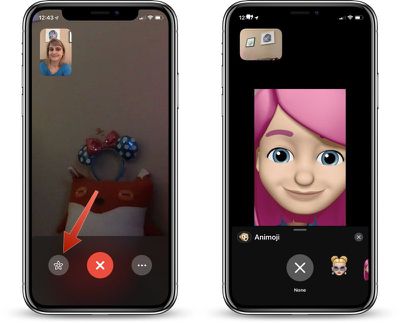
  2. After the call has started, tap on the star-shaped Effects icon.
  3. Choose an Animoji or Memoji, tap it, and it will be displayed over your face. memojifacetime
  4. As in the Messages Effects camera, tap on the "X" above the Animoji menu and you can also apply other effects while in the ‌FaceTime‌ call.

The person on the other end of the ‌FaceTime‌ call will see the Animoji and any other effects that you have applied, such as filters. You can complement your Animoji ‌FaceTime‌ calls with the aforementioned filters, stickers, text, and all of the other Effects camera options.

Animoji and Memoji only work with the front-facing camera in both Messages and ‌FaceTime‌, because the TrueDepth camera system is required.

Memoji and Animoji Compatibility

You need a device with a TrueDepth camera system to create Memoji and Animoji, which includes the iPhone X, iPhone XS, iPhone XS Max, and iPhone 11 series. The iPhone XR and 2018 and later iPad Pro models also TrueDepth camera systems.

While it's just devices with a TrueDepth camera that can be used to create and display Animoji, others can still see them in ‌FaceTime‌ calls (including Group ‌FaceTime‌ calls) and in photos created with the Messages camera.

Related Forum: iOS 14

Top Rated Comments

Kaibelf Avatar
110 months ago
Memoji:
A technique upon which a person can hide behind a computer generated 3D caricature of themselves to communicate with others in a very creepy manner.

Wiki post 14748
Since this would almost certainly be used between/among friends who are casually chatting on Facetime, how exactly is it "creepy?" I don't know anyone who does direct video calling to strangers from their personal cell device.
[doublepost=1530564706][/doublepost]
It really doesn’t upset me that much but even the original emojis, the ascii character ones before the graphic picture versions I thought were a waste of time. Is there a way to refuse delivery of these?
Yes. You have to tell people in your contact list to not text you anymore, as they won't stop using them just because one guy in their rolodex doesn't like the thing that everyone else uses casually. Think of it as being the guy who says "Hey, I am going to Google+, so if you want to stay my social network friend, you all need to go there to find me as I'm not liking your Facebook and refuse to stay in touch there."
Score: 8 Votes (Like | Disagree)
Kaibelf Avatar
110 months ago
Major technological advancements for humankind in 2018?
We are able to track all the features and expressions of a humans face to mimic these features and expressions in a semi-lifelike characature that has some resemblance to the subject face for the purpose of enhanced "social communication."
Totally irrelevant to the advancement of anything. At all. But we did it. Because investors. And Keynotes.
Entertainment isn’t always about creating some grand cultural touchstone. Example/Apple's rebuttal:

Score: 7 Votes (Like | Disagree)
MDF314159265 Avatar
110 months ago
Major technological advancements for humankind in 2018?
We are able to track all the features and expressions of a humans face to mimic these features and expressions in a semi-lifelike characature that has some resemblance to the subject face for the purpose of enhanced "social communication."
Totally irrelevant to the advancement of anything. At all. But we did it. Because investors. And Keynotes.
Score: 5 Votes (Like | Disagree)
Regbial Avatar
110 months ago
The worst and most useless gimmick I’ve ever layed my eyes upon.

I cringed when I saw them from Samsung in an S9 ad in the movie theater. I felt nauseous, and embarassed for Apple, when they showed it on the Keynote stage, devoted so much time to this infantile feature.

But I guess the masses are just that in the end, infantile and oh-so bored with their day to day lives they need crap like this.

I wonder how Steve would feel about gimmicks like this littering his keynote stage, and taking up so much time. (o yea I went durr)
Score: 3 Votes (Like | Disagree)
macduke Avatar
107 months ago
[doublepost=1537350047][/doublepost]With such advanced cameras in the iPhone X, why the heck do we have to customize every detail of our own face? The camera can see us and choose the most appropriate features! Let people tweak it if need be but I quit even trying once met with a screen of women’s hairstyles, at least offer me intelligent suggestions.
I created one for myself and my two kids (for them to play around with) in just a few minutes. It's really not that difficult or time consuming to use, especially if you're used to playing any game made by Bethesda, lol.
[doublepost=1537379126][/doublepost]
Remember kids: always remember to practice safe sexting and use a Memoji.
I just tried liking this comment. Then I realized I wrote it months ago and this story is recycled. Good job me, that was a funny comment!
Score: 2 Votes (Like | Disagree)
macduke Avatar
110 months ago
Remember kids: always remember to practice safe sexting and use a Memoji.
Score: 2 Votes (Like | Disagree)

Popular Stories

apple design award 2025

Apple Announces 2025 Design Award Winners Ahead of WWDC 2025

Tuesday June 3, 2025 10:14 am PDT by
As we wait for WWDC to kick off next Monday, Apple today announced the winners of its annual Apple Design Awards, recognizing apps and games for their innovation, ingenuity, and technical achievement. The 2025 Apple Design Award winners are listed below, with one app and one game selected per category: Delight and Fun - CapWords (App) and Balatro (Game) Innovation - Play (App) and PBJ -...
1password deal blue

1Password Security Breach: What Was Accessed and What Wasn't

Wednesday November 25, 2026 1:09 pm PST by
Popular password management app 1Password today said it experienced a security breach earlier this month. 1Password says some customer names and email addresses were accessed, but no customer vault contents were compromised. On November 19, 1Password saw indications that an employee's GitHub account had been breached and began investigating. The company says the breached GitHub account was...
Apple 2026 Black Friday Event Hero

Apple's Official 2026 Black Friday Offer Starts Rolling Out

Thursday November 26, 2026 8:37 am PST by
Apple's annual four-day Black Friday through Cyber Monday shopping event is now live in Australia, New Zealand, and Thailand, and it will continue to roll out across Europe, the U.S., and Canada as the calendar turns to Friday, November 27 around the world. In the U.S., Apple's terms and conditions say the promotion begins on November 27 at 12 a.m. Pacific Time and ends on November 30 at...
Latest Stories
The 50+ Best Apple Black Friday Deals Still Available on AirPods, iPads, and More
12 hours ago
HomePod Mini 2 in (RED) Seemingly Spotted Ahead of Announcement
9 hours ago
Apple's M6 and PROLED MacBook Pro Reach New Low Prices for Black Friday
19 hours ago
The MacRumors Show: iPhone Air 2 and iPhone 18 Are Coming
19 hours ago
Apple Store in Brisbane Reopening Next Month With New Design
20 hours ago
The 60+ Best Black Friday Accessory Deals on iPhone Chargers, TVs, Headphones, and More
21 hours ago
GTA VI Now (Barely) Running on Apple Silicon Macs
21 hours ago
The Best Black Friday Streaming Deals on Apple TV, Disney+, and More
22 hours ago
Apple TV's 'Carême' Wins International Emmy for Best Drama
22 hours ago
iPhone 18 Production Delay Leaves Apple Little Time Before Launch
23 hours ago
The Best Black Friday AirPods Deals Still Available
15 hours ago
The Best Black Friday Deals on Apple Home Products
1 day ago
The Best Black Friday iPhone Deals Still Available
15 hours ago
The Best Black Friday iPad Deals Still Available
15 hours ago
The Best Black Friday Apple Watch Deals Still Available
15 hours ago
The Best Black Friday AirTag Deals Still Available
15 hours ago
The Best Black Friday Mac Deals Still Available
15 hours ago
iPhone Share of US Smartphone Market Hits 57% as Rivals Slip
1 day ago
iPhone 20 Pro Rumored to Feature 3D-Printed Titanium Frame
1 day ago
Apple's Official 2026 Black Friday Offer Starts Rolling Out
2 days ago
Halide Adds Fill Light Feature for iPhone Duo
2 days ago
MacBook Air Black Friday Deals Now Live With Massive $399 Savings
2 days ago
Amazon Discounts All MacBook Neo Models by $99 for Black Friday
2 days ago
Kodak Launches Unique AirTag Rival With E-Ink Display
2 days ago
Here's Why the Apple Store is Going Down
2 days ago
Apple Still Working on Giant Foldable iPad That Could Cost $5,000
2 days ago
iPhones Dominate China's Weak Singles' Day Smartphone Sales
2 days ago
iPhone 20 Pro Could Feature Ceramic in Limited-Edition Model
2 days ago
Apple Faces Korean Regulator Review Over iPhone 16 AI Advertising
2 days ago
Apple Watch Ultra 4 Hits New Best-Ever Price of $649.99 for Black Friday
2 days ago
Related Apple News: Travel | Iphone | Opinion | Iphone | Sport