Skip to Content

How to Automatically Change Your Apple Watch Face Based on Time or Location

by

If you find yourself regularly swiping to a different watch face on your Apple Watch depending on what you're doing or where you are, this article is for you. Because thanks to the power that Apple has built into its Shortcuts app, it's possible to make the watch face on your Apple Watch automatically change based on the time of day or your location. Keep reading to learn how.
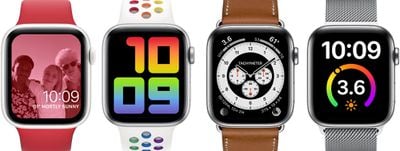
applewatchfaceswatchos7
One of the great things about the Apple Watch is the number of watch faces you can customize, which allows you to make certain faces more informative or more functional for different purposes, and then swipe to them when you need them. When you go to the office, for example, you can have a watch face filled with work-focused complications. Or you might swipe to a minimal watch face in the evening when you're winding down before bed.

If you tend to set up different watch faces in such a way, then it's worth considering creating an automation in iOS that can change the watch face on your Apple Watch for you when you need it, without you having to even raise your wrist. With the Shortcuts app, you can.

If you've never created a shortcut before, don't worry – the steps below show you how easy this particular automation is to set up. The only thing to bear in mind is that if you want your Apple Watch to change back to another watch face after a certain time (when your working day is at an end, for example) then you'll need to set up a second, separate automation for this to happen.

Likewise, if you want the watch face to only be active when you're at a particular location and then revert when you leave, then unless you want to dig deeper into the complex world of Shortcuts, a second automation is required.

How to Automatically Change Your Apple Watch Face At a Certain Time

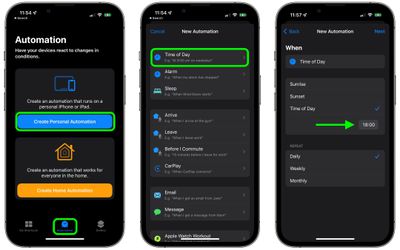
  1. Launch the Shortcuts app on your iPhone.
  2. Tap the Automation tab at the bottom of the screen.
  3. Tap Create Personal Automation.
  4. Select Time of Day.
  5. Choose Sunrise or Sunset (after which you'll be given the option to define a specific time around these solar events), or specify any time with Time of Day. (Note the Repeat options include Daily, Weekly, and Monthly.) Then tap Next.
    shortcuts

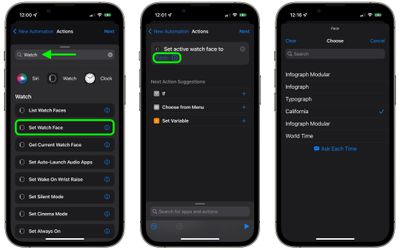
  6. Tap Add Action, then use the search field to look up "Watch."
  7. Select Set Watch Face from the results list of watch actions.
  8. On the Actions screen, immediately below "Set active watch face to," tap the word Face in blue.
  9. Choose the watch face you'd like to change to at the specified time. Note the list here uses Apple's official names for its watch faces, so you may see some duplicates. That's because the list corresponds to the current watch faces arranged on your watch, with the top watch face in the list being the one you see when you've swiped to the first (leftmost) face on your Apple Watch.
    shortcuts

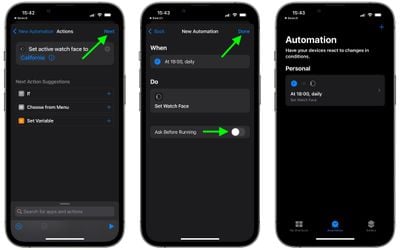
  10. Tap Next when the Actions screen reappears, then toggle off the switch next to Ask Before Running and confirm by tapping Don't Ask at the prompt.
  11. Tap Done to finish.
    shortcuts

You should now see the automation you just created on the Automation screen. You don't have to do anything else – your watch face should now automatically change at the time you set.

How to Automatically Change Your Apple Watch Face Based on Location

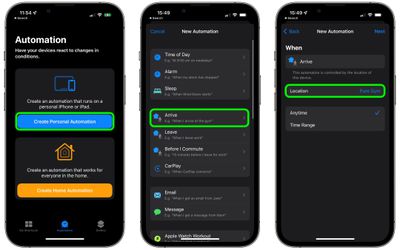
  1. Launch the Shortcuts app on your iPhone.
  2. Tap the Automation tab at the bottom of the screen.
  3. Tap Create Personal Automation.
  4. Select Arrive or Leave, depending on when you want the watch face to change.
  5. Choose the Location, and select it either by searching or entering the address, then tap Next.
    shortcuts

  6. Tap Add Action, then use the search field to look up "Watch."
  7. Select Set Watch Face from the results list of watch actions.
  8. On the Actions screen, immediately below "Set active watch face to," tap the word Face in blue.
  9. Choose the watch face you'd like to change to when arriving at or leaving the specified location. Note the list here uses Apple's official names for its watch faces, so you may see some duplicates. That's because the list corresponds to the current watch faces arranged on your watch, with the top watch face in the list being the one you see when you've swiped to the first (leftmost) face on your Apple Watch.
    shortcuts

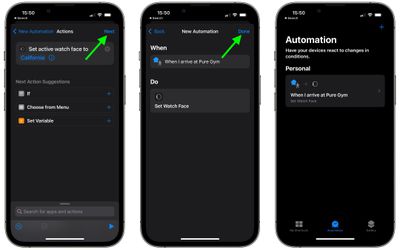
  10. Tap Next when the Actions screen reappears.
  11. Tap Done on the last screen to finish.
    shortcuts

You should now see the automation you just created on the Automation screen. You don't have to do anything else – your watch face should now automatically change either when you leave or arrive at the location you selected.

These two automations barely touch the surface of what is possible with the Shortcuts app. For example, you can create actions using predefined shortcuts in order to build complex automations that take in all manner of conditions and variables for when your watch face should change. Ultimately, the complexity of your automations depends on how much time you want to invest in discovering what's possible, and the only limit is your imagination.
Related Roundups: Apple Watch 12, Apple Watch SE 3
Related Forum: Apple Watch

Top Rated Comments

62 months ago
This right here my friends, is what I love seeing. Give us more of these super random yet quick and impactful tips, please. Love the post!

There’s a similar one on making ones of Memoji into an Apple Badge I saw a long time ago. Maybe if you have a collection of all these tips somewhere on the site? So we can see a collective amount of shortcuts, now that’s be cool!

🤩🤗😄✌🏼👋🏼🕊
Score: 41 Votes (Like | Disagree)
bradbomb Avatar
62 months ago
There needs to be a correction. For location based shortcut automations, they do not run automatically. They bring a pop up to run when arriving at the location.
Score: 15 Votes (Like | Disagree)
nattK Avatar
62 months ago
I wish there was a shortcut that automatically changes your watch face once you're closed all your activity rings.
Score: 12 Votes (Like | Disagree)
Unami Avatar
62 months ago
Yeah, but in reality your watch face then doesn't change with location automatically but it brings up a popup in the watch, which you have to confirm manually if you even notice it. Just as "usefull" as setting a location based reminder to change it yourselfy. A lot of shotcuts automations sound nicer in theory than they are.
Score: 6 Votes (Like | Disagree)
62 months ago

I have a regular watch to conveniently check the time and date and I carry a phone for the rest. So for me, Apple watch has always been completely pointless.
Cool story Hansel.
Score: 5 Votes (Like | Disagree)
62 months ago
Thanks for the amazing article!

By the way, it would also be great to set up album covers (from now playing) as a watch face.

Like here

Score: 4 Votes (Like | Disagree)

Popular Stories

apple watch series 3 design

Apple Offers Steps to Fix Daylight Saving Time Bug on Apple Watch

Sunday November 1, 2026 3:34 am PST by
Apple has published a support document describing what to do if your Apple Watch continues to show time that's off by one hour after daylight savings time changes. "This incorrect time appears only on the Always On display when your wrist is down," says Apple. "When you activate the display by tapping it or raising your wrist, the time changes to the correct hour." To fix the issue, Apple says ...
muse apple watch app

Meta's Muse AI Agent Comes to Apple Watch

Monday November 9, 2026 1:55 pm PST by
Meta today updated the Muse app for iOS to add Apple Watch support, which means Muse users can access the proactive AI agent from the watch. The app adds the Muse character to the watch with an option to text it, dictate text to it, or call it. There's also a Muse complication for quick access. Muse is Meta's personal AI agent that can complete tasks for users. It is available as a...
siri recap live rewind

watchOS 27.3 Brings Live Rewind and Siri Recap to Apple Watch

Tuesday November 3, 2026 10:35 am PST by
With the first beta of watchOS 27.3, Apple is introducing new Audio Intelligence features it previewed for the Apple Watch Series 12 and Ultra 4 earlier this year. Powered by the S11 chip, Audio Intelligence includes Live Rewind, Siri Recap, Sound Recognition, and Shazam Music Recognition. Sound Recognition and Shazam are already on the watch, but Live Rewind and Siri Recap are now available ...
Latest Stories
The 50+ Best Apple Black Friday Deals Still Available on AirPods, iPads, and More
4 hours ago
Here Are the Best Apple Black Friday Leftover Deals You Can Get Today
3 hours ago
HomePod Mini 2 in (RED) Seemingly Spotted Ahead of Announcement
14 hours ago
Apple's M6 and PROLED MacBook Pro Reach New Low Prices for Black Friday
1 day ago
The MacRumors Show: iPhone Air 2 and iPhone 18 Are Coming
1 day ago
Apple Store in Brisbane Reopening Next Month With New Design
1 day ago
The 60+ Best Black Friday Accessory Deals on iPhone Chargers, TVs, Headphones, and More
3 hours ago
GTA VI Now (Barely) Running on Apple Silicon Macs
1 day ago
The Best Black Friday Streaming Deals on Apple TV, Disney+, and More
1 day ago
Apple TV's 'Carême' Wins International Emmy for Best Drama
1 day ago
iPhone 18 Production Delay Leaves Apple Little Time Before Launch
1 day ago
The Best Black Friday AirPods Deals Still Available
20 hours ago
The Best Black Friday Deals on Apple Home Products
1 day ago
The Best Black Friday iPhone Deals Still Available
20 hours ago
The Best Black Friday iPad Deals Still Available
20 hours ago
The Best Black Friday Apple Watch Deals Still Available
20 hours ago
The Best Black Friday AirTag Deals Still Available
20 hours ago
The Best Black Friday Mac Deals Still Available
20 hours ago
iPhone Share of US Smartphone Market Hits 57% as Rivals Slip
1 day ago
iPhone 20 Pro Rumored to Feature 3D-Printed Titanium Frame
1 day ago
Apple's Official 2026 Black Friday Offer Starts Rolling Out
2 days ago
Halide Adds Fill Light Feature for iPhone Duo
2 days ago
MacBook Air Black Friday Deals Now Live With Massive $399 Savings
2 days ago
Amazon Discounts All MacBook Neo Models by $99 for Black Friday
2 days ago
Kodak Launches Unique AirTag Rival With E-Ink Display
2 days ago
Here's Why the Apple Store is Going Down
2 days ago
Apple Still Working on Giant Foldable iPad That Could Cost $5,000
2 days ago
iPhones Dominate China's Weak Singles' Day Smartphone Sales
2 days ago
iPhone 20 Pro Could Feature Ceramic in Limited-Edition Model
2 days ago
Apple Faces Korean Regulator Review Over iPhone 16 AI Advertising
2 days ago
Related Apple News: News | Education | Motoring | Opinion | Buyers Guide