Skip to Content

Using the Timer, Alarm, and Stopwatch Apps on Apple Watch

by

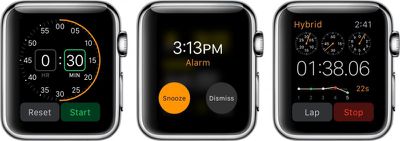
Apple has separated its three time-based categories into separate apps on Apple Watch. This allows you to quickly access the specific feature of the timer, alarm, and stopwatch you want with just a few taps.
Apple Watch Timer_Alarm_Stopwatch
While most of it is self-explanatory, we've got some tips for how to get the most out of each of these apps so they work the way you want, when you want.

Timer

The Timer app on Apple watch makes it possible for you to set a timer right from your wrist so you don't have to search out your iPhone to activate or even turn off the alert when time is up.
Apple Watch Timer
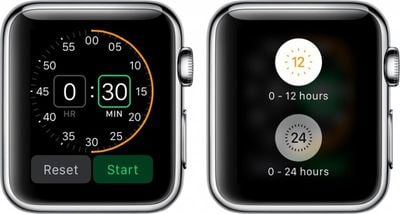
Tap the Timer app icon on Apple Watch to open it. Then rotate the Digital Crown to adjust the time. When ready, tap the Start button.

You can switch between a timer that goes from zero to 12 hours and a timer that goes from zero to 24 hours by firmly pressing the display screen.

Alarm

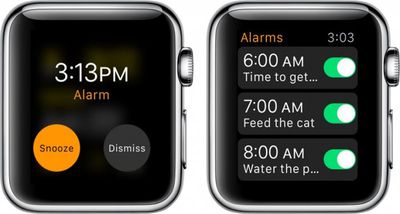
The Alarm app on Apple Watch is completely separate from the iPhone, but the two are not mutually exclusive. Alarms will not sync between devices. However, if you are wearing Apple Watch when an alarm goes off on your iPhone, you will receive an alert and be able to dismiss or snooze it.
Apple Watch Alarm

To set an alarm on Apple Watch:

  1. Open the Alarm app on Apple Watch.
  2. Firmly press the screen to call up the add (+) symbol.
  3. Change the time and repetition. Name the alarm using Dictation. Turn on or off the snooze feature.
  4. Toggle the alarm on or off when you want to activate it.

To delete an alarm, tap it. Then, scroll to the bottom and tap Delete.

Stopwatch

The Stopwatch app on Apple Watch is robust with multiple options for tracking your fitness routine and other activities you might want to use a stopwatch with.
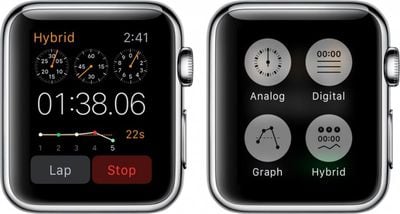
Apple Watch Stopwatch
There are four different types of stopwatches. To access the different types, firmly press on the screen to call up the four stopwatch icons.

Analog:
The Analog display shows the seconds on a minute clock face. Tap the green button to start the stopwatch. Tap the white button to set a new lap or reset the data. Tap the red button to stop the stopwatch.

Digital:
The Digital display shows the minutes, seconds, and milliseconds as digital data. Tap the Start button to start the stopwatch. Tap the Lap button to set a new lap. Tap the Stop button to stop the stopwatch. Tap Reset to clear the data.

Graph:
The Graph display shows the information on a graph based on how much more or less time each lap uses. Follow the instructions for the Digital display to control the Graph display.

Hybrid:
The Hybrid display shows the most important features of all three. The analog clock face shows the minutes, seconds, and milliseconds, as does the digital data. The graph shows your progress as it pertains to the previous lap. Follow the instructions for the digital display to control the Hybrid display.

With the Timer, Alarm, and Stopwatch apps on Apple Watch, you can quickly and easily access the same features available within the iPhone's Clock app, but without having to navigate through so many sections. Each app is specially designed to optimize its most important features.
Related Roundup: Apple Watch 12
Buyer's Guide: Apple Watch (Buy Now)
Related Forum: Apple Watch

Top Rated Comments

keysofanxiety Avatar
149 months ago
Next week's article: "How to use the home button on the iPhone"
Score: 13 Votes (Like | Disagree)
Arran Avatar
149 months ago
Next week's article: "How to use the home button on the iPhone"
It does a lot more than many people realize.
Score: 6 Votes (Like | Disagree)
149 months ago
If you hate MR so much, why don't you just go elsewhere to complain?
Maybe he did not see the previous article on how to do that.
Score: 5 Votes (Like | Disagree)
149 months ago
Next week's article: "How to use the home button on the iPhone"
I found this to be a useful article. If you hate MR so much, why don't you just go elsewhere to complain?
Score: 4 Votes (Like | Disagree)
Arran Avatar
149 months ago
Well, I didn't know you could force-touch on the timer.

Good article.
Score: 3 Votes (Like | Disagree)
Benjamin Frost Avatar
149 months ago
Well, I didn't know you could force-touch on the timer.

Good article.
It suggests that force touch is fundamentally not a good idea, as you can't ever know what it is used for; the very opposite of a transparent user-interface, ironically, given the invisibility of its appearance.
Score: 2 Votes (Like | Disagree)

Popular Stories

apple watch series 3 design

Apple Offers Steps to Fix Daylight Saving Time Bug on Apple Watch

Sunday November 1, 2026 3:34 am PST by
Apple has published a support document describing what to do if your Apple Watch continues to show time that's off by one hour after daylight savings time changes. "This incorrect time appears only on the Always On display when your wrist is down," says Apple. "When you activate the display by tapping it or raising your wrist, the time changes to the correct hour." To fix the issue, Apple says ...
muse apple watch app

Meta's Muse AI Agent Comes to Apple Watch

Monday November 9, 2026 1:55 pm PST by
Meta today updated the Muse app for iOS to add Apple Watch support, which means Muse users can access the proactive AI agent from the watch. The app adds the Muse character to the watch with an option to text it, dictate text to it, or call it. There's also a Muse complication for quick access. Muse is Meta's personal AI agent that can complete tasks for users. It is available as a...
siri recap live rewind

watchOS 27.3 Brings Live Rewind and Siri Recap to Apple Watch

Tuesday November 3, 2026 10:35 am PST by
With the first beta of watchOS 27.3, Apple is introducing new Audio Intelligence features it previewed for the Apple Watch Series 12 and Ultra 4 earlier this year. Powered by the S11 chip, Audio Intelligence includes Live Rewind, Siri Recap, Sound Recognition, and Shazam Music Recognition. Sound Recognition and Shazam are already on the watch, but Live Rewind and Siri Recap are now available ...
Latest Stories
The 50+ Best Apple Black Friday Deals Still Available on AirPods, iPads, and More
3 hours ago
Here Are the Best Apple Black Friday Leftover Deals You Can Get Today
1 hour ago
HomePod Mini 2 in (RED) Seemingly Spotted Ahead of Announcement
12 hours ago
Apple's M6 and PROLED MacBook Pro Reach New Low Prices for Black Friday
23 hours ago
The MacRumors Show: iPhone Air 2 and iPhone 18 Are Coming
23 hours ago
Apple Store in Brisbane Reopening Next Month With New Design
23 hours ago
The 60+ Best Black Friday Accessory Deals on iPhone Chargers, TVs, Headphones, and More
1 hour ago
GTA VI Now (Barely) Running on Apple Silicon Macs
1 day ago
The Best Black Friday Streaming Deals on Apple TV, Disney+, and More
1 day ago
Apple TV's 'Carême' Wins International Emmy for Best Drama
1 day ago
iPhone 18 Production Delay Leaves Apple Little Time Before Launch
1 day ago
The Best Black Friday AirPods Deals Still Available
19 hours ago
The Best Black Friday Deals on Apple Home Products
1 day ago
The Best Black Friday iPhone Deals Still Available
19 hours ago
The Best Black Friday iPad Deals Still Available
19 hours ago
The Best Black Friday Apple Watch Deals Still Available
19 hours ago
The Best Black Friday AirTag Deals Still Available
19 hours ago
The Best Black Friday Mac Deals Still Available
19 hours ago
iPhone Share of US Smartphone Market Hits 57% as Rivals Slip
1 day ago
iPhone 20 Pro Rumored to Feature 3D-Printed Titanium Frame
1 day ago
Apple's Official 2026 Black Friday Offer Starts Rolling Out
2 days ago
Halide Adds Fill Light Feature for iPhone Duo
2 days ago
MacBook Air Black Friday Deals Now Live With Massive $399 Savings
2 days ago
Amazon Discounts All MacBook Neo Models by $99 for Black Friday
2 days ago
Kodak Launches Unique AirTag Rival With E-Ink Display
2 days ago
Here's Why the Apple Store is Going Down
2 days ago
Apple Still Working on Giant Foldable iPad That Could Cost $5,000
2 days ago
iPhones Dominate China's Weak Singles' Day Smartphone Sales
2 days ago
iPhone 20 Pro Could Feature Ceramic in Limited-Edition Model
2 days ago
Apple Faces Korean Regulator Review Over iPhone 16 AI Advertising
2 days ago
Related Apple News: Entertainment | News | Motoring | Local News | Ipad