Skip to Content

How to Add and Organize Images in Photos for OS X Yosemite

by

Once you've migrated your image library from iPhotos or Aperture (or both), you'll probably want to add all the images from your iPhone or iPad and get everything organized so you can quickly find pictures from specific dates and events in the future.

To help you accomplish both of these tasks, we've written up a tutorial that provides an overview of how to import pictures into the Photos app on OS X Yosemite and gives a few suggestions for how to organize your collection.
How to add and organize photos for os x 2

Importing Pictures

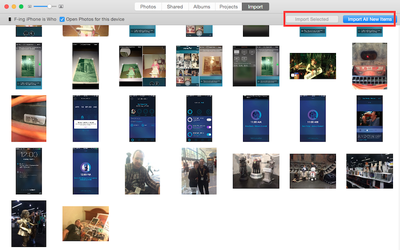
  1. Connect your device (iPhone, iPad, or digital camera) to your computer using the USB connector and open the Photos for OS X app.
  2. Select "Import" from the list of tabs at the top of the screen in the app.
  3. Select the images you wish to add to the Photos app, or select "Import All New Items" to add everything from your device.

Imported images will automatically be added to the "Last Import" album in Photos. You can see your photos using a number of different views, including the main Photos tab, which displays all pictures that you have added to the app and any pictures that you have taken using an iOS device that is connected using My Photo Stream.

Just like the Photos app on iOS, pictures in Photos for OS X are organized by Moments, Collections, and Years. To navigate between these timelines, click on the arrow buttons in the upper right corner of the app while in the main Photos view, or select a different view from the tabs at the top of the app.
How to add and organize photos for osx yosemite
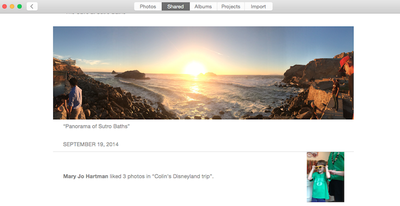
The "Shared" album houses photos and albums that you have shared with other people and those that have been shared with you. Select a shared album to see all pictures and add new photos to the album. Comments, Likes, and new pictures added will appear in the Activity section.

Under the Albums tab, you will see a list of albums that are created automatically within Photos for OS X, which may include All Photos, Faces, My Photo Stream, Last Import, Favorites, Panoramas, and Bursts. You can also create your own albums here, using the "+" button on the menu bar.

The Projects tab is where you will find books, cards, calendars, prints, or slideshows that you have created using Photos on that specific Mac.

You can also search for photos within the Photos app by typing the keyword you wish to filter into the search bar in the upper right corner. You can find groups of photos based on names, dates, locations, and more.
How to add and organize photos for os x 3

Adding Photos to Albums and Creating Albums

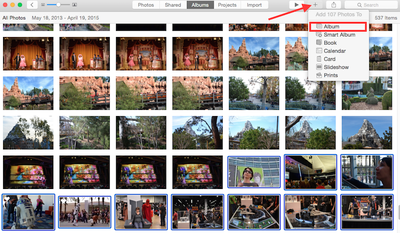
  1. With the Photos app on OS X Yosemite open, select "Albums" from the list of tabs at the top of the screen.
  2. Click on the "All Photos" option.
  3. Click on the pictures you would like to add to an album. You can select multiple pictures by using the command + left-click or grab a large group by using shift + left-click.
  4. Click the plus (+) button at the top right corner of the Photos app.
  5. Select "Album" from the dropdown menu.
  6. Select the album you wish to add the pictures to, or create a new album and name it.
  7. Click "OK."

Creating Smart Albums

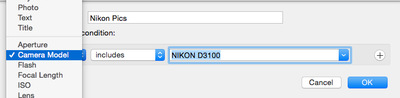
You can create a variety of Smart Albums based on specific conditions. When created, any image that fits the criteria will automatically be added to the Smart Album. You can create Smart Albums based on such categories as the date, a specific description, Face tags, file names, keywords, camera models, shutter speed, and more. Each category includes a condition, such as "Photos is RAW" or "Camera Model is iPhone 6."
How to add and organize photos for os x 1

  1. With the Photos app on OS X Yosemite open, select the "Albums" from the list of tabs at the top of the screen.
  2. Click on the plus (+) icon in the upper right corner of the Photos app.
  3. Select "Smart Album" from the drop down menu.
  4. Name the new Smart Album. It is a good idea to name the album after the action it will be based on. For example, "Edited Pictures" or "iPhone Photos."
  5. Select the condition you wish the Smart Album to produce. You can include multiple conditions. For example, "Camera Model is iPhone 6" combined with "Photo is Favorite" will aggregate all photos taken with an iPhone 6 that have been favorited.
  6. When you are happy with the conditions you have set, click "OK."

If the Smart Album did not produce the results you were looking for, you can adjust the conditions by selecting the gear icon under it in the Albums view.

If you have a large amount of pictures in Photos for OS X Yosemite, it is a good idea to begin organizing them. A great starting point is to create albums that make it easier for you to access events that you have customized yourself. Smart Albums are great for automatically sending certain pictures to a designated folder.

When your photos are better organized, you will be much more likely to look at them again in the future. It is like the difference between opening a shoebox full of loose pictures or a nicely bound photo album with pictures displayed by date.


Top Rated Comments

TMRJIJ Avatar
151 months ago
If you migrated from Aperture and need instructions for organizing your images in Photos, you already failed.
Score: 7 Votes (Like | Disagree)
ArtOfWarfare Avatar
151 months ago
The name of your iPhone is "F_ing iPhone is Who"?

Am I the only one who saw that in the screenshot in the article?

Edit: Not even allowed to post the name of your iPhone in the comments. I had to change the - to an _ for it to post.
Score: 6 Votes (Like | Disagree)
151 months ago
indeed, iCloud Photo on the other hand is too confusing and does too much of one thing and too little of other things
If you can't understand iCloud Photos, you must not be very good at this whole computer thing. I mean, you turn it on and all your photos are on every device. It works EXACTLY like IMAP email. It really can't get any simpler than that.

The old way worked like POP email where you have to figure out where a photo is and you could delete it on one device and it stupidly still showed up somewhere else. Edit a photo and it used to mean you have two different photos in different locations. Photo stream didn't do 2 way sync and your library would get all out of whack with reality on various different devices.

The iCloud Photos way is WAY better and much easier to understand. One single unified library just like how your Gmail, iCloud, Exchange email works.

When I delete an email in gmail, it's gone. I don't have to worry about it showing up on another device or another computer. iCloud photos works the same way.

----------

All photos taken on my phone go to Photo Stream, which Photos on my Mac saves to the hard drive. Perfect cable-less way for my Mac to be my digital hub of photos.
Except if you make an edit to a photo, update folders, make new albums, delete something, or do anything at all with your photos, now your library is all out of whack in different places because Photostream does not do a true SYNC. It's just a one way street. iCloud Photos is so much easier to understand and works better.
Score: 5 Votes (Like | Disagree)
bushido Avatar
151 months ago
how to delete duplicate photos:

step 1.) can't

how to exclude certain videos and albums

step 2.) you cant either
Score: 5 Votes (Like | Disagree)
151 months ago
how to delete duplicate photos:

step 1.) can't
Score: 5 Votes (Like | Disagree)
theBB Avatar
151 months ago
so how do i get rid of the downloaded full resolution picture once i have viewed it and no use for it anymore on my iDevice without it being deleted everywhere? if i download random pics just to view them its gonna fill up my iPhone after a while.
You don't have to do anything. If you need storage space on iOS device or Mac, it automatically replaces the full resolution pictures with smaller preview ones starting from the ones that you have not viewed for the longest time (assuming you told it to optimize storage rather than always keeping full size versions.)
Score: 4 Votes (Like | Disagree)

Popular Stories

apple design award 2025

Apple Announces 2025 Design Award Winners Ahead of WWDC 2025

Tuesday June 3, 2025 10:14 am PDT by
As we wait for WWDC to kick off next Monday, Apple today announced the winners of its annual Apple Design Awards, recognizing apps and games for their innovation, ingenuity, and technical achievement. The 2025 Apple Design Award winners are listed below, with one app and one game selected per category: Delight and Fun - CapWords (App) and Balatro (Game) Innovation - Play (App) and PBJ -...
Apple 2026 Black Friday Event Hero

Apple's Official 2026 Black Friday Offer Starts Rolling Out

Thursday November 26, 2026 8:37 am PST by
Apple's annual four-day Black Friday through Cyber Monday shopping event is now live in Australia, New Zealand, and Thailand, and it will continue to roll out across Europe, the U.S., and Canada as the calendar turns to Friday, November 27 around the world. In the U.S., Apple's terms and conditions say the promotion begins on November 27 at 12 a.m. Pacific Time and ends on November 30 at...
Black Friday Deals 26 1

The 50+ Best Apple Black Friday Deals Still Available on AirPods, iPads, and More

Thursday November 26, 2026 1:19 pm PST by
Black Friday is over, but there are still plenty of great leftover discounts to grab right now. This year we're tracking big sales on popular Apple products like AirPods, iPad, Apple Watch, and much more. Note: MacRumors is an affiliate partner with some of these vendors. When you click a link and make a purchase, we may receive a small payment, which helps us keep the site running....
Latest Stories
Apple Now Aims to Repair Rather Than Replace iPhone Duos With Cracked Screens
5 hours ago
Here Are the Best Apple Black Friday Leftover Deals You Can Get Today
13 hours ago
HomePod Mini 2 in (RED) Seemingly Spotted Ahead of Announcement
1 day ago
Apple's M6 and PROLED MacBook Pro Reach New Low Prices for Black Friday
1 day ago
The MacRumors Show: iPhone Air 2 and iPhone 18 Are Coming
1 day ago
Apple Store in Brisbane Reopening Next Month With New Design
2 days ago
The 60+ Best Black Friday Accessory Deals on iPhone Chargers, TVs, Headphones, and More
13 hours ago
GTA VI Now (Barely) Running on Apple Silicon Macs
2 days ago
The Best Black Friday Streaming Deals on Apple TV, Disney+, and More
2 days ago
Apple TV's 'Carême' Wins International Emmy for Best Drama
2 days ago
iPhone 18 Production Delay Leaves Apple Little Time Before Launch
2 days ago
The Best Black Friday AirPods Deals Still Available
1 day ago
The Best Black Friday Deals on Apple Home Products
2 days ago
The Best Black Friday iPhone Deals Still Available
1 day ago
The Best Black Friday iPad Deals Still Available
1 day ago
The Best Black Friday Apple Watch Deals Still Available
1 day ago
The Best Black Friday AirTag Deals Still Available
1 day ago
The Best Black Friday Mac Deals Still Available
1 day ago
iPhone Share of US Smartphone Market Hits 57% as Rivals Slip
2 days ago
iPhone 20 Pro Rumored to Feature 3D-Printed Titanium Frame
2 days ago
The 50+ Best Apple Black Friday Deals Still Available on AirPods, iPads, and More
5 hours ago
Apple's Official 2026 Black Friday Offer Starts Rolling Out
3 days ago
Halide Adds Fill Light Feature for iPhone Duo
3 days ago
MacBook Air Black Friday Deals Now Live With Massive $399 Savings
3 days ago
Amazon Discounts All MacBook Neo Models by $99 for Black Friday
3 days ago
Kodak Launches Unique AirTag Rival With E-Ink Display
3 days ago
Here's Why the Apple Store is Going Down
3 days ago
Apple Still Working on Giant Foldable iPad That Could Cost $5,000
3 days ago
iPhones Dominate China's Weak Singles' Day Smartphone Sales
3 days ago
iPhone 20 Pro Could Feature Ceramic in Limited-Edition Model
3 days ago
Related Apple News: Iphone | Ipad | News | Health | South Africa