Skip to Content

Top 10 Apple TV Remote Tips and Tricks

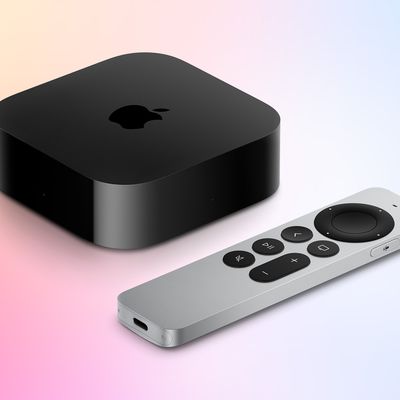
When Apple released the fourth-generation Apple TV in 2015, it also included a new Siri Remote with the set-top box (although in some regions Apple kept the original name "Apple TV Remote" due to Siri not working in those territories).
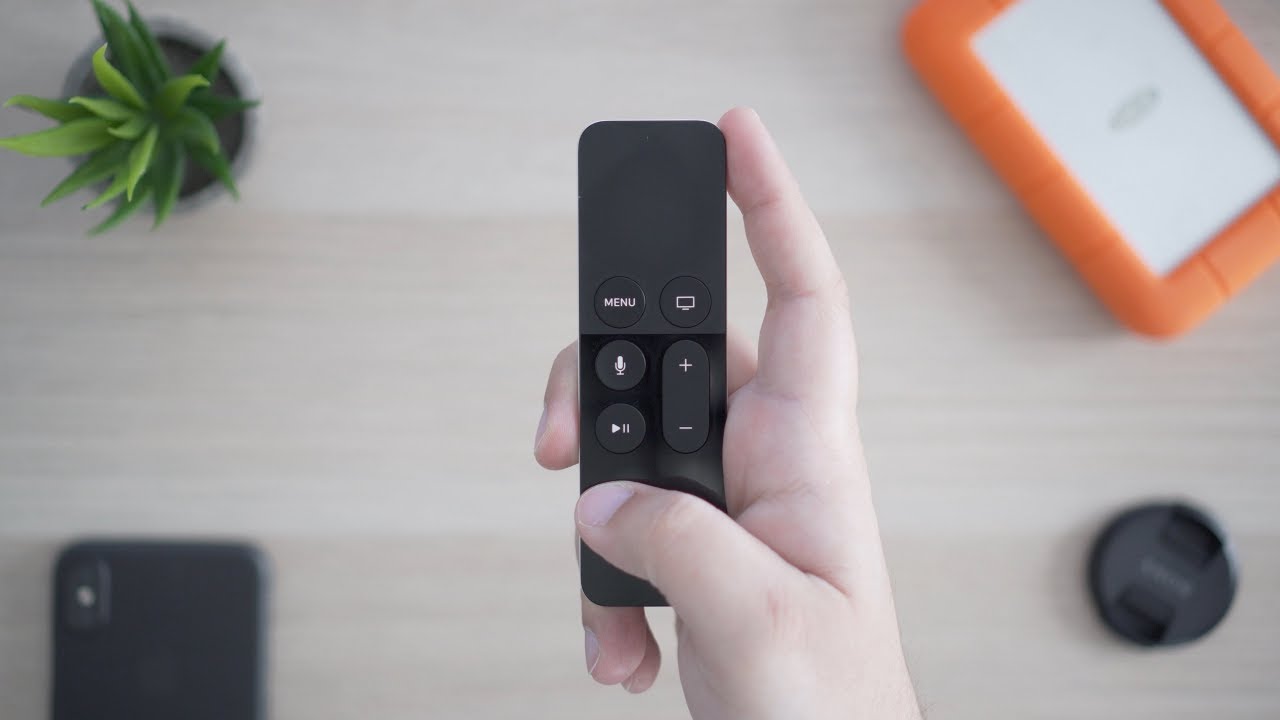

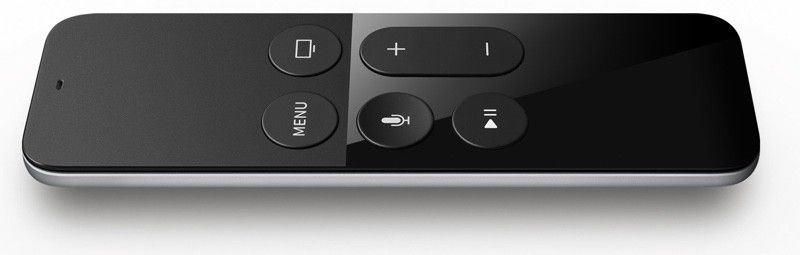
The redesigned remote features dual microphones for Siri support as well as a glass touch surface for navigating the tvOS interface by swiping, tapping, and scrubbing to fast forward/rewind content. The remote also has a Menu button, a Home button (with a TV icon on it), a Siri button, a Play/Pause button, and a Volume Up/Down button.

With the release of the Apple TV 4K in 2017, Apple tweaked the remote design to add a raised white ring around the Menu button, making it easier to identify the correct orientation of the remote by both touch and feel. The buttons and operation of the remote, however, remained unchanged, and the revised remote is also included with new units of the fourth-generation Apple TV.

In this guide, we've collected 10 of our favorite tips for controlling features of tvOS using the Apple TV Remote included with the fourth generation Apple TV and the latest fifth-generation Apple TV 4K. Keep reading and you might well discover a new trick or two.

1. Quickly Switch Between Open Apps
1 switch apps
If you have an iOS device then you'll be familiar with this feature. To quickly switch between open Apple TV apps, click the Home button twice. This will bring up the App Switcher screen, which you can navigate by swiping sideways on the Apple TV Remote's touch surface. Tap the surface to open the selected app, or swipe up to force quit it.

2. Quickly Restart Your Apple TV
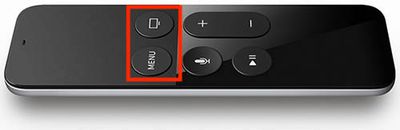
2 Restart
If you're troubleshooting your Apple TV and need to restart it several times, going through the settings screens to select Restart is quickly going to grate. Fortunately, you can perform the same action simply by holding down the Home and Menu buttons simultaneously for six seconds.

3. Sleep Your Apple TV
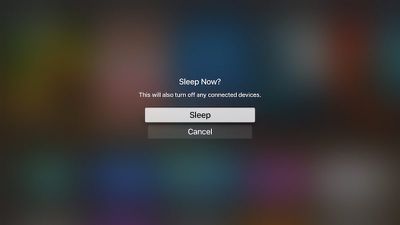
3 sleep
Similarly, if you're regularly digging into setting screens to select the sleep option when you're done using Apple TV, then this tip's for you. Simply hold the Home button for two seconds and the Sleep option will appear at the center of the screen where you can promptly select it.

4. Quick Switch to the Home Screen
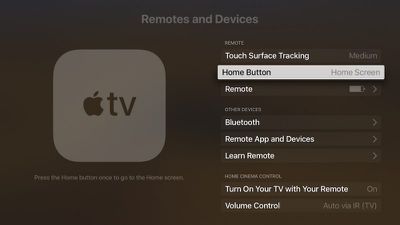
4 home screen
Apple likes new Apple TV owners to associate the Apple TV Remote's Home button with the company's native TV app, but that shortcut can start to get annoying, especially if the things you tend to watch don't even show up there (Netflix content being just one example.) Thankfully, you can reinstate the Home button's original functionality by going into Settings and selecting Remotes and Devices -> Home Button.

5. Activate the Screen Saver

5 Start screensaver
You can set your Apple TV's screen saver to come on after so many minutes have passed (Settings -> General -> Screen Saver -> Start After) but you can also activate it straight away by double-clicking the Menu button on the Apple TV Remote at any time.

6. Rearrange Your Apple TV Apps
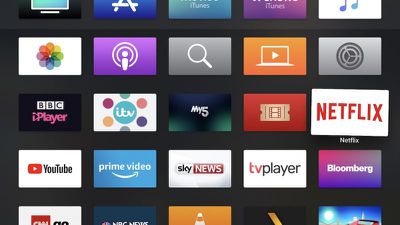
6 Rearrange apps
Whenever you download an Apple TV app from the tvOS App Store it automatically appears at the bottom of the Home screen's grid. If you've installed quite a few apps, you might like to rearrange them. Select the app to move and then click and hold down on the Apple TV Remote's touch surface for a couple of seconds. The app icon will start jiggling, at which point you can swipe to place it where you want. Simply click the touch surface again once you have the app in your preferred location.

7. View Video Settings

7 video settings
When watching video on Apple TV, you can access a number of media playback settings with a quick swipe down on the Apple TV Remote's touch surface. The info overlay that slides into view from the top contains options to enable/disable subtitles, as well as audio settings for language, sound processing, and speaker. Simply navigate the menus using the touch surface and click down to select. A swipe up hides the overlay and returns you back to the video with your changes applied.

8. Quick-Switch Between Lowercase/Uppercase Keyboard
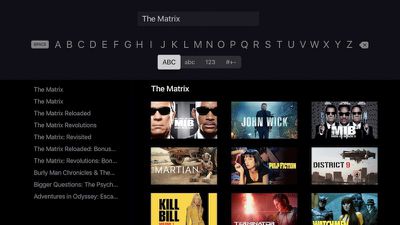
8 Keyboard
When using Apple TV's onscreen keyboard, you can avoid the hassle of navigating the cursor between the lowercase and uppercase layout, simply by pressing the Play/Pause button on your Apple TV Remote. This instantly switches the letters from lowercase to uppercase and vice versa, which makes entering passwords in particular less of a chore.

9. Quick Backspace and Access to Alternate Characters

This is another handy tip for using Apple TV's onscreen keyboard that makes navigating it a lot less frustrating.
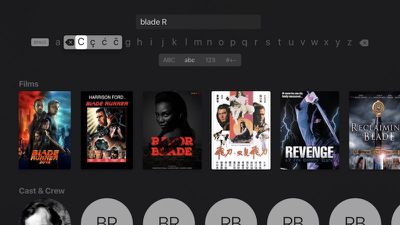
9 Quick Backspace
Next time you need to correct a mistake, don't bother swiping all the way to the far right of the screen to select the backspace key. Instead, click down on the Apple TV Remote's touch surface and hold until the character overlay appears. A quick swipe left will now automatically delete the last letter you entered in the input field.

10. Change Audio Output Device on the Fly
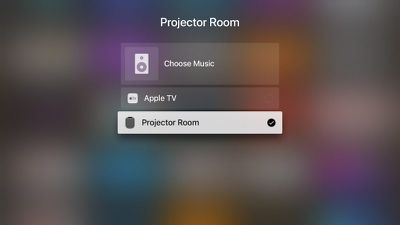
10 Change audio output
There's a quick way to switch your Apple TV's audio output device right from the home screen. Hold down the Play/Pause button on the Apple TV Remote, and in the menu that comes up on the screen, simply select the device you want to link to by clicking the Remote's touch surface.

Got an Apple TV Remote tip we haven't covered here? Be sure to share it in the comments.

Related Roundup: Apple TV
Buyer's Guide: Apple TV (Buy Now)

Popular Stories

Apple Event Logo

Apple Releasing Yet Another Two New Products Next Week

Friday November 6, 2026 7:36 am PST by
Apple's massive wave of product launches will finally end next week, with its all-new HomeView smart home hub and the fourth-generation Apple TV 4K set to be released on Friday, November 13 and no other major hardware releases expected for the remainder of the year. Since late August, Apple has announced more than 25 new devices and accessories in one of its busiest stretches...
Apple TV 4K 4th Generation Top View5

New Apple TV 4K and iPad Mini: RAM Amounts Revealed

Thursday October 29, 2026 5:50 pm PDT by
Apple today released Xcode 27.2, and it reveals how much RAM is in the new fourth-generation Apple TV 4K and the new iPad mini with an OLED display. As expected, the new Apple TV 4K with the A19 chip is equipped with 8GB of RAM, while the new iPad mini with the A20 Pro chip has 12GB of RAM. For good measure, Xcode shows the iPhone Duo is equipped with 12GB of RAM. None of these RAM...
Apple TV Silo

Apple TV Reportedly Planning 'Silo' Spinoff

Wednesday November 4, 2026 8:56 am PST by
Apple TV is developing a "Silo" spinoff tied to Hugh Howey's upcoming Silo book trilogy, according to Apple TV commentator and podcaster Sigmund Judge. He said pre-production will begin later this year, with the books expected next summer. Hiring has apparently begun and some sets remain standing after season four wrapped in March. The reported project would follow the show's fourth and final...

Top Rated Comments

114 months ago
When Apple released the fourth-generation Apple TV in 2015, it also included a new Siri Remote with the set-top box (although in some regions Apple kept the original name "Apple TV Remote" due to Siri not working in those territories).


The redesigned remote features dual microphones for Siri support as well as a glass touch surface for navigating the tvOS interface by swiping, tapping, and scrubbing to fast forward/rewind content. The remote also has a Menu button, a Home button (with a TV icon on it), a Siri button, a Play/Pause button, and a Volume Up/Down button.

With the release of the Apple TV 4K in 2017, Apple tweaked the remote design to add a raised white ring around the Menu button, making it easier to identify the correct orientation of the remote by both touch and feel. The buttons and operation of the remote, however, remained unchanged, and the revised remote is also included with new units of the fourth-generation Apple TV.

In this guide, we've collected 10 of our favorite tips for controlling features of tvOS using the Apple TV Remote included with the fourth generation Apple TV and the latest fifth-generation Apple TV 4K. Keep reading and you might well discover a new trick or two.


Click here to read more... ('https://www.macrumors.com/guide/top-10-apple-tv-remote-tips-tricks/')

Article Link: Top 10 Apple TV Remote Tips and Tricks ('https://www.macrumors.com/guide/top-10-apple-tv-remote-tips-tricks/')
[doublepost=1519728906][/doublepost]These suggestions are helpful - but the fact remains that this is the worst remote I have ever had to deal with. There is a reason my Apple TV sits unloved and unused - the idiotic and frustrating remote. Swipe to change a setting....nothing happens, swipe again - the selection moves five steps across the screen....swipe once more....no movement. Here's a thought....have a look at the Amazon Fire TV remote....simple, functional, it works and I don't need to load an app on my phone as a work around for poor design.
Score: 12 Votes (Like | Disagree)
Mefisto Avatar
114 months ago
I like these kinds of articles. Most of the stuff above I already knew, but there were a few nuggets of really useful, new info as well! Thanks.
Score: 8 Votes (Like | Disagree)
ljonesj Avatar
114 months ago
I hate the remote I use the old aluminum Apple remote it works a lot better I can fast forward and reverse easier with the older remote
Score: 5 Votes (Like | Disagree)
Mike MA Avatar
114 months ago
Very interesting read and collection. The majority of those were not known to me I have to admit. Appreciate it.
Score: 5 Votes (Like | Disagree)
timborama Avatar
114 months ago
The fact these tips require explaining is a huge fail. Nothing about Apple products is intuitive any longer. Worst remote EVER!
Score: 4 Votes (Like | Disagree)
imola.zhp Avatar
114 months ago
The fact these tips require explaining is a huge fail. Nothing about Apple products is intuitive any longer. Worst remote EVER!
These types of comments crack me up. None of these tips are required for the easy use of the remote, these are just shortcuts. I knew most of them but still learned a few new ones and appreciated the tip about turning the double click of the home/tv button back to home as opposed to the tv app (which I still haven not really used).


Score: 3 Votes (Like | Disagree)
Latest Stories
The 50+ Best Apple Black Friday Deals Still Available on AirPods, iPads, and More
2 hours ago
Here Are the Best Apple Black Friday Leftover Deals You Can Get Today
53 minutes ago
HomePod Mini 2 in (RED) Seemingly Spotted Ahead of Announcement
12 hours ago
Apple's M6 and PROLED MacBook Pro Reach New Low Prices for Black Friday
23 hours ago
The MacRumors Show: iPhone Air 2 and iPhone 18 Are Coming
23 hours ago
Apple Store in Brisbane Reopening Next Month With New Design
23 hours ago
The 60+ Best Black Friday Accessory Deals on iPhone Chargers, TVs, Headphones, and More
45 minutes ago
GTA VI Now (Barely) Running on Apple Silicon Macs
1 day ago
The Best Black Friday Streaming Deals on Apple TV, Disney+, and More
1 day ago
Apple TV's 'Carême' Wins International Emmy for Best Drama
1 day ago
iPhone 18 Production Delay Leaves Apple Little Time Before Launch
1 day ago
The Best Black Friday AirPods Deals Still Available
18 hours ago
The Best Black Friday Deals on Apple Home Products
1 day ago
The Best Black Friday iPhone Deals Still Available
18 hours ago
The Best Black Friday iPad Deals Still Available
18 hours ago
The Best Black Friday Apple Watch Deals Still Available
18 hours ago
The Best Black Friday AirTag Deals Still Available
18 hours ago
The Best Black Friday Mac Deals Still Available
18 hours ago
iPhone Share of US Smartphone Market Hits 57% as Rivals Slip
1 day ago
iPhone 20 Pro Rumored to Feature 3D-Printed Titanium Frame
1 day ago
Apple's Official 2026 Black Friday Offer Starts Rolling Out
2 days ago
Halide Adds Fill Light Feature for iPhone Duo
2 days ago
MacBook Air Black Friday Deals Now Live With Massive $399 Savings
2 days ago
Amazon Discounts All MacBook Neo Models by $99 for Black Friday
2 days ago
Kodak Launches Unique AirTag Rival With E-Ink Display
2 days ago
Here's Why the Apple Store is Going Down
2 days ago
Apple Still Working on Giant Foldable iPad That Could Cost $5,000
2 days ago
iPhones Dominate China's Weak Singles' Day Smartphone Sales
2 days ago
iPhone 20 Pro Could Feature Ceramic in Limited-Edition Model
2 days ago
Apple Faces Korean Regulator Review Over iPhone 16 AI Advertising
2 days ago
Related Apple News: Travel | Entertainment | Motoring | Sport | South Africa