Skip to Content

Relocated Items in macOS Catalina Explained

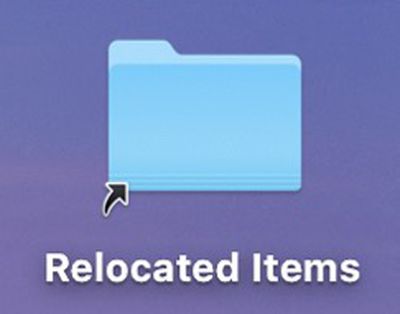
catalina relocated itemsAfter upgrading to macOS Catalina, you may be surprised to discover a shortcut on your Mac's desktop to a Relocated Items folder that wasn't there previously. The generation of this folder is actually normal behavior when upgrading an older version of macOS to Catalina, but we're highlighting it in this article because a lot of users are confused about why the folder exists and what to do with its contents.

What Are Relocated Items?

Relocated items are older files and data from previous macOS installations that Apple is not sure what to do with after upgrading to Catalina.

Catalina is the first version of macOS to adopt wholesale the relatively new Apple File System (APFS), which is optimized for the flash storage used in recent Macs. Aside from introducing a bunch of other new technical features, an APFS-formatted disk uses a space-sharing "container" that can house multiple secure "volumes" or file systems. This allows the disk's free space to be shared on demand and allocated to any of the individual volumes in the container as required.

When you upgrade to macOS 10.15, Catalina is installed on a dedicated read-only system volume called "Macintosh HD," while your files and data are stored separately in another volume named "Macintosh HD - Data." The idea behind this setup is that it helps prevent the accidental overwriting of critical operating system files, since the user can no longer alter data or store files on the read-only system volume.
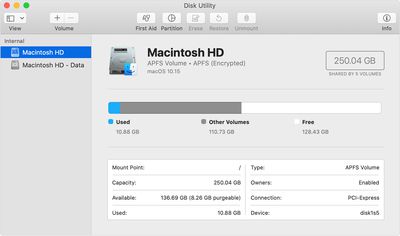
macos catalina disk utility show only volumes
In practice, the average user shouldn't notice any difference after the split, since both volumes appear in Finder as a single unified Macintosh HD volume (although if you want, you can view them separately in Disk Utility).

However, during the upgrade process, files or data that were previously stored in the startup volume are now stored in the new Macintosh - HD Data volume, and Catalina may not be able to find a corresponding home for them there. That's where the Relocated Items folder comes in.

The Relocated Items Folder

While creating the two separate volumes during the upgrade process, Catalina reviews the files and data on your hard drive to check that they're valid, authorized, and in the correct location. Any files and data that couldn't be stored on the Macintosh HD - Data volume in a folder equivalent to their original location, are placed in the Relocated Items folder. This folder also includes a PDF document with more details about these files.

Amongst a bunch of other things that you may not recognize, the folder can include configuration files that were modified by you, by another user, or by an app. Regardless, the modifications make them incompatible with macOS Catalina and are considered redundant as far as the system is concerned.

Can I Delete the Relocated Items Folder?

It's worth reiterating that the Relocated Items folder you see on the Desktop is just a shortcut that can be safely deleted. Doing so will not remove the folder or its contents from your hard disk. You can find the actual folder in /Users/Shared/Relocated Items.

Whether or not you delete the Relocated Items folder proper is entirely up to you. Removing the contents should be safe as far as your Mac's operating system goes, just be sure to check the contents carefully for anything that looks familiar. If you have any third-party apps that don't work since you updated to Catalina, then the Relocated Items folder may well contain data related to them, but it likely needs updating by the developers in new versions of these apps. If you recognize custom configuration files in the Relocated Items folder, then you might want to keep them around for reference in case you want to recreate them at a later date.

If your Relocated Items folder isn't very big, then simply remove the Relocated Items shortcut on your Desktop to remove the eyesore and carry on. But if you feel strongly about deleting the actual files, see below.

How to Delete the Relocated Items folder

To delete the actual Relocated Items folder, simply drag it into the Trash and then empty the Trash folder. Having said that, some of the contents may resist being deleted when you come to empty the Trash because of old security permissions on the relocated files.
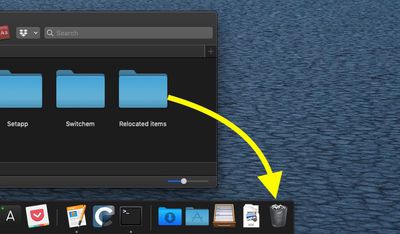
relocated items to trash
If that's the case, one way to get rid of the files is to disable system integrity protection (SIP) on your Mac. The following steps explain how to disable SIP, but before you go ahead, note that the process involves rebooting your Mac and using Terminal. If you're not familiar with the Terminal command prompt, or if you have any other misgivings about the steps, our advice is to just leave the Relocated Items folder where it is, or move it elsewhere out of sight. MacRumors cannot be held responsible for any data loss.

  1. If the Relocated Items folder is in your Trash, right-click it there and select Put Back from the contextual pop-up menu.
  2. Restart your Mac via the Restart... option in the Apple menu bar, and when the boot cycle starts again, hold down the Command and R keys to enter Recovery mode.
  3. From the Recovery screen menu bar, select Utilities -> Terminal.
  4. Type csrutil disable and hit Enter.
  5. Restart your Mac via the Restart option in the menu bar.
  6. Now delete the Relocated Items folder, then empty the Trash.
  7. Restart your Mac and enter Recovery mode again using Command-R.
  8. From the Recovery screen menu bar, select Utilities -> Terminal.
  9. Type csrutil enable and press Enter to re-enable SIP.
  10. Restart your Mac via the Restart option the menu bar.

Once you've followed these steps, the contents of the Relocated Items folder should be gone from your system for good.


Related Forum: macOS Catalina

Popular Stories

apple design award 2025

Apple Announces 2025 Design Award Winners Ahead of WWDC 2025

Tuesday June 3, 2025 10:14 am PDT by
As we wait for WWDC to kick off next Monday, Apple today announced the winners of its annual Apple Design Awards, recognizing apps and games for their innovation, ingenuity, and technical achievement. The 2025 Apple Design Award winners are listed below, with one app and one game selected per category: Delight and Fun - CapWords (App) and Balatro (Game) Innovation - Play (App) and PBJ -...
1password deal blue

1Password Security Breach: What Was Accessed and What Wasn't

Wednesday November 25, 2026 1:09 pm PST by
Popular password management app 1Password today said it experienced a security breach earlier this month. 1Password says some customer names and email addresses were accessed, but no customer vault contents were compromised. On November 19, 1Password saw indications that an employee's GitHub account had been breached and began investigating. The company says the breached GitHub account was...
apple store down feature

Here's Why the Apple Store is Going Down

Thursday November 26, 2026 5:49 am PST by
Apple's online store is going down for a few hours on a rolling country-by-country basis right now, but do not get your hopes up for new products. Apple takes its online store down for a few hours ahead of Black Friday every year to tease its annual gift card offer with the purchase of select products. The store is down in Australia, New Zealand, and Thailand, right now, and it will...

Top Rated Comments

zorinlynx Avatar
93 months ago
This folder might contain very important data, delete with caution!

My example:

I once had an external drive called "Storage" on my Mac, that was mounted in /Volumes/Storage -- when I upgraded to a Mac with larger internal storage, I didn't have to use the external drive anymore so I copied the contents to /Storage which was in the root folder.

Upgrading to Catalina moved that Storage folder (with lots of important stuff!!!) to the Relocated Items directory. If I had blindly deleted it, I would have deleted about 300GB of stuff that I would have had to restore from backup.

So check that folder CAREFULLY before deleting it. What I ended up doing was create a new APFS volume called Storage and moving the stuff there, as for historical reasons I want it separate from my home folder in /Users.
Score: 13 Votes (Like | Disagree)
BornAgainMac Avatar
93 months ago
i looked in my folder and didn’t see any naked photos.
Score: 12 Votes (Like | Disagree)
zorinlynx Avatar
93 months ago

So less control over my files. I trust myself to not screw up important files. More nanny state style control to lock the Mac platform down and iOS it.
You still have full control over the system. If you want to hack on MacOS, you can disable all the extra security features.

Partitioning the OS separate from user data is good practice. Not only does it increase security, but it makes system updates cleaner (just update the OS partition, don't touch the user ones) and also makes it easier to migrate to a new system. (Just copy the data partition verbatim)


It took me years (of OS X) to fully accept that no user data should be stored outside the /Users folder. It felt overly complex but you save yourself potential trouble by sticking to this rule.
Indeed. A lot of really old school Mac users like myself went by the "Put stuff in the root of the boot drive" for a long time; it was a hard habit to break.

It's weird because I've been a UNIXhead for a long time too, and typically on UNIX systems you don't do that. But Macs have always felt "different" and thus I'd subconsciously treat them differently. It doesn't help that MacOS classic encouraged data storage pretty much anywhere and kept the OS entirely contained in a "System" folder. In fact, you could make any volume bootable just by copying a System folder to it. Mac power users would keep a minimal copy of System around for this purpose.
Score: 10 Votes (Like | Disagree)
93 months ago
Sounds like a fresh install will be in order for me.
Score: 8 Votes (Like | Disagree)
93 months ago

I once had an external drive called "Storage" on my Mac, that was mounted in /Volumes/Storage -- when I upgraded to a Mac with larger internal storage, I didn't have to use the external drive anymore so I copied the contents to /Storage which was in the root folder.

Upgrading to Catalina moved that Storage folder (with lots of important stuff!!!) to the Relocated Items directory. If I had blindly deleted it, I would have deleted about 300GB of stuff that I would have had to restore from backup.

So check that folder CAREFULLY before deleting it. What I ended up doing was create a new APFS volume called Storage and moving the stuff there, as for historical reasons I want it separate from my home folder in /Users.
It took me years (of OS X) to fully accept that no user data should be stored outside the /Users folder. It felt overly complex but you save yourself potential trouble by sticking to this rule.
Score: 5 Votes (Like | Disagree)
BigBoy2018 Avatar
93 months ago

So less control over my files. I trust myself to not screw up important files. More nanny state style control to lock the Mac platform down and iOS it.
Couldn’t agree more. I prefer not to have an OS with a bunch of ‘child safety gates’ on it.

Somehow ... in over THREE decades of using a mac my system has never been so borked that I couldnt recover it myself.

I may be a little more mac savvy than most, but Apple seems to be making an OS for the lowest common demoninator.

For ya’ll who think this is just wonderful, just wait for another couple OS releases and see Apple lock down the Mac OS even more.
Score: 5 Votes (Like | Disagree)
Latest Stories
The 50+ Best Apple Black Friday Deals on AirPods, iPads, MacBooks, and More
4 hours ago
Apple's M6 and PROLED MacBook Pro Reach New Low Prices for Black Friday
4 hours ago
The MacRumors Show: iPhone Air 2 and iPhone 18 Are Coming
4 hours ago
Apple Store in Brisbane Reopening Next Month With New Design
4 hours ago
The 60+ Best Black Friday Accessory Deals on iPhone Chargers, TVs, Headphones, and More
5 hours ago
GTA VI Now (Barely) Running on Apple Silicon Macs
5 hours ago
The Best Black Friday Streaming Deals on Apple TV, Disney+, and More
6 hours ago
Apple TV's 'Carême' Wins International Emmy for Best Drama
7 hours ago
iPhone 18 Production Delay Leaves Apple Little Time Before Launch
7 hours ago
The Best Black Friday AirPods Deals
8 hours ago
The Best Black Friday Deals on Apple Home Products
8 hours ago
The Best Black Friday iPhone Deals
8 hours ago
The Best Black Friday iPad Deals
8 hours ago
The Best Black Friday Apple Watch Deals
8 hours ago
The Best Black Friday AirTag Deals
8 hours ago
The Best Black Friday Mac Deals
8 hours ago
iPhone Share of US Smartphone Market Hits 57% as Rivals Slip
9 hours ago
iPhone 20 Pro Rumored to Feature 3D-Printed Titanium Frame
11 hours ago
Apple's Official 2026 Black Friday Offer Starts Rolling Out
1 day ago
Halide Adds Fill Light Feature for iPhone Duo
1 day ago
MacBook Air Black Friday Deals Now Live With Massive $399 Savings
1 day ago
Amazon Discounts All MacBook Neo Models by $99 for Black Friday
1 day ago
Kodak Launches Unique AirTag Rival With E-Ink Display
1 day ago
Here's Why the Apple Store is Going Down
1 day ago
Apple Still Working on Giant Foldable iPad That Could Cost $5,000
1 day ago
iPhones Dominate China's Weak Singles' Day Smartphone Sales
1 day ago
iPhone 20 Pro Could Feature Ceramic in Limited-Edition Model
1 day ago
Apple Faces Korean Regulator Review Over iPhone 16 AI Advertising
1 day ago
Apple Watch Ultra 4 Hits New Best-Ever Price of $649.99 for Black Friday
1 day ago
New Apple Store Opening in India, Download the Special Wallpaper Now
2 days ago
Related Apple News: South Africa | Lifestyle | Health | Entertainment | Local News