Skip to Content

How to Set Up Mail VIP Contacts in macOS, iOS 11, and iCloud Mail

Mac OS X 10In Apple Mail, finding email messages from certain contacts can be made easier by giving them a "VIP" status. Short for Very Important Person, VIPs are identified in your inbox by a star next to the person's name in any messages you receive from them. Messages from the same VIP are also displayed in their own folder in a special VIP smart mailbox that sits in Apple Mail's Favorites bar.

You can assign up to 100 VIPs, and if you use iCloud Contacts, your VIPs are available on any other Apple devices signed in to the same account. Moreover, you can choose to be notified of emails only when the messages are from people in your VIPs list, thanks to Apple Mail's custom alerts feature. Keep reading to learn how to set up VIPs on macOS, iOS 11 (including Apple Watch), and iCloud Mail.

How to Add a Contact to Your VIP List in macOS
How to Revoke a Contact's VIP Status in macOS
How to Set Up VIP Alerts in macOS

How to Add a Contact to Your VIP List in iOS 11
How to Revoke a Contact's VIP status in iOS 11
How to Set Up VIP Alerts in iOS 11 and Apple Watch

How to Add a Contact to Your VIP List in iCloud Mail
How to Revoke a Contact's VIP Status in iCloud Mail

How to Add a Contact to Your VIP List in macOS

  1. Launch the stock Mail app on your Mac.

  2. Select a message in your inbox from the sender that you want to make a VIP.

  3. Move your mouse cursor next to the person's name in the message header and click the star that appears so that it turns opaque. Alternatively, click the down arrow next to the name or address and select Add to VIPs in the dropdown menu.
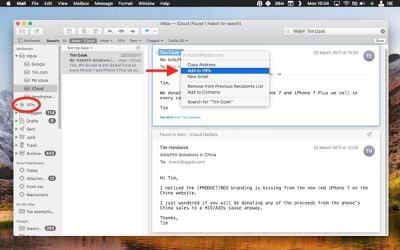
macOS Mail VIPs

With at least one contact in your VIPs list, a special VIP inbox will appear in the Favorites bar. If you click the VIP inbox and select a VIP, only messages from that person will be shown in the message list.

How to Revoke a Contact's VIP Status in macOS

In Mail, you can right-click on a person's VIP mailbox in the sidebar and select Remove from VIPs. Alternatively:

  1. Select a message in your inbox from the person whose VIP status you want to remove.

  2. Click the star next to the person's name so that the symbol is no longer opaque. You can also click the down arrow next to the name or address and select Remove from VIPs in the dropdown menu.
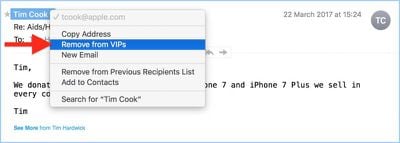
macos remove VIPs

How to Set Up VIP Alerts in macOS

  1. Launch the Mail app.

  2. Select Preferences... from the Mail menu bar.

  3. Stay in the General pane, and select VIPs from the dropdown menu next to New message notifications.
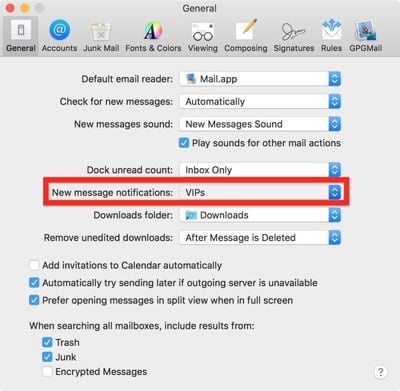
macOS VIP notifications

How to Add a Contact to Your VIP List in iOS 11

  1. Launch the Mail app on your iPhone or iPad.

  2. Tap Mailboxes in the upper left corner of the screen.

  3. If you've not created any VIPs before, tap the VIP inbox, which should appear below your regular mailboxes. If you're adding to an existing VIP list, tap the circled 'i' icon next to the VIP inbox.

  4. Tap Add VIP. This option will appear either at the center of the screen if you have no VIPs yet, or at the bottom of your existing VIP list.

  5. Select the person from your contacts that you'd like to add to your VIP list. (Note that the contact card needs to include their email address, otherwise you won't be able to add them as a VIP.)
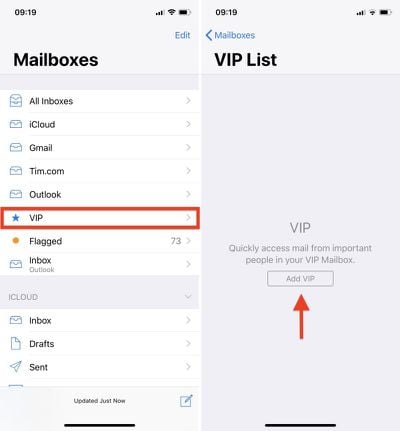
ios 11 add VIPs Mail

How to Revoke a Contact's VIP status in iOS 11

  1. Launch the Mail app on your iPhone or iPad.

  2. Tap Mailboxes in the upper left corner of the screen.

  3. Tap the circled 'i' icon next to the VIP inbox.

  4. Swipe across the name of the person you want to remove from your VIP list, tap Delete, and you're done. Alternatively, if you want to remove several contacts, tap Edit in the upper right corner of the screen.
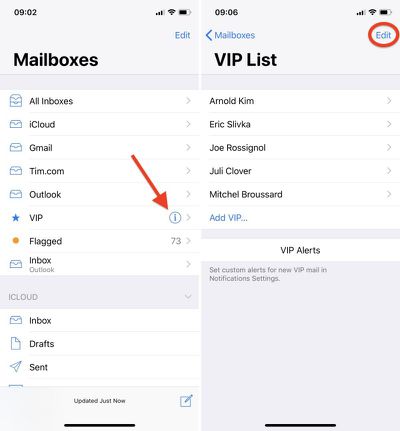
  5. Tap the red minus symbol next to the contacts that you wish to remove from your VIP list.

  6. Tap Delete.

  7. Tap Done in the upper right corner of the screen.

ios 11 revoke VIPs Mail

How to Set Up VIP Alerts in iOS 11 and Apple Watch

You can set custom notifications using the VIP alerts button on the VIP list screen. To change your custom VIP alerts at any time, open the Settings app and tap through to Notifications -> Mail -> VIP.

Similarly, you may find email alerts on your Apple Watch aren't worth your time unless the messages are from specific people. So add these to your VIP list, and you can disable all watch Mail notifications except for VIP alerts. You can find these settings in the iOS Watch app in Notifications -> Mail.
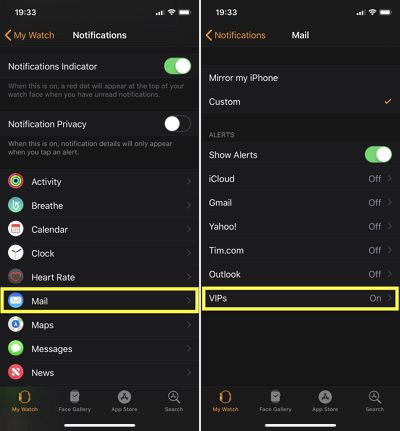
VIP alerts apple watch

How to Add a Contact to Your VIP List in iCloud Mail

  1. If you haven't already, navigate to icloud.com in a web browser, sign in using your Apple ID credentials, and select Mail in the web app list.

  2. Select a message in your inbox from the sender you want to make a VIP.

  3. Click the sender's name or email address in the message header.

  4. In the dropdown menu, tick the checkbox next to VIP and click Save.
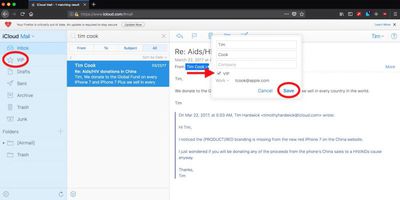
icloud mail VIPs

Note that you can also make a sender a VIP by dragging a message from the sender to the VIP folder in the iCloud Mail sidebar.

How to Revoke a Contact's VIP Status in iCloud Mail

  1. In iCloud Mail, select a message from the person whose VIP status you want to remove.

  2. Click the sender's name or email address in the message header.

  3. In the dropdown menu, untick the checkbox next to VIP and click Save.
Related Roundup: Apple Watch 12
Buyer's Guide: Apple Watch (Buy Now)

Popular Stories

apple watch series 3 design

Apple Offers Steps to Fix Daylight Saving Time Bug on Apple Watch

Sunday November 1, 2026 3:34 am PST by
Apple has published a support document describing what to do if your Apple Watch continues to show time that's off by one hour after daylight savings time changes. "This incorrect time appears only on the Always On display when your wrist is down," says Apple. "When you activate the display by tapping it or raising your wrist, the time changes to the correct hour." To fix the issue, Apple says ...
muse apple watch app

Meta's Muse AI Agent Comes to Apple Watch

Monday November 9, 2026 1:55 pm PST by
Meta today updated the Muse app for iOS to add Apple Watch support, which means Muse users can access the proactive AI agent from the watch. The app adds the Muse character to the watch with an option to text it, dictate text to it, or call it. There's also a Muse complication for quick access. Muse is Meta's personal AI agent that can complete tasks for users. It is available as a...
siri recap live rewind

watchOS 27.3 Brings Live Rewind and Siri Recap to Apple Watch

Tuesday November 3, 2026 10:35 am PST by
With the first beta of watchOS 27.3, Apple is introducing new Audio Intelligence features it previewed for the Apple Watch Series 12 and Ultra 4 earlier this year. Powered by the S11 chip, Audio Intelligence includes Live Rewind, Siri Recap, Sound Recognition, and Shazam Music Recognition. Sound Recognition and Shazam are already on the watch, but Live Rewind and Siri Recap are now available ...

Top Rated Comments

113 months ago
they should pay much more attention to mail app, they've been ignoring it for a long time .. it's ok for a personal usage, but I'm missing some important features for a work related mail handling - especially more advanced text formatting/highlighting, issues with tables, not possibly to schedule emails etc etc. But Apple has been ignoring MacOS as a whole for quite some time (I blame Cook) which is sad
Score: 3 Votes (Like | Disagree)
113 months ago
macOS has a limit of 100 VIP, but iOS doesn’t, so you can add 100+ via your iDevice and these will work as will on the macOS mail app. Been using the “trick” for a few years, no problem so far on macOS Sierra.

You can also add VIP to contacts who aren't in your address book on iOS. When you receive an email in the iOS mail app, just click on the email address in the open email and there will appear a window overlay on top. In one of the first fields, you can choose "add to VIP".

Wish apple would remove the limit, since I like using it for important clients
Score: 1 Votes (Like | Disagree)
Latest Stories
The 50+ Best Apple Black Friday Deals Still Available on AirPods, iPads, and More
53 minutes ago
HomePod Mini 2 in (RED) Seemingly Spotted Ahead of Announcement
11 hours ago
Apple's M6 and PROLED MacBook Pro Reach New Low Prices for Black Friday
21 hours ago
The MacRumors Show: iPhone Air 2 and iPhone 18 Are Coming
21 hours ago
Apple Store in Brisbane Reopening Next Month With New Design
22 hours ago
The 60+ Best Black Friday Accessory Deals on iPhone Chargers, TVs, Headphones, and More
23 hours ago
GTA VI Now (Barely) Running on Apple Silicon Macs
23 hours ago
The Best Black Friday Streaming Deals on Apple TV, Disney+, and More
23 hours ago
Apple TV's 'Carême' Wins International Emmy for Best Drama
1 day ago
iPhone 18 Production Delay Leaves Apple Little Time Before Launch
1 day ago
The Best Black Friday AirPods Deals Still Available
17 hours ago
The Best Black Friday Deals on Apple Home Products
1 day ago
The Best Black Friday iPhone Deals Still Available
17 hours ago
The Best Black Friday iPad Deals Still Available
17 hours ago
The Best Black Friday Apple Watch Deals Still Available
17 hours ago
The Best Black Friday AirTag Deals Still Available
17 hours ago
The Best Black Friday Mac Deals Still Available
17 hours ago
iPhone Share of US Smartphone Market Hits 57% as Rivals Slip
1 day ago
iPhone 20 Pro Rumored to Feature 3D-Printed Titanium Frame
1 day ago
Apple's Official 2026 Black Friday Offer Starts Rolling Out
2 days ago
Halide Adds Fill Light Feature for iPhone Duo
2 days ago
MacBook Air Black Friday Deals Now Live With Massive $399 Savings
2 days ago
Amazon Discounts All MacBook Neo Models by $99 for Black Friday
2 days ago
Kodak Launches Unique AirTag Rival With E-Ink Display
2 days ago
Here's Why the Apple Store is Going Down
2 days ago
Apple Still Working on Giant Foldable iPad That Could Cost $5,000
2 days ago
iPhones Dominate China's Weak Singles' Day Smartphone Sales
2 days ago
iPhone 20 Pro Could Feature Ceramic in Limited-Edition Model
2 days ago
Apple Faces Korean Regulator Review Over iPhone 16 AI Advertising
2 days ago
Apple Watch Ultra 4 Hits New Best-Ever Price of $649.99 for Black Friday
2 days ago
Related Apple News: Opinion | Motoring | World News | Education | South Africa