If you're an iPhone user you know how the Messages app works. But when Apple released iOS 17 last year, it introduced an overhauled interface for the Messages app that includes several useful hidden functions and customization options that might not be obvious to the average user.
Below, we've collected 10 of our favorite tips that we hope will make your Messages experience more convenient and enjoyable.
1. Faster Access to Photo Library
Previously in iOS 16, sharing photos involved tapping the Photos icon in the row of apps below the text input field to access your Camera Roll. But in iOS 17 the Photos button is gone, which makes it appear as though you have to tap the + button to the left of the text field to reveal the option.
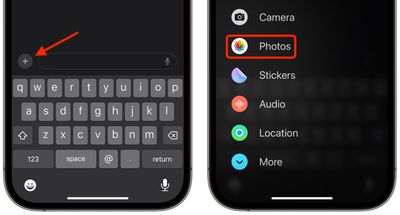
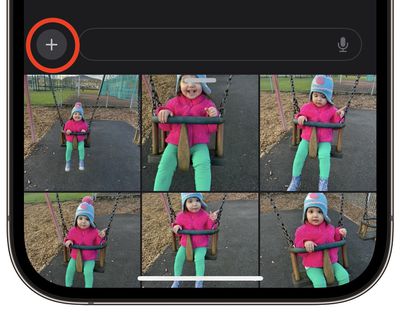
Thankfully, accessing your photos doesn't have to involve two steps instead of one. If you press and hold the + button, you will be dropped straight into your photo library, ready to select the pictures you want to send.
2. Customize Messages Menu
When you tap the "+" button in Messages to bring up the column of options, they are arranged in a default order. From the top, there's Camera, Photos, Stickers, Cash (where available), Audio, and Location. At the very bottom is a More button which when tapped reveals any other installed Messages apps (you can also swipe up to reveal this hidden list).
You can reorganize the apps in the list and bring your most-used apps nearer to the top, and even bring up more apps from the "More" section to the first screen of options, in the following way.
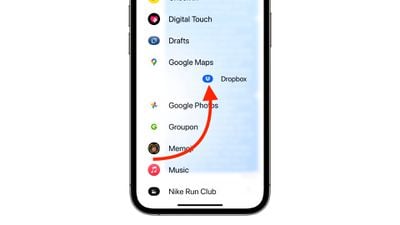
To move an app within the same screen, press and hold on its icon, then drag it to your preferred location and let go. To move an app up to the first page of icons, simply do the same, but drag it up to the top of the screen and place it where you want.
3. Quicker Replies
Before iOS 17, replying to a specific chat bubble in the Messages app involved long pressing on it, then hitting reply. But Apple's swipe to reply feature speeds up the process, and helps you keep track of which message bubble you're replying to with some visual cues.
- Select an iMessage conversation, find the specific message you want to reply to, then swipe right on it.
- The selected message will be highlighted and a text box will appear, allowing you to type your reply and hit Send.
- To return to the main conversation, tap the blurred background.
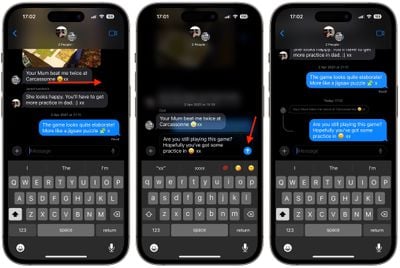
Notice the visual thread that indicates the nested connection between your reply and the original message, which is particularly helpful in group conversations to keep track of who is replying to whom. Remember that everyone in a group conversation can read your inline replies. If you don't want this, start a new conversation with the person you want to reply to. Also, bear in mind that swipe to reply only works on iMessages and not for regular SMS texts.
4. Turn Live Photos into Live Stickers
In iOS 17, you can take subjects in your Live Photos and turn them into Live Stickers for use in Messages and elsewhere. As the name suggests, Live Stickers are basically looping animated stickers that you can share with family and friends.
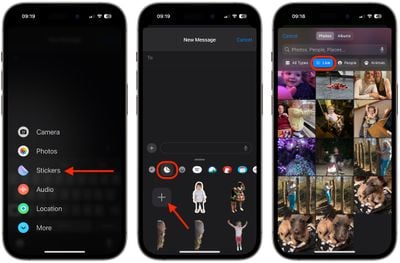
- Tap the + button to the left of the text input field, then tap the Stickers option.
- Select the Stickers icon in the row of sticker apps, then tap the big + button in the stickers menu.
- Next, tap Live below the image search bar, then select a Live Photo.

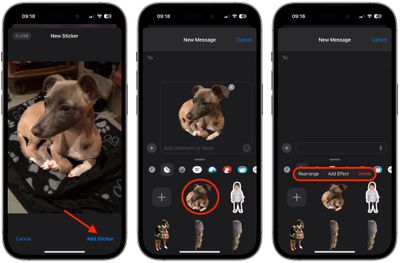
- Tap Add Sticker at the bottom of the screen, then tap the sticker you just made to select it, ready for sending. Alternatively, press and hold the sticker, then drag it to an earlier part of the conversation.
- You can also long press on the sticker to rearrange it in your collection, add an effect, or delete it. Note that if you add an effect to your creation with the Add Effect option, it will cease to be a Live Sticker and instead become a standard static sticker.
5. Use Emoji as Stickers
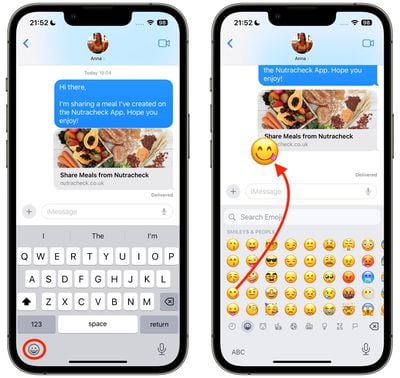
In iOS 17, Apple treats all standard emoji as stickers, allowing them to be used in just the same way as actual stickers. What that essentially means is that you aren't limited to inserting them in a conversation. You can also drag them anywhere on a message bubble. You can even layer them on top of one another to create little emoji scenes.
- In a Messages conversation, tap the Emoji button in the bottom-left corner of the screen.
- Press and hold on an emoji in the list, then drag it up onto the message bubble that you want to react to and release your finger. (Note that you can drag more emoji onto the same message bubble with the same action.)
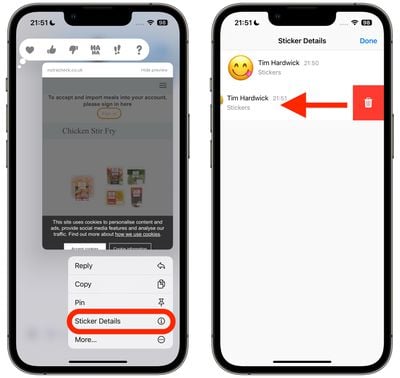
- To edit emoji stickers on a message bubble, press and hold the emoji, then tap Sticker Details in the popup menu.
- To delete an emoji sticker, swipe left on it, then tap the red Trash button that appears.
- Tap Done to return to the conversation.
6. Manage Sticker Apps
Standard sticker packs still feature in iOS 17, but the way you access and manage them has changed since iOS 16. The following steps show you how to access, rearrange, and delete installed sticker apps on your iPhone.
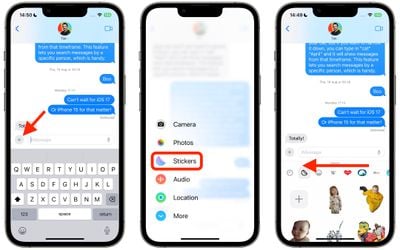
- In a conversation thread, tap the + button to the left of the text input field.
- Tap Stickers in the vertical menu.
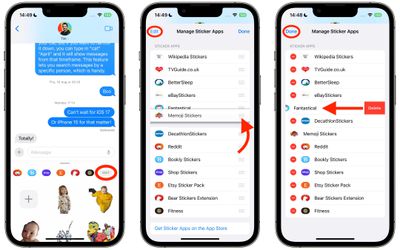
- Below the text input field, swipe left across the installed sticker apps all the way to the end of the row, then tap the Edit button.
- To rearrange the sticker apps as you want them to appear in the previous row, press the three lines beside an app and drag it up or down to your preferred to location.
- To delete a sticker app, tap Edit in the top left, then tap the red delete button next to the app in question.
- To finish, tap Done in the top right.
7. Use Search Filters
Previously in iOS 16, you could type a word or phrase in the search field of Apple's Messages app and it would return matching results, but there was no way to filter messages to more easily find what you were looking for. For example, if you were looking for a message from a friend called "John" that had the word "dinner" in it, you would have to search for "dinner" and then scroll through a bunch of messages from anybody and everybody containing that word.
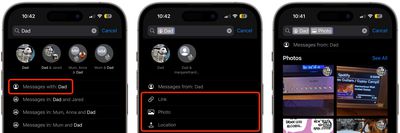
Thankfully, in iOS 17, Apple improved the search function so that you can combine search queries and narrow down results to quickly find the messages that you're looking for. If you're looking for an image or link from a certain person, for example, first type in the person's name, then tap "Messages with: [person's name]".
Next, select the "Photo" or "Link" filter that appears, and Messages will narrow down the search results further. You can then enter an additional keyword and Messages will show you any links or pictures containing the word. Alternatively, you can start a search with a keyword and then filter the results by person, link, photo, or location.
8. Save Audio Messages
Another smaller improvement in Messages in iOS 17 is that it's a lot clearer where audio messages are kept when you choose to save them. In iOS 16, pressing and holding an audio message brought up a Save option in the pop-up menu, but after tapping it, it was not obvious where to go to locate the file.
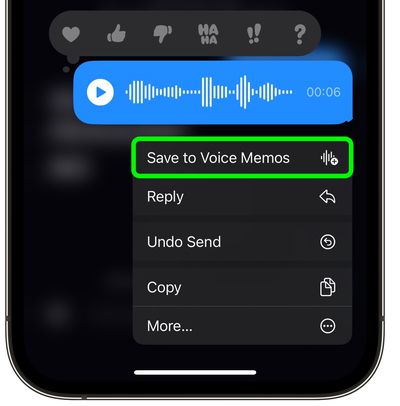
iOS 17, Apple fixed this issue by replacing the "Save" option with "Save to Voice Memos". After tapping it, all you need to do then is open the Voice Memos app, where you'll find the audio message at the top of the list. From there, you can opt to enhance the recording, skip silences, give the memo an identifying name, and delete it when you no longer need it.
9. Adjust Audio Message Speed
When you receive an audio message, you aren't limited to listening to it at the speed it was recorded. If the message includes periodic silences or the person is speaking slowly, you might want to play it back at a faster speed.
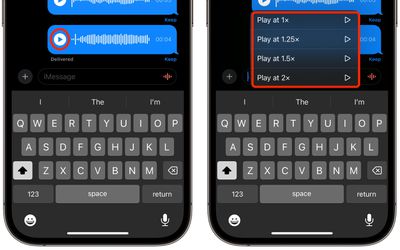
Simply long press on the play button to reveal a menu of playback speed options, including 1x, 1.25x, 1.5x, and 2x.
10. Send Audio Messages Faster
If you tend to send lots of audio messages in succession, you don't need to keep tapping the + button to reveal the Audio option to record another one.
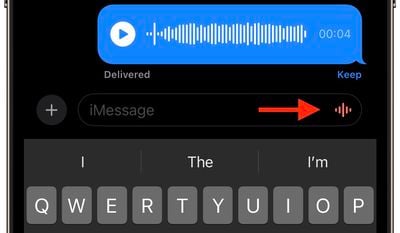
Messages remembers the last kind of message you sent, and will display an audio waveform icon at the right-hand side of the text input field that you can conveniently press and hold to record your next audio message.