Skip to Content

20 Useful Tips for New Apple Watch Owners

If you recently got an Apple Watch or know someone who did, there are a lot of useful hidden little tips and tricks to take advantage of. We've rounded up 20 helpful tips that new Apple Watch owners should be aware of, and there may even be some tips and tricks seasoned Apple Watch owners don't know.


  • Rearrange Apps - In the main app grid, if you press and hold on an app, you can move it around to create a new app grid design. You can also rearrange apps in the Watch app on iPhone by going to App View > Arrangement.
  • Use List View - Hate the grid view? Open up the Watch app on iPhone, tap "App View" and then choose List View to see all of your apps in a list when you press the Apple Watch Digital Crown.
  • Delete Apps - When your watch is in List View, swipe from right to left to delete an app. This works for third-party apps. You can also do this by holding down on an icon in the grid view.
  • Quickly Access Favorite Apps - The side button on the watch opens up recent apps by default, but if you go to the Watch app on iPhone and tap "Dock," you can change it to show a selection of favorite apps instead.
  • Use Tapback for Messages - When you get a message, a Tapback is a quick and useful way to reply. Just press on any incoming message and you can select a response like like, dislike, laugh, and more.
  • Take Advantage of Smart Replies - Smart Replies are also useful for responding to messages on Apple Watch. In the Apple Watch iPhone app under Messages, tap on Default Replies. Tap on any item in the list to customize it, and then when you get a message, swipe down to get to your reply options.
  • Silence a Phone Call - You can silence an incoming call by placing a hand over the Apple Watch's display. This will make the ringing stop, but the call won't be declined.
  • Clear Notifications - Swipe down on the Apple Watch display to get to notifications, and then scroll all the way up through the list and you'll see a Clear All option to get rid of all of your notifications at once.
  • Jump Back to the Top of an App - If you're using an app and need to get back to the top quickly after scrolling down, just tap on the time in the right corner.
  • See Battery Life in Nightstand Mode - When your Apple Watch is charging in Nightstand Mode, tap on the battery icon. Make sure Nightstand Mode is on by opening up the Apple Watch app on iPhone, tapping "General" and then toggling on Nightstand Mode.
  • Swap Between Apps Quickly - Want to get back to the last app you used? Just double press on the Digital Crown.
  • Access Control Center - There are lots of quick tap controls on the Apple Watch in the Control Center. Swipe up from the bottom of the Apple Watch display to get to it. If you're inside an app, press and hold for a second or two and then swipe up.
  • Ping a Lost iPhone - Open up Control Center and then tap the little phone icon to ping your connected iPhone. It's a useful way to find an iPhone you've misplaced. When it's pinging, hold down on the phone icon if you also want to make the camera flash.
  • Skip the Workout Countdown - There's a three second countdown when launching a Workout. To skip it, tap on the display.
  • Pause a Workout - You can quickly pause a workout by pressing the Digital Crown and the Side button together. Press them again to unpause.
  • Mark Workout Segments - In some workouts, it's useful to mark segments. To do so, double tap on the Apple Watch's display during a workout.
  • Make the Mickey Face Tell the Time - If you're using the Mickey or Minnie Apple Watch faces, you can tap on the characters to have them read the time. Note that your sound needs to be on for this to work.
  • Have Siri Read the Time - With any watch face, tap and then hold with two fingers on the display and Siri will read the time. Sound needs to be on.
  • Make a Memoji - The Memoji app on Apple Watch, which looks like a little cartoon face, can be used to create Memoji characters right on the watch. Memoji can be set as watch faces.
  • Control AirPods - You can use ‌Siri‌ to control your AirPods, skipping songs and adjusting volume. If you have AirPods Max or AirPods Pro, ‌Siri‌ can also toggle on Active Noise Cancellation and Transparency mode.

Have other useful Apple Watch tips that we didn't mention here? Let us know in the comments.

Related Roundups: Apple Watch 12, Apple Watch SE 3
Related Forum: Apple Watch

Popular Stories

apple watch series 3 design

Apple Offers Steps to Fix Daylight Saving Time Bug on Apple Watch

Sunday November 1, 2026 3:34 am PST by
Apple has published a support document describing what to do if your Apple Watch continues to show time that's off by one hour after daylight savings time changes. "This incorrect time appears only on the Always On display when your wrist is down," says Apple. "When you activate the display by tapping it or raising your wrist, the time changes to the correct hour." To fix the issue, Apple says ...
muse apple watch app

Meta's Muse AI Agent Comes to Apple Watch

Monday November 9, 2026 1:55 pm PST by
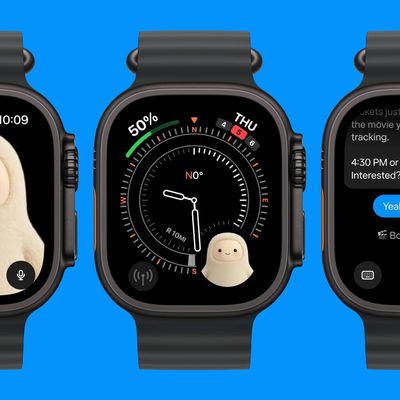
Meta today updated the Muse app for iOS to add Apple Watch support, which means Muse users can access the proactive AI agent from the watch. The app adds the Muse character to the watch with an option to text it, dictate text to it, or call it. There's also a Muse complication for quick access. Muse is Meta's personal AI agent that can complete tasks for users. It is available as a...
siri recap live rewind

watchOS 27.3 Brings Live Rewind and Siri Recap to Apple Watch

Tuesday November 3, 2026 10:35 am PST by
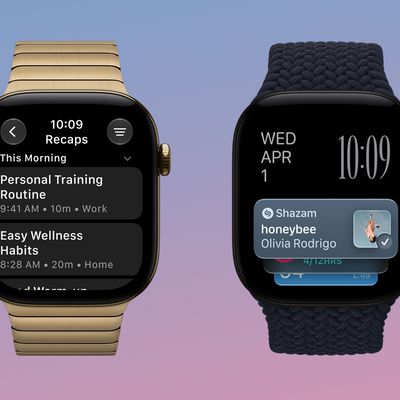
With the first beta of watchOS 27.3, Apple is introducing new Audio Intelligence features it previewed for the Apple Watch Series 12 and Ultra 4 earlier this year. Powered by the S11 chip, Audio Intelligence includes Live Rewind, Siri Recap, Sound Recognition, and Shazam Music Recognition. Sound Recognition and Shazam are already on the watch, but Live Rewind and Siri Recap are now available ...

Top Rated Comments

alexandr Avatar
77 months ago

Jump Back to the Top of an App - If you're using an app and need to get back to the top quickly after scrolling down, just tap on the time in the right corner.
time has nothing to do with it - you need to tap the top of the screen, same way you would on a iphone...
Score: 4 Votes (Like | Disagree)
Apple_Robert Avatar
77 months ago

I don't think it'll be that long, they've been making progress towards that outcome. Physical storage size is pretty much there and battery tech is heading there, with some app tweaks I think they'd have a solid standalone device.
Progress is being made but, it is still spec bumps. I think battery technology is the biggest hurdle.
Score: 3 Votes (Like | Disagree)
FlyBry Avatar
77 months ago

Make sure the fingers are together and in the center of the dial.
make sure the watch is not in silent mode - check the watch settings
Score: 3 Votes (Like | Disagree)
verpeiler Avatar
77 months ago

time has nothing to do with it - you need to tap the top of the screen, same way you would on a iphone...
Well, on the Apple Watch he is kinda right, if you tap to far left it will do nothing. Tap on the time and it works
Score: 3 Votes (Like | Disagree)
subi257 Avatar
77 months ago

Apple Pay feature instead of having to pull your iPhone out now cmon now
Definitely, I use the AW for Apple pay all of the time now. It is so convenient. I have only come across an issue in my local supermarket and you would scan your member/convenience card to get a scanner to scan as you shop. The kiosk for the scanners won't read the watch, but read the card instantly.
Score: 2 Votes (Like | Disagree)
77 months ago
Apple Pay feature instead of having to pull your iPhone out now cmon now
Score: 2 Votes (Like | Disagree)
Latest Stories
The 50+ Best Apple Black Friday Deals on AirPods, iPads, MacBooks, and More
15 hours ago
iPhone Share of US Smartphone Market Hits 57% as Rivals Slip
29 minutes ago
iPhone 20 Pro Rumored to Feature 3D-Printed Titanium Frame
2 hours ago
Apple's Official 2026 Black Friday Offer Starts Rolling Out
20 hours ago
Halide Adds Fill Light Feature for iPhone Duo
20 hours ago
MacBook Air Black Friday Deals Now Live With Massive $399 Savings
21 hours ago
Amazon Discounts All MacBook Neo Models by $99 for Black Friday
21 hours ago
Kodak Launches Unique AirTag Rival With E-Ink Display
22 hours ago
Here's Why the Apple Store is Going Down
23 hours ago
Apple Still Working on Giant Foldable iPad That Could Cost $5,000
23 hours ago
iPhones Dominate China's Weak Singles' Day Smartphone Sales
23 hours ago
iPhone 20 Pro Could Feature Ceramic in Limited-Edition Model
1 day ago
Apple Faces Korean Regulator Review Over iPhone 16 AI Advertising
1 day ago
Apple Watch Ultra 4 Hits New Best-Ever Price of $649.99 for Black Friday

1 day ago
New Apple Store Opening in India, Download the Special Wallpaper Now
1 day ago
Redesigned OLED MacBook Air Could Launch in 2027 or 2028

2 days ago
AirPods Pro 3 for $149 is One of The Best Black Friday Deals This Year
2 days ago
1Password Security Breach: What Was Accessed and What Wasn't
2 days ago
WhatsApp Finally Adds Scheduled Messages
2 days ago
Get Apple's Cheapest iPad for $379 During Amazon's Black Friday Sale
2 days ago
Rumor: iOS 28 to Revamp Notifications
2 days ago
iPhone 18 Pro Max Battery Exhausts a Toy Cyclops in New Apple Ad
2 days ago
$799 Smart Glasses Promise Vision Pro-Style Controls in a 45g Frame
2 days ago
How To Get an iPhone Duo or iPhone 18 Pro at No Cost Through T-Mobile for Black Friday
2 days ago
Apple Has an iPhone Notifications Problem
2 days ago
Amazon Sweetens Black Friday Deals on PROLED MacBook Pro
2 days ago
Apple Has iPads Running macOS Internally, Says Gurman
2 days ago
Apple Is Far From Done With 2026: Here's What's Still Coming
2 days ago
Threads App for iPad Now Available
2 days ago
Claude Now Lets You Install Artifacts as Desktop Apps
2 days ago
Related Apple News: Business | Politics | Technology | News | Health